logo

How to give backend access

Jul 10, 2026
1

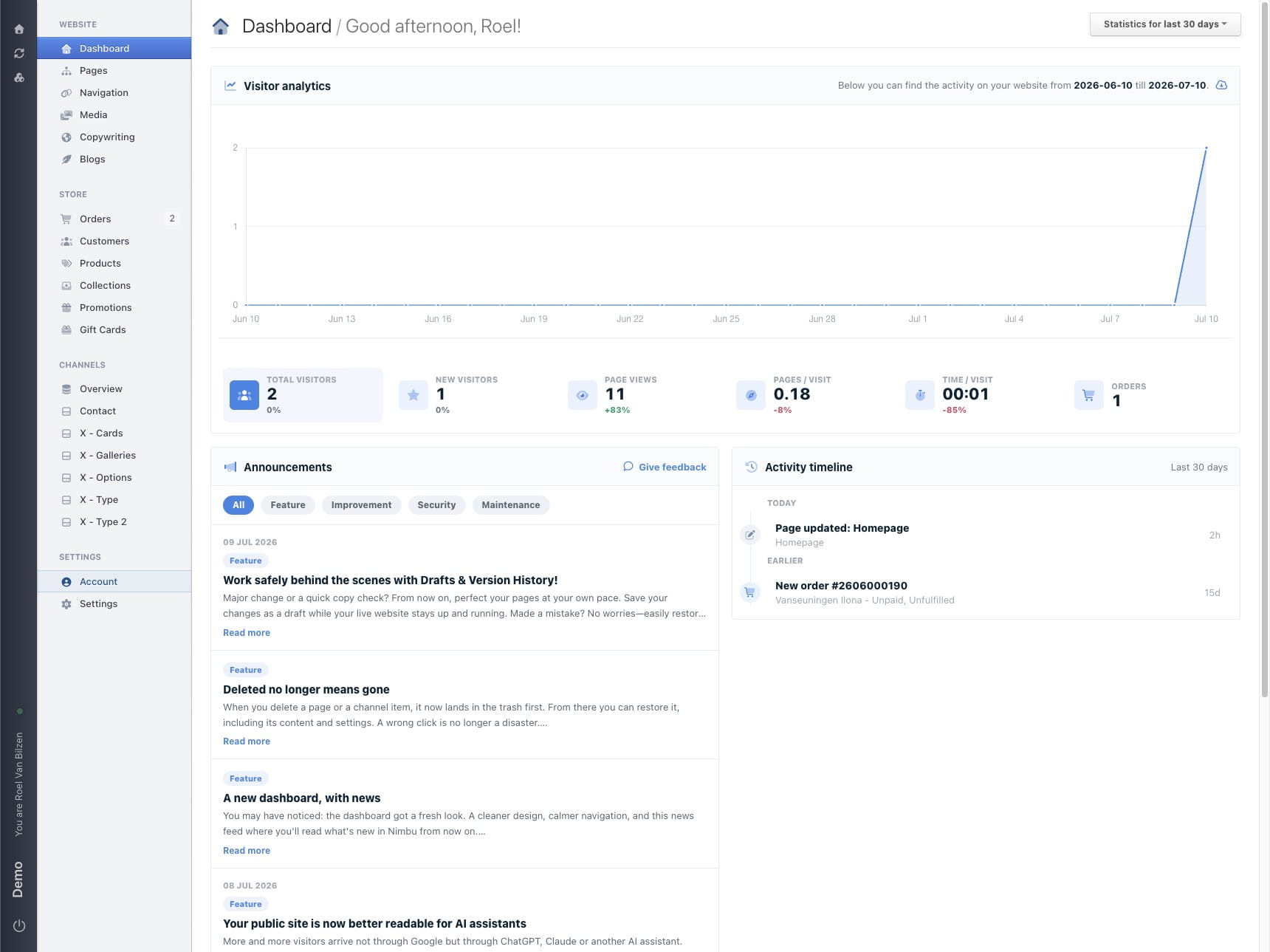
Click on "Account"

Click on "Account"
2

Under "Team members" is a list of all access that has been granted to other people.
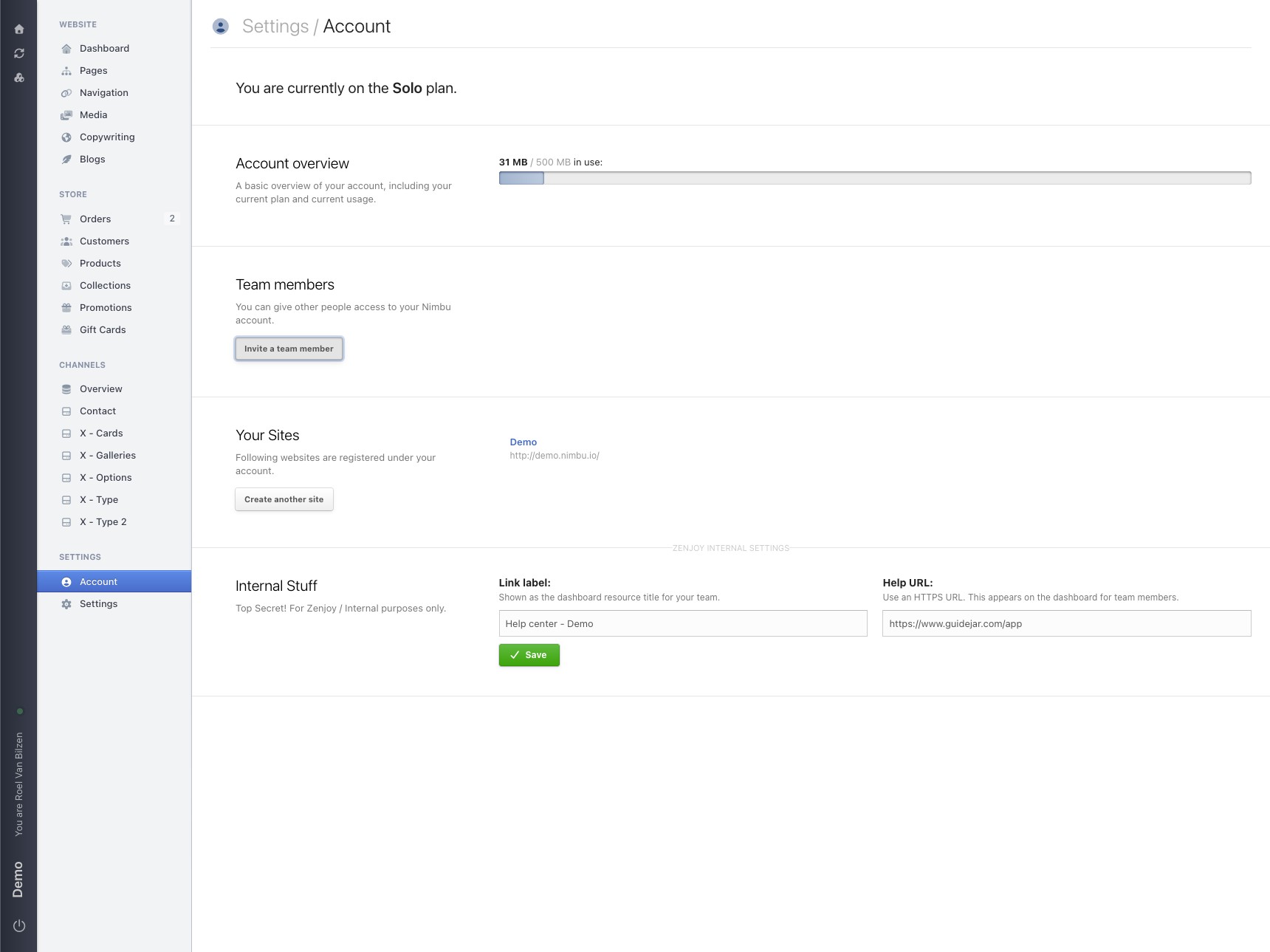
Under **"Team members"** is a list of all access that has been granted to other people.
3

Click on "Invite a team member"

Click on "Invite a team member"
4

Fill out the email address, first name, and last name of the person you want to invite.
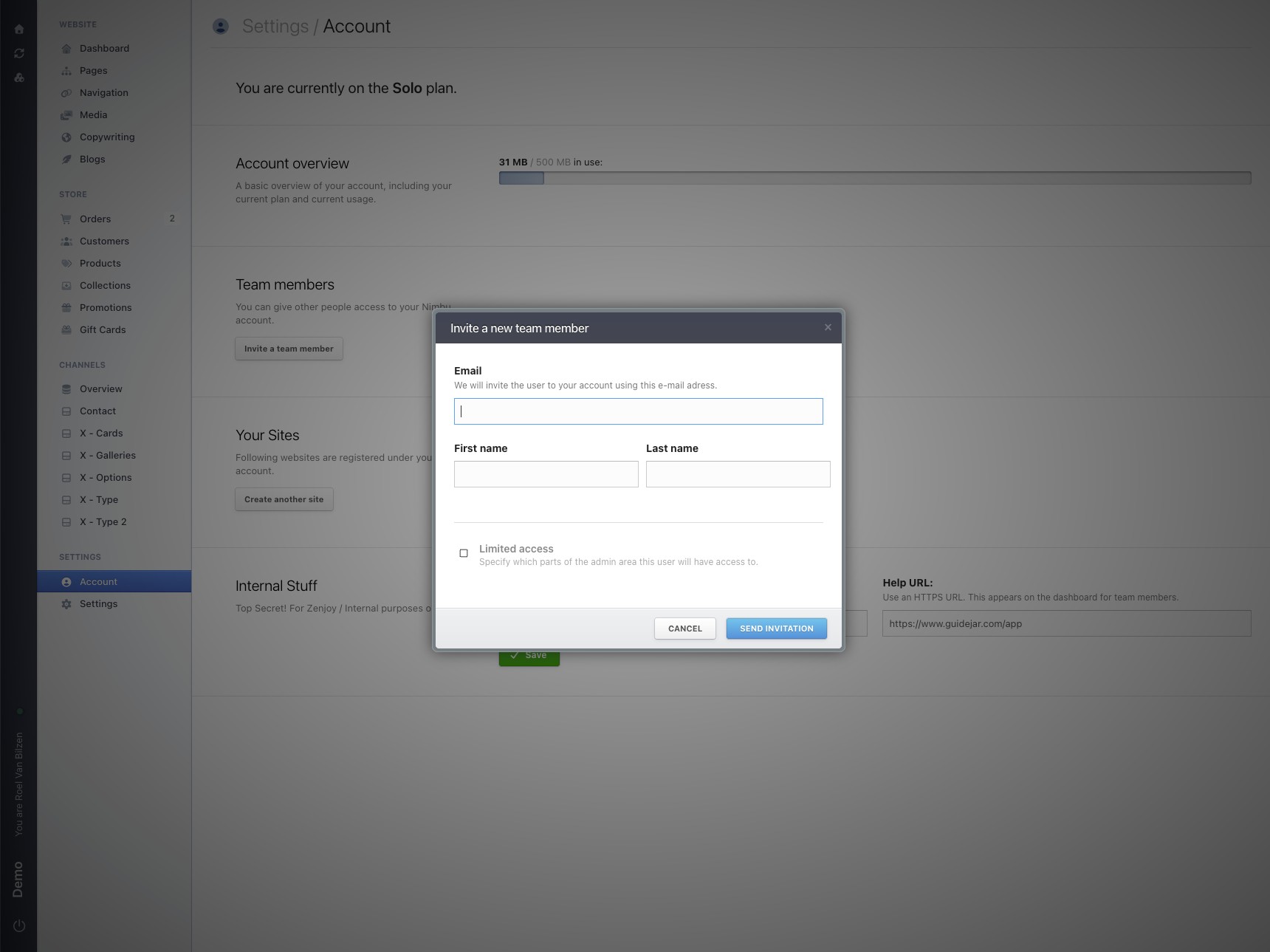
Fill out the email address, first name, and last name of the person you want to invite.
5

Limit their access by changing the permissions they have.
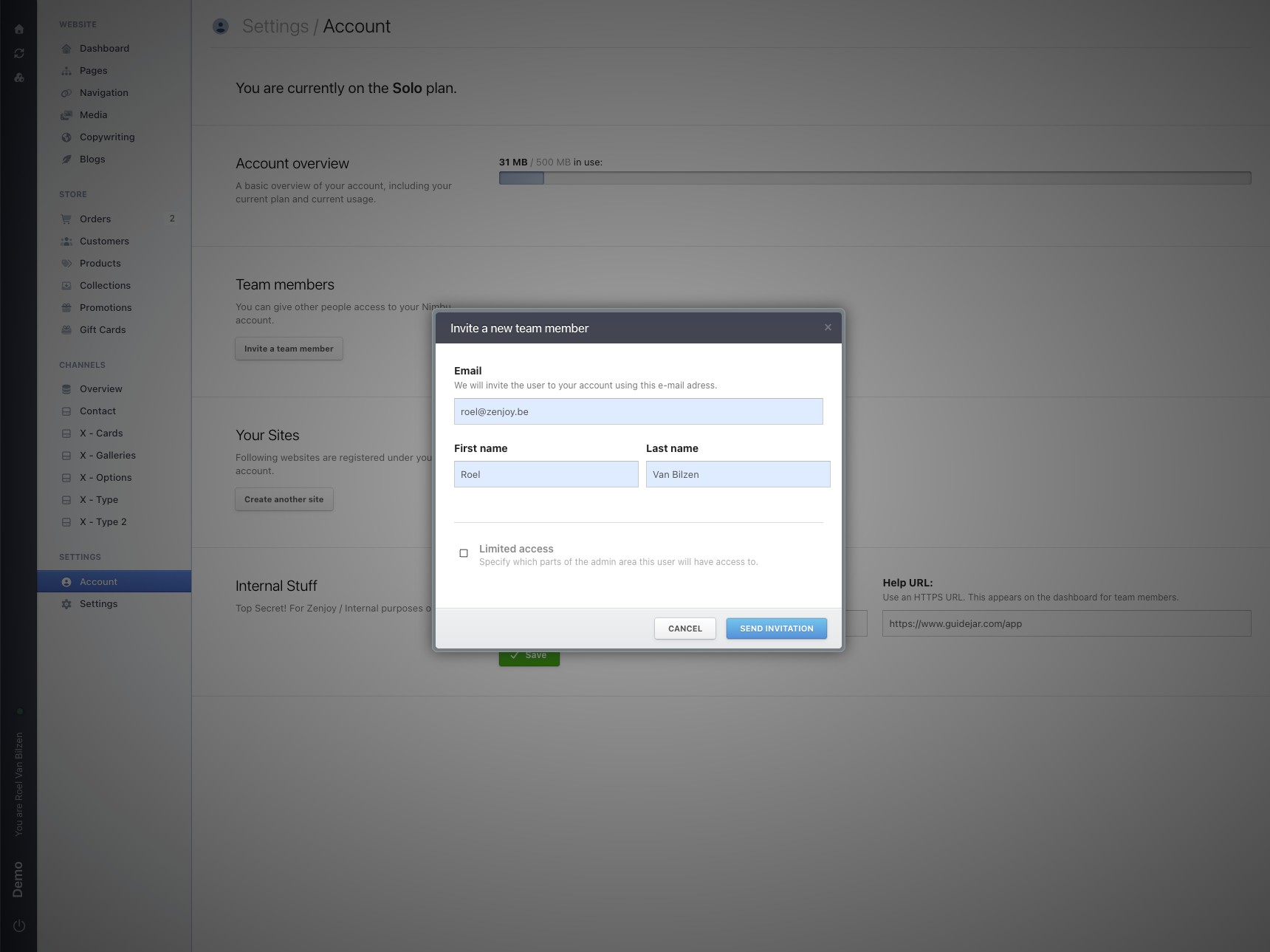
Limit their access by changing the permissions they have.
6

Uncheck to remove access to part of Nimbu.
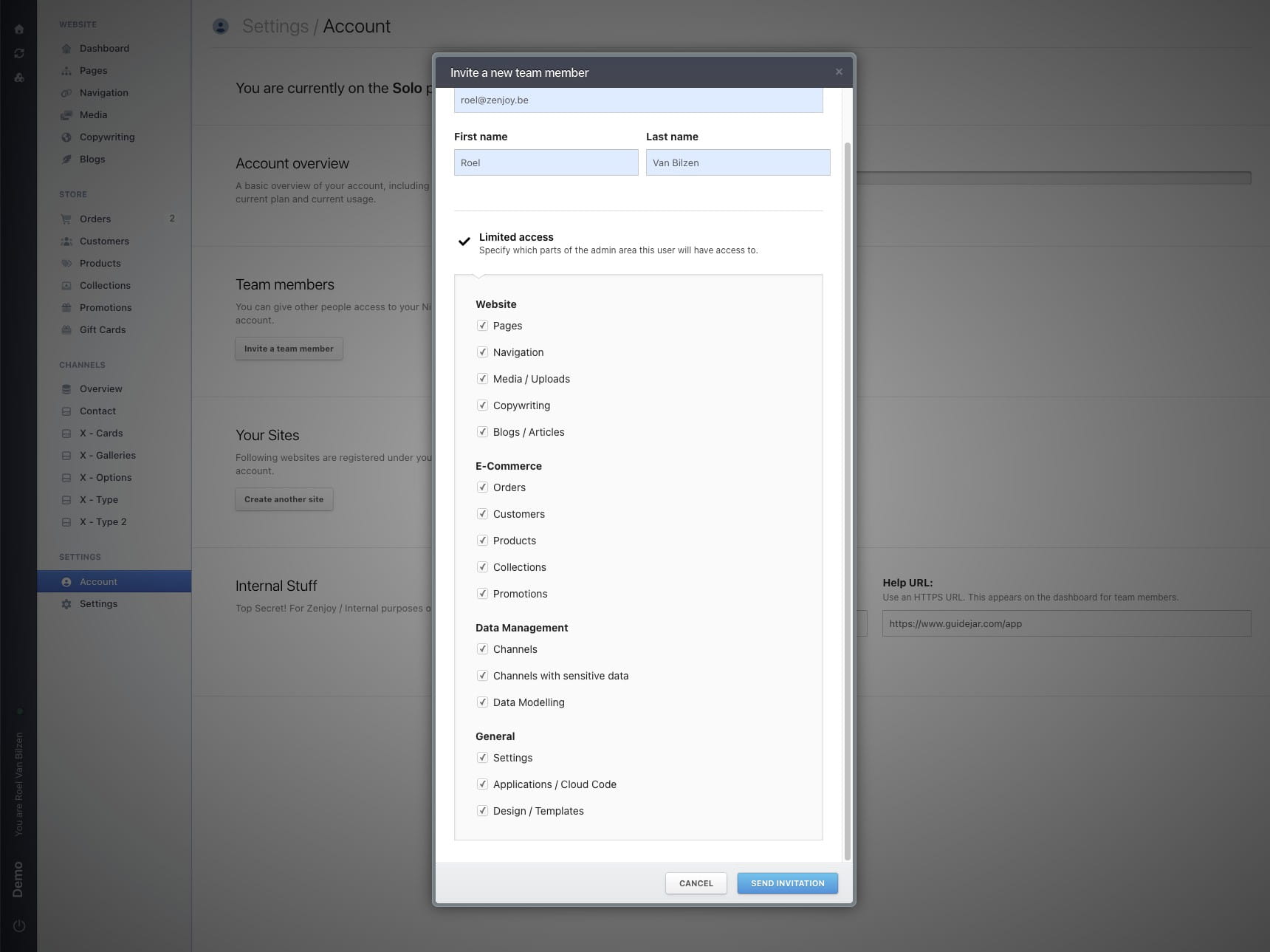
Uncheck to remove access to part of Nimbu.
7

Click "Send invitation" to send the invitation. The person will receive an email to activate their account.

Click **"Send invitation"** to send the invitation. The person will receive an email to activate their account.
8

The new team member is visible in the overview. It shows their status, how much time they have left to accept the invitation, and lets you copy the invitation link, resend the invitation email, revoke access, or delete the account.
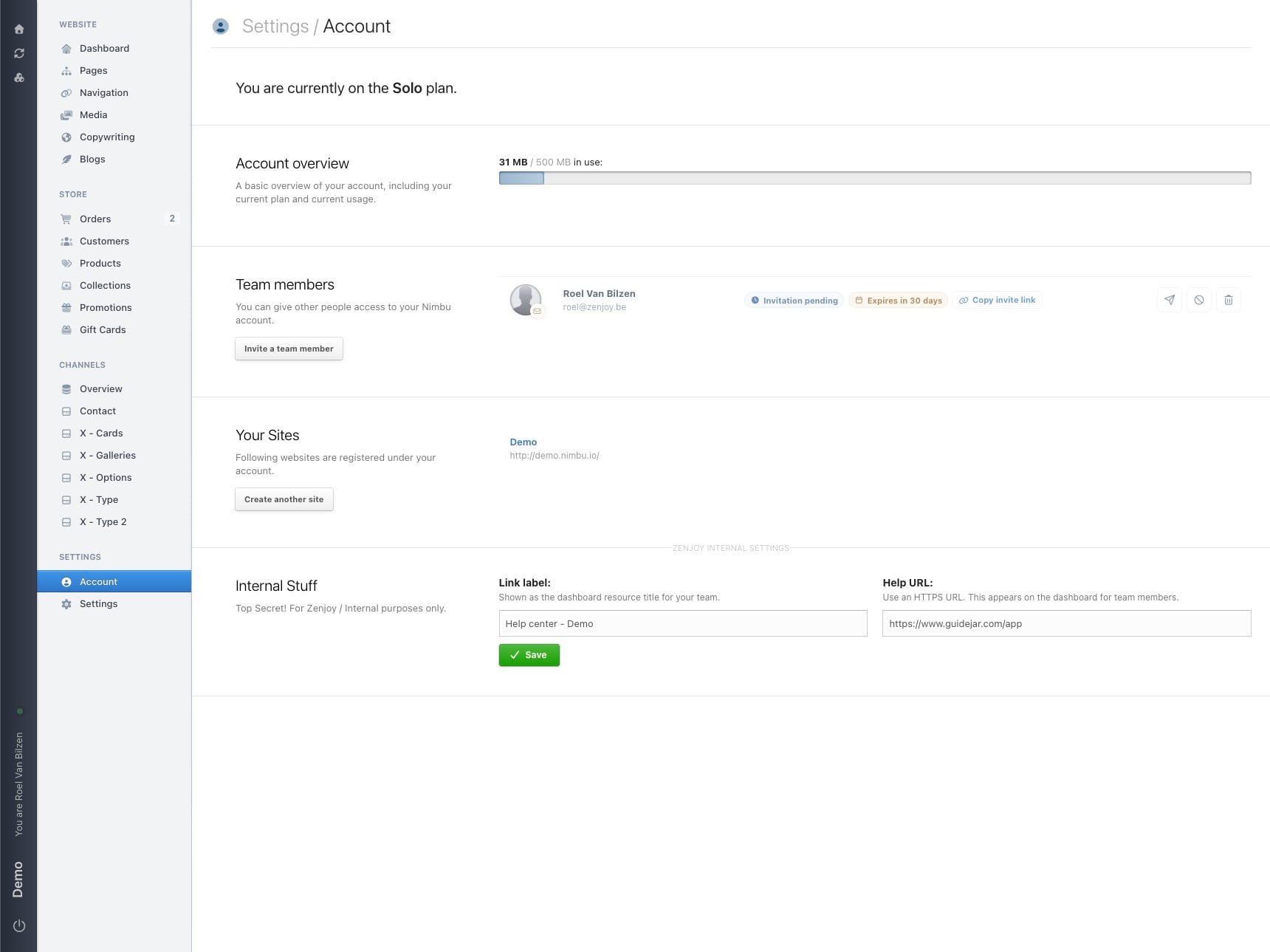
The new team member is visible in the overview.
It shows their status, how much time they have left to accept the invitation, and lets you copy the invitation link, resend the invitation email, revoke access, or delete the account.
9

After the invited person clicks the link in the invitation email, they can accept the invitation.
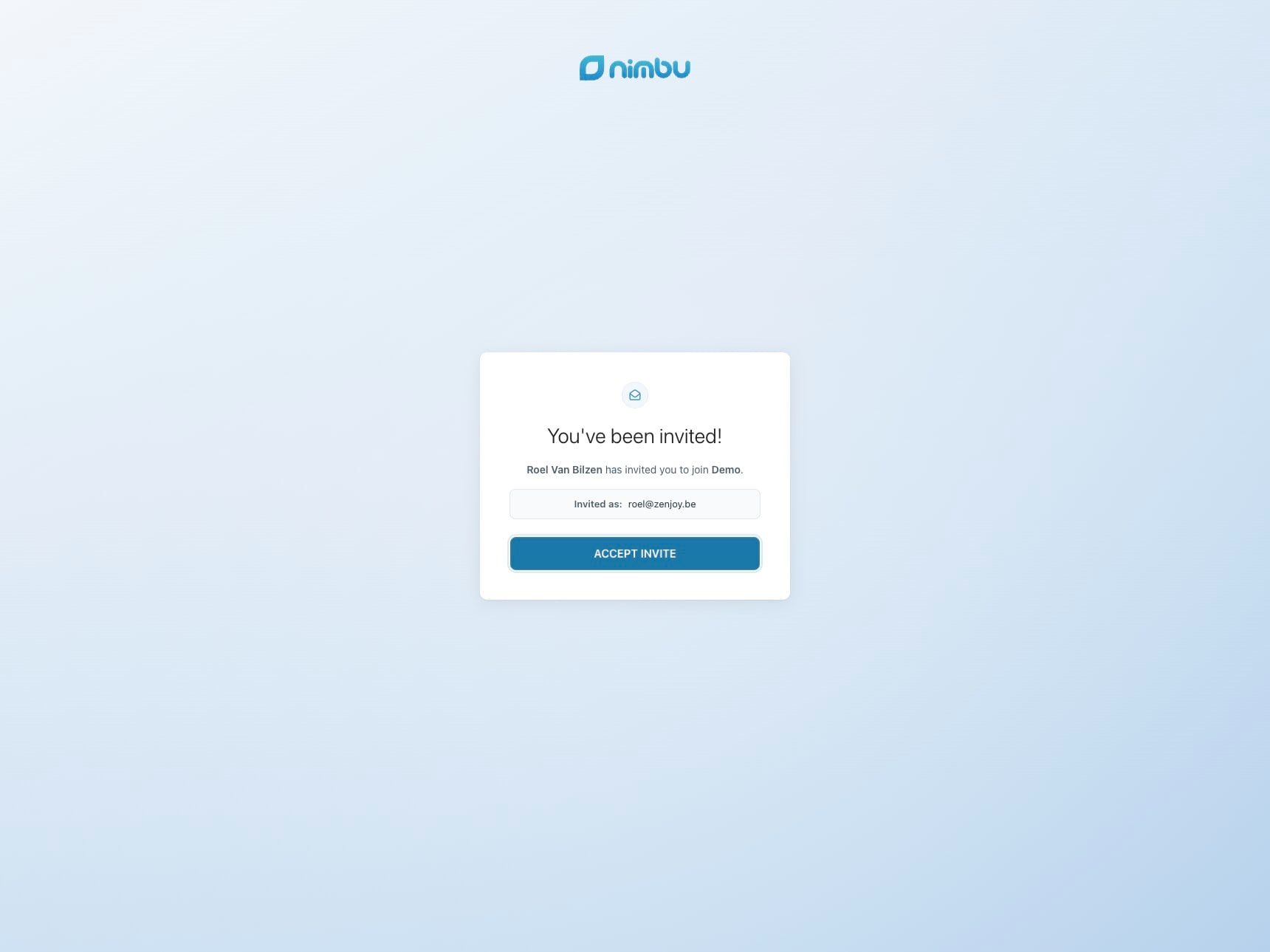
After the invited person clicks the link in the invitation email, they can accept the invitation.
10

After the invited person has accepted the invitation, the overview is updated.
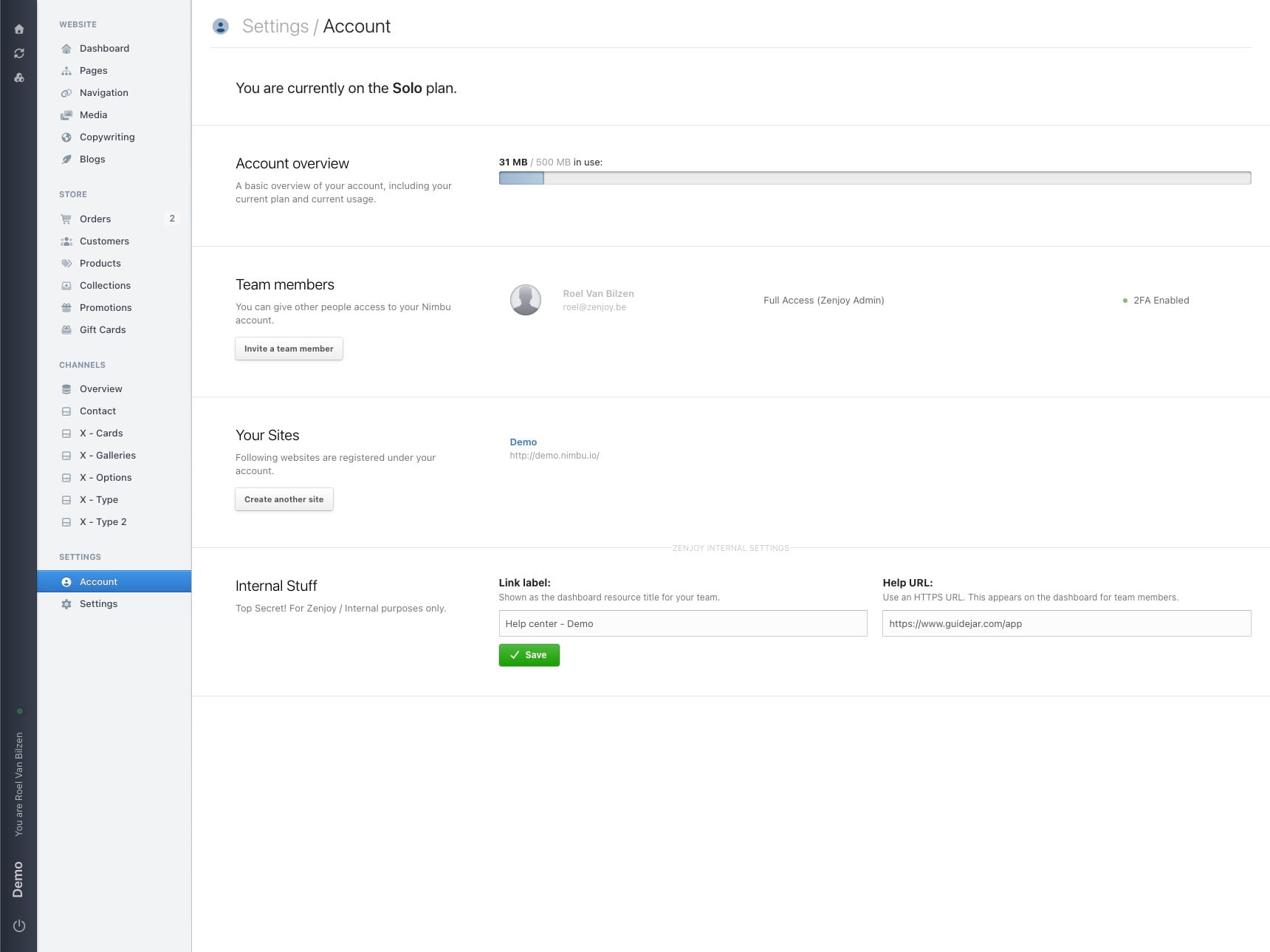
After the invited person has accepted the invitation, the overview is updated.