logo

Channel filter

Jul 10, 2026
1

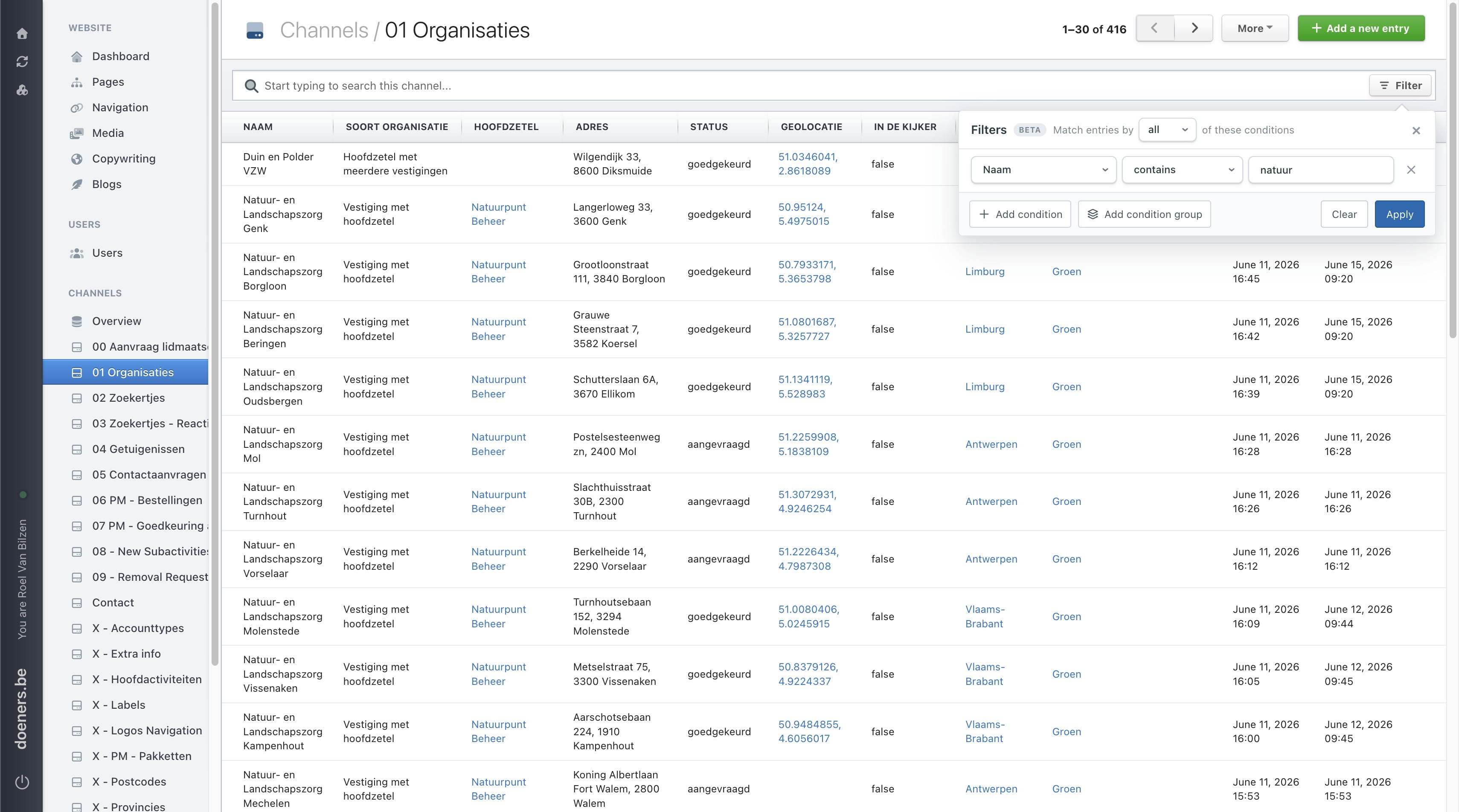
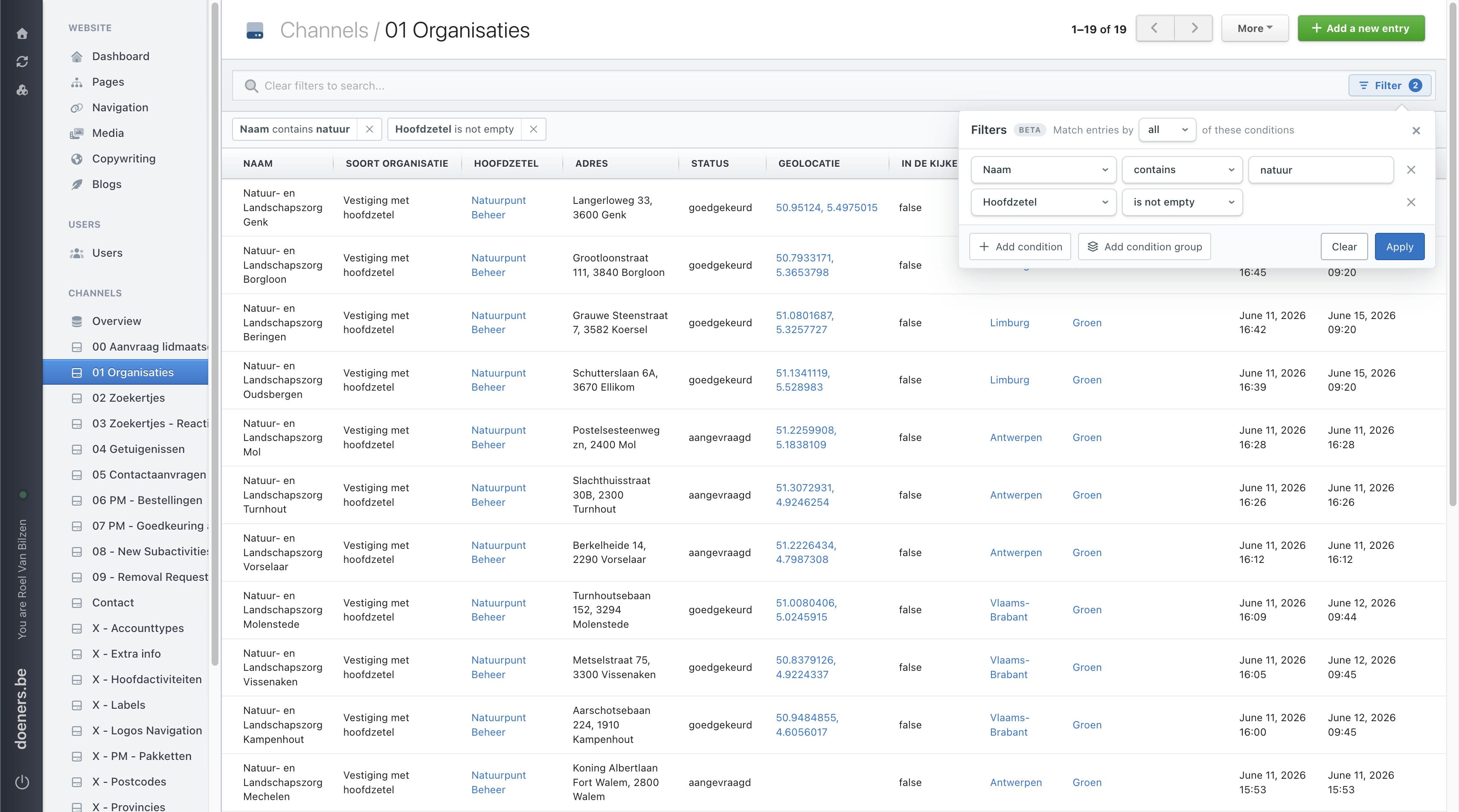
Click "Filter" to open the filter dialog.
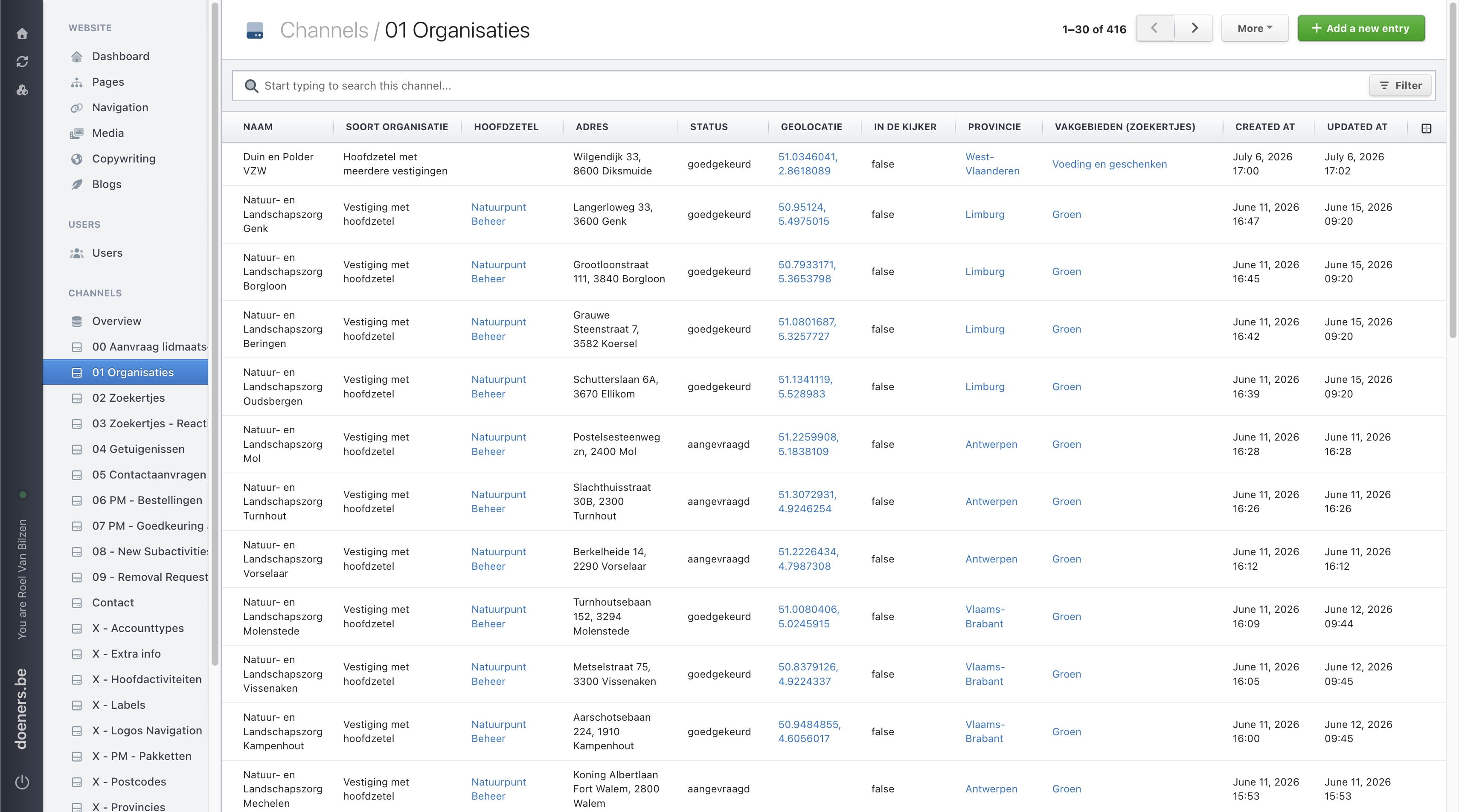
Click **"Filter"** to open the filter dialog.
2

Select whether the entries should match all or any of the filters.
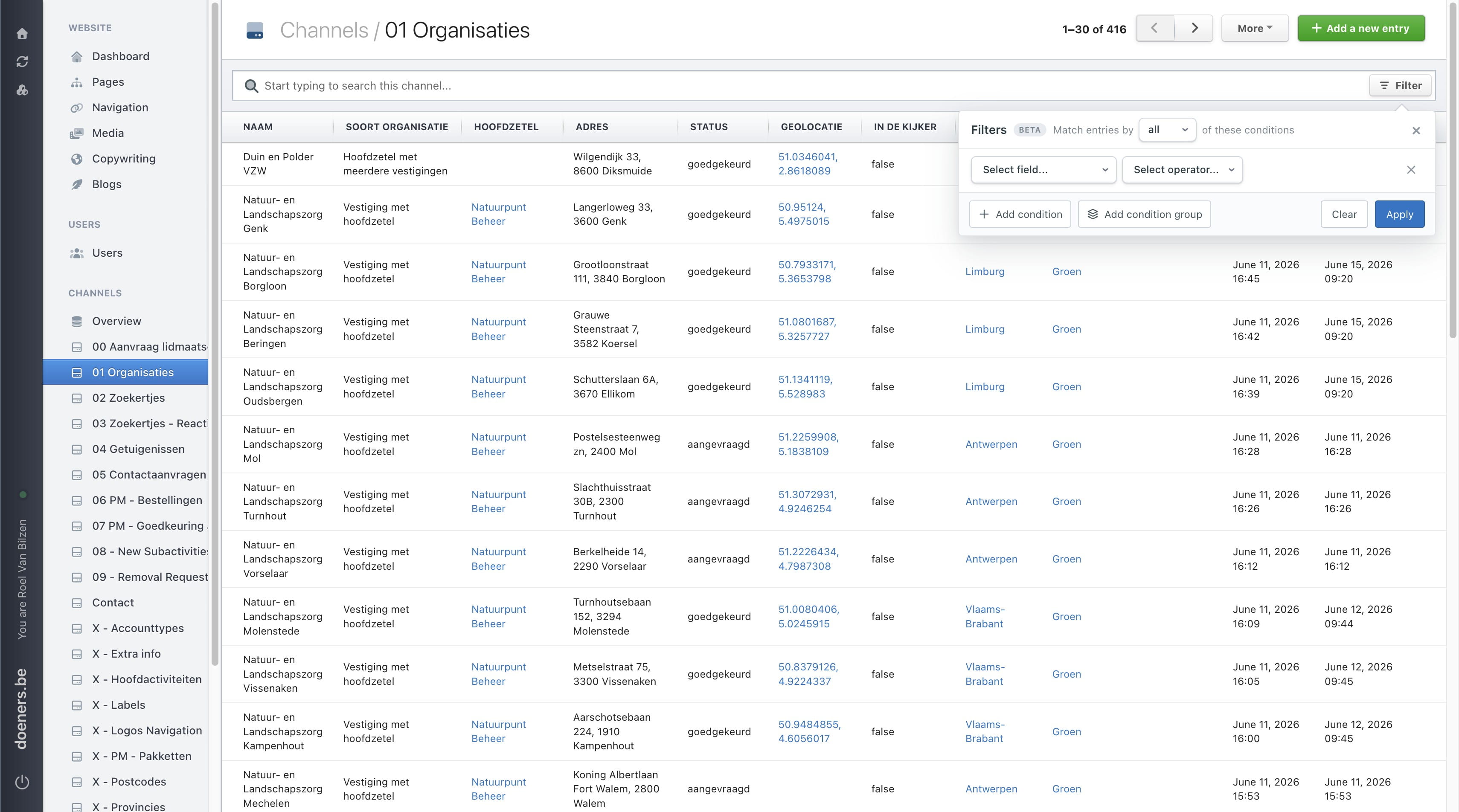
Select whether the entries should match **all** or **any** of the filters.
3

Select a field to filter by.

Select a field to filter by.
4

Select an operator. The available operators depend on the type of the selected field.
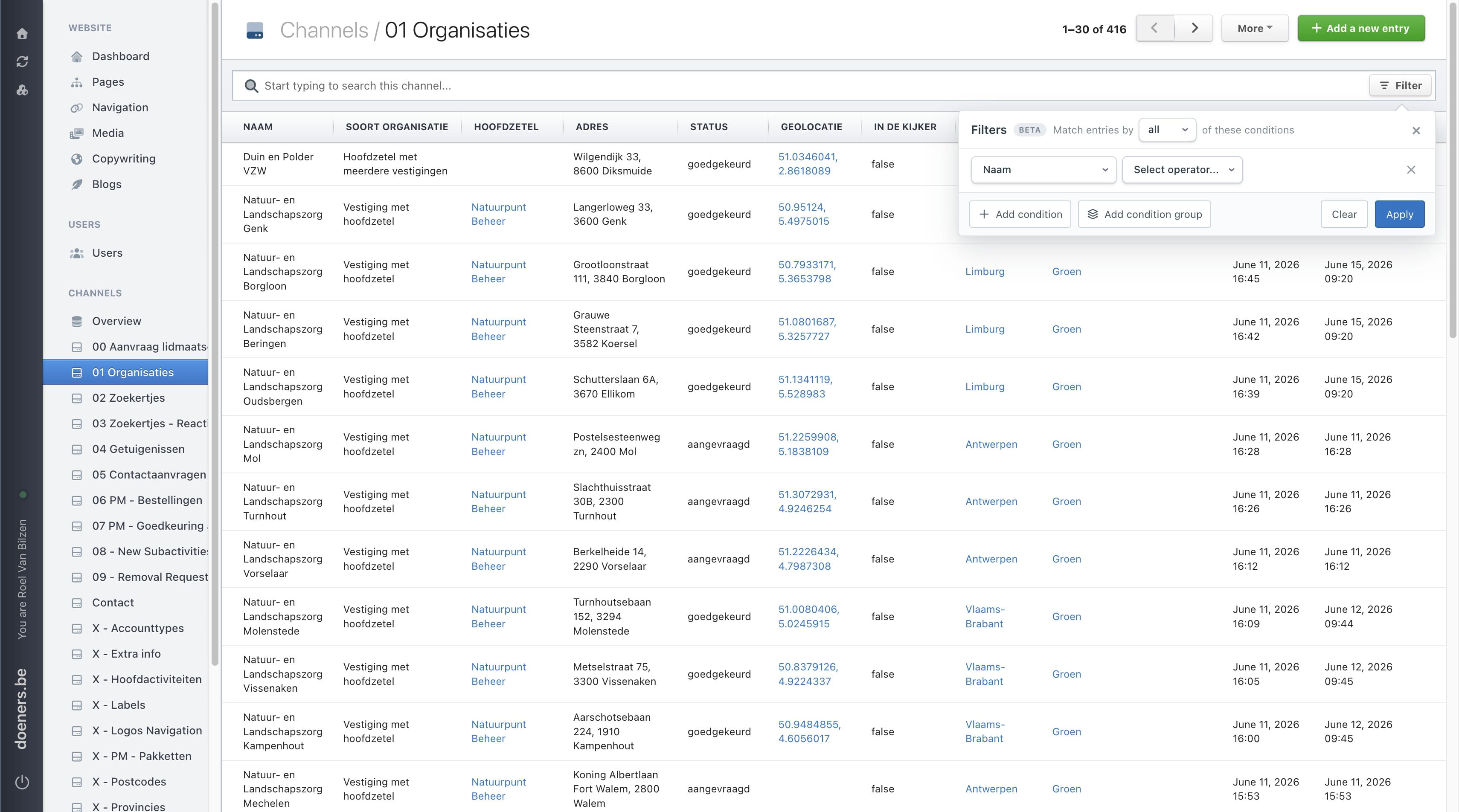
Select an operator. The available operators depend on the type of the selected field.
5

If needed, select an option or enter a value for the filter. Depending on the selected field and operator, the value can be a text field, a single-select list, a multi-select list, a date/time, or no value at all.
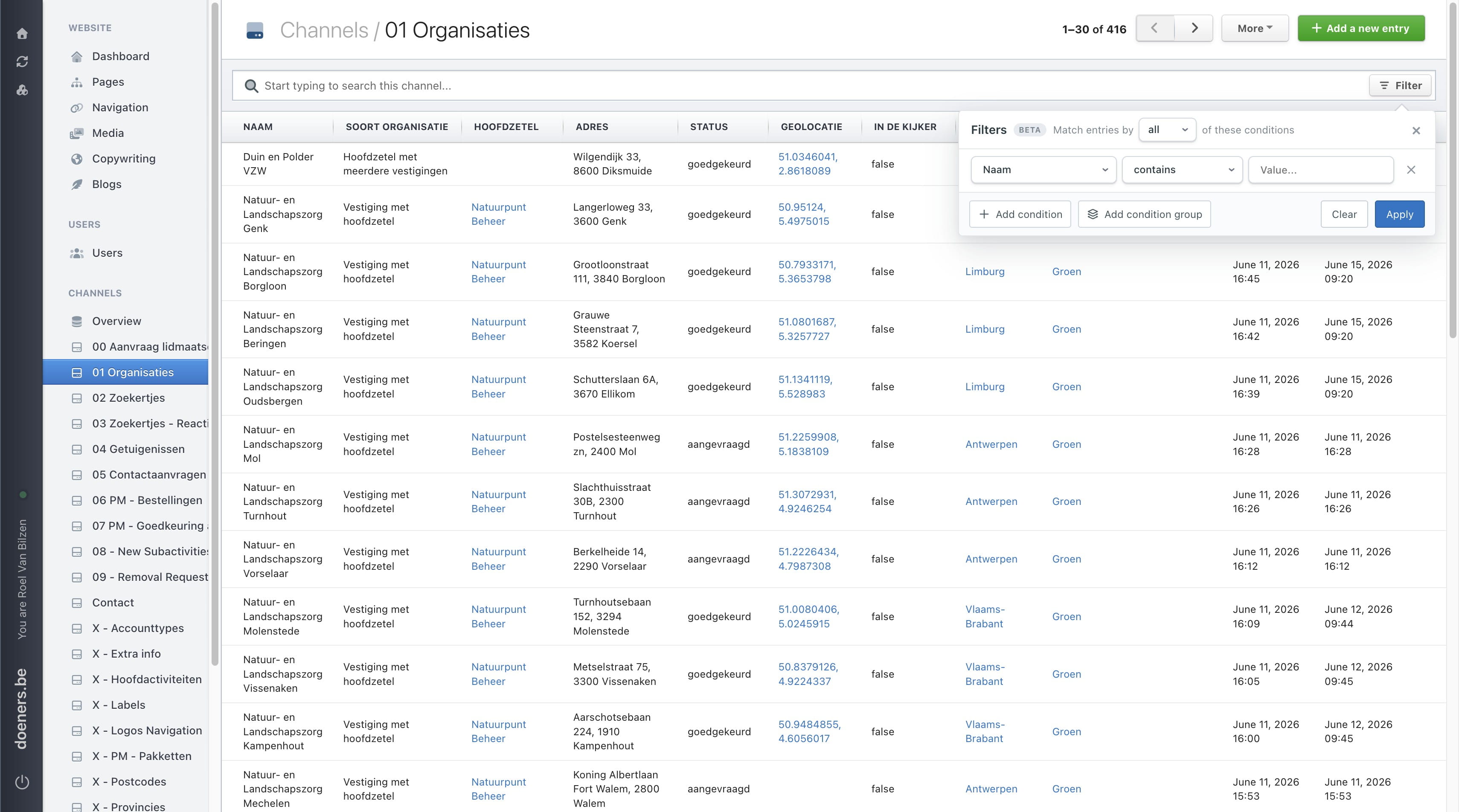
If needed, select an option or enter a value for the filter.
Depending on the selected field and operator, the value can be a text field, a single-select list, a multi-select list, a date/time, or no value at all.
6

Click "Apply" to filter the channel.

Click **"Apply"** to filter the channel.
7

Let's take a closer look at some of the filters.
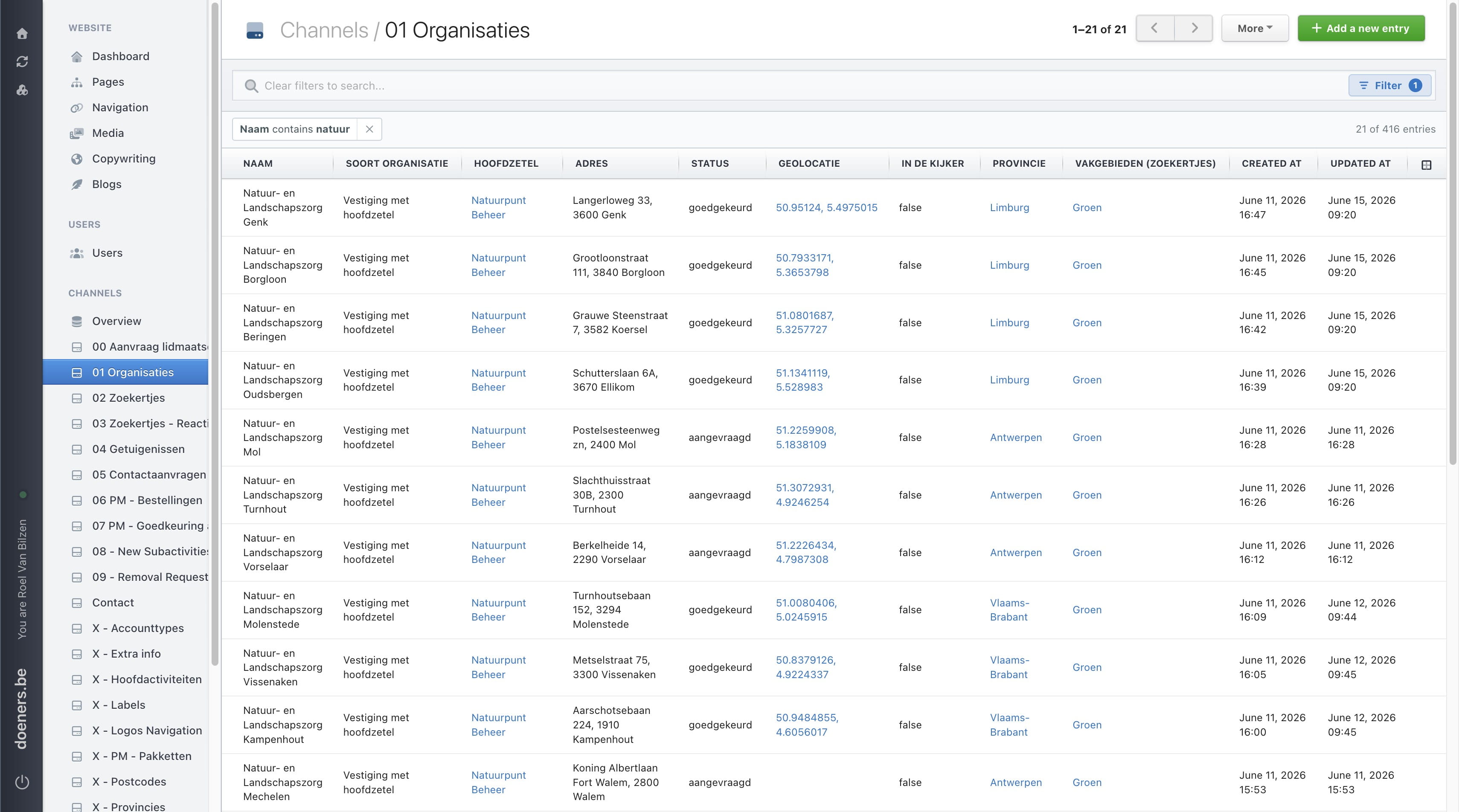
Let's take a closer look at some of the filters.
8

To add a new condition, click "Add condition."
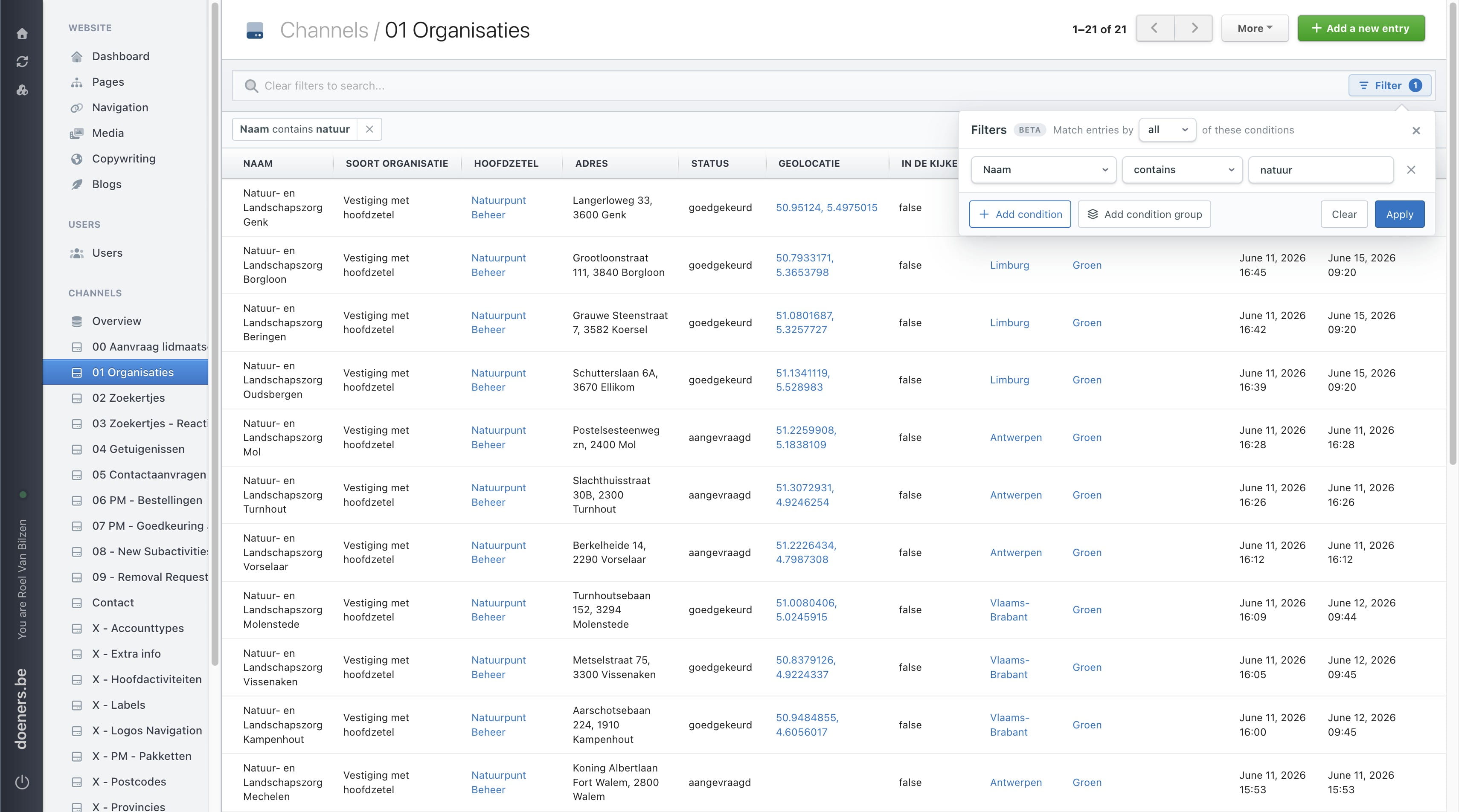
To add a new condition, click **"Add condition."**
9

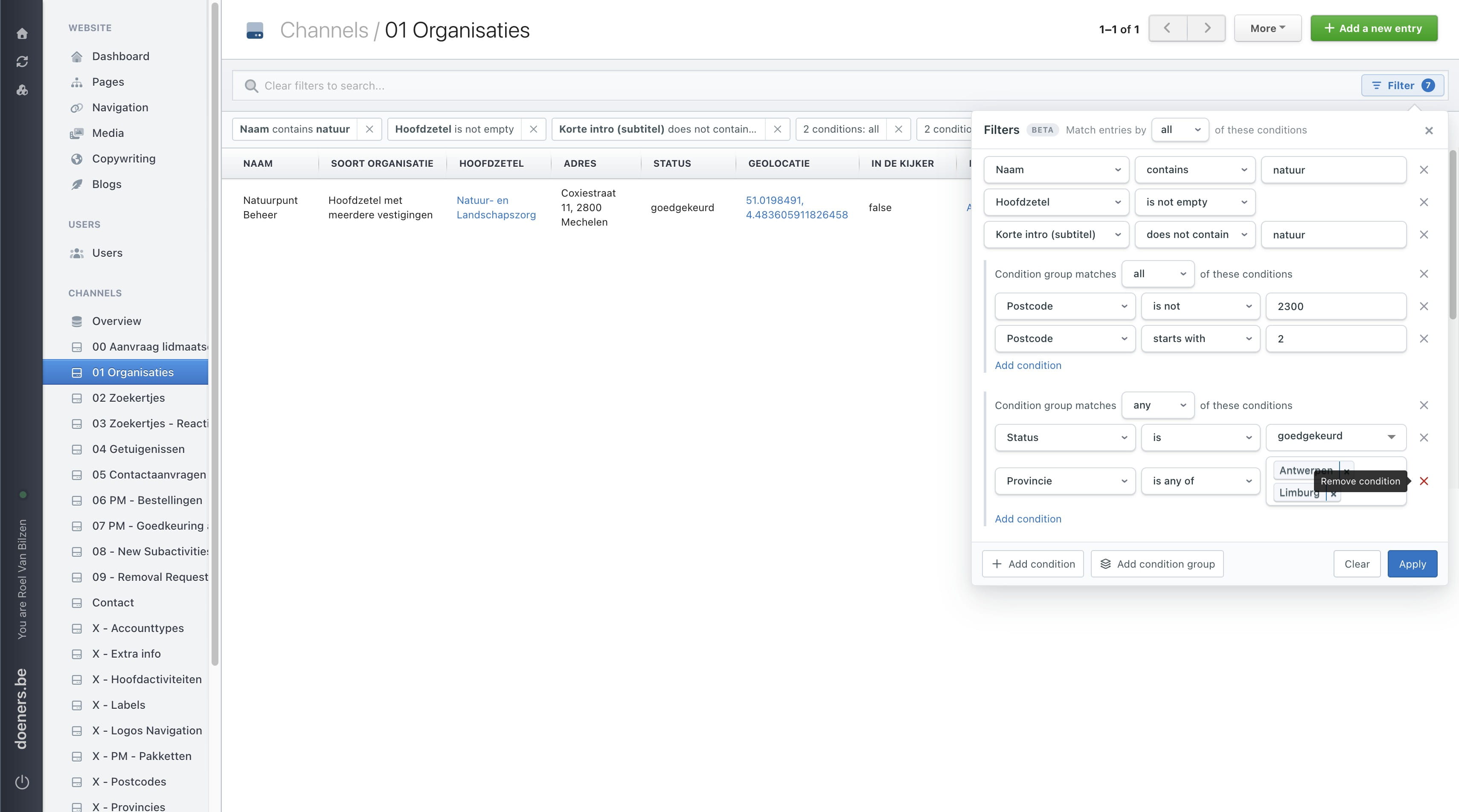
Condition groups allow you to create more complex filters.

Condition groups allow you to create more complex filters.
10

Here is an example of a more complex filter. It filters using the first three conditions and the first condition group, which must all be true. It also filters using the second condition group, where any of the conditions can be true.
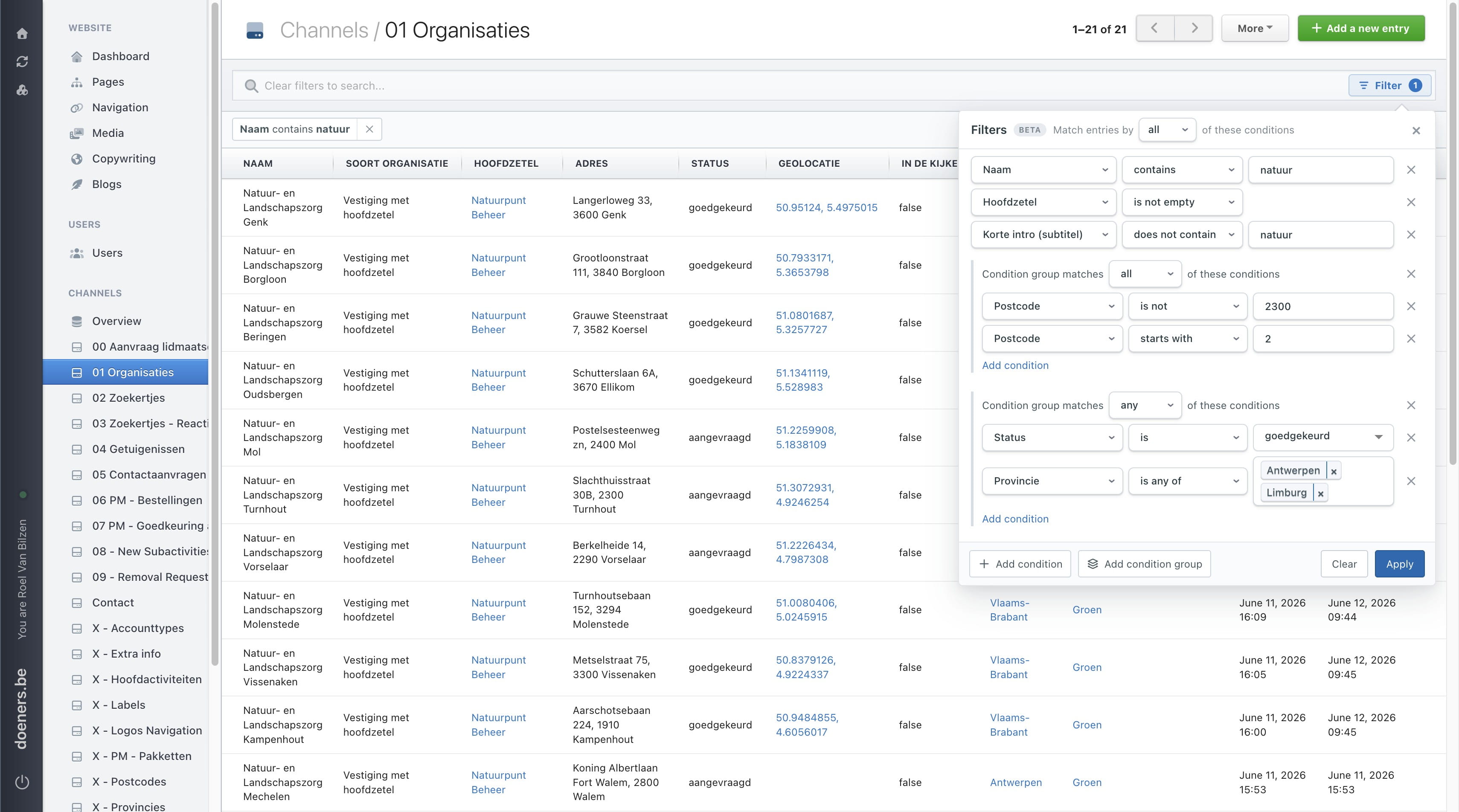
Here is an example of a more complex filter.
It filters using the first three conditions and the first condition group, which must all be true.
It also filters using the second condition group, where any of the conditions can be true.
11

Click "Apply"

Click "Apply"
12

If you use a filter frequently, you can save it for later. Whenever you change the filter, the page URL is updated automatically. The URL contains the current filter settings, so you can bookmark it and quickly return to the same filtered view later.
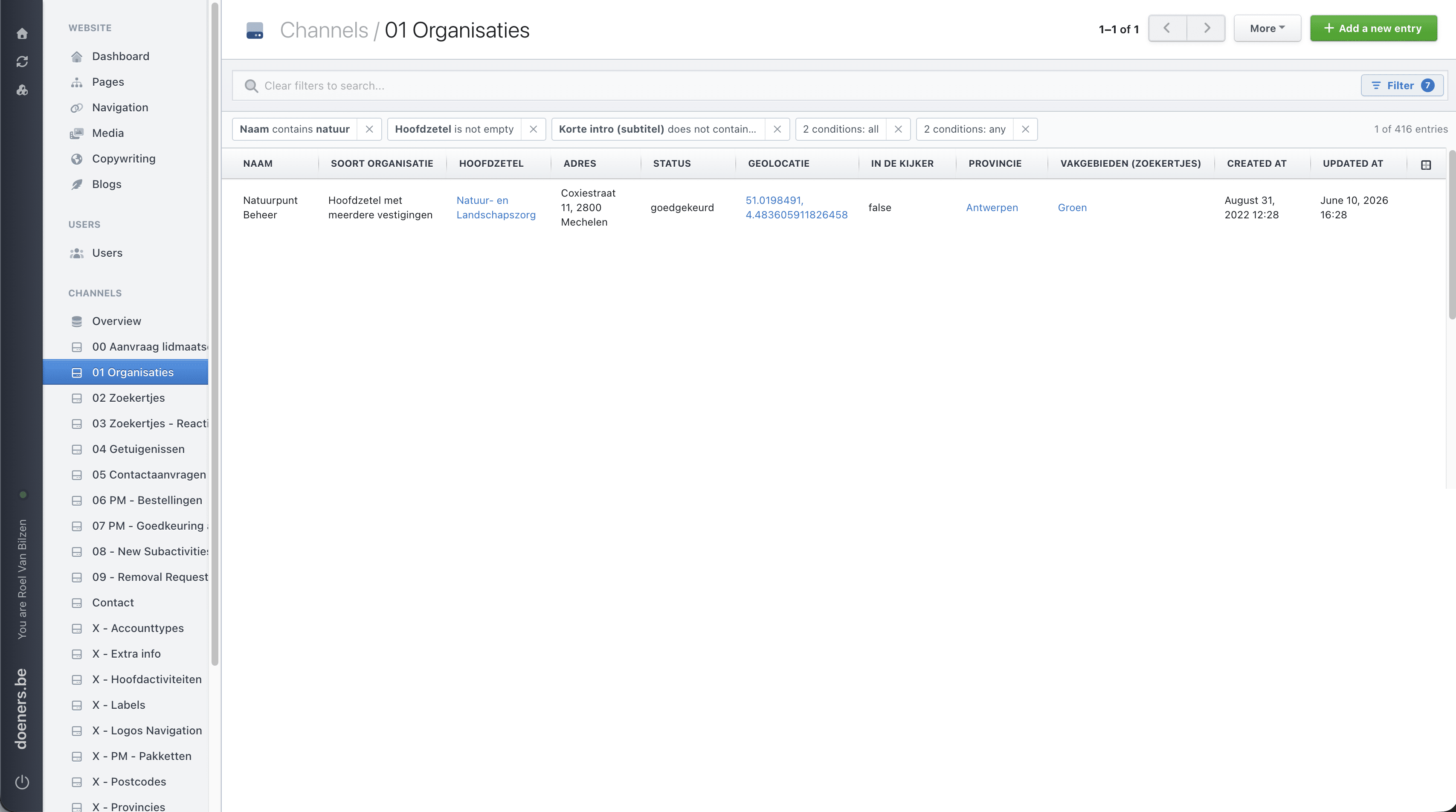
If you use a filter frequently, you can save it for later.
Whenever you change the filter, the page URL is updated automatically. The URL contains the current filter settings, so you can bookmark it and quickly return to the same filtered view later.
13

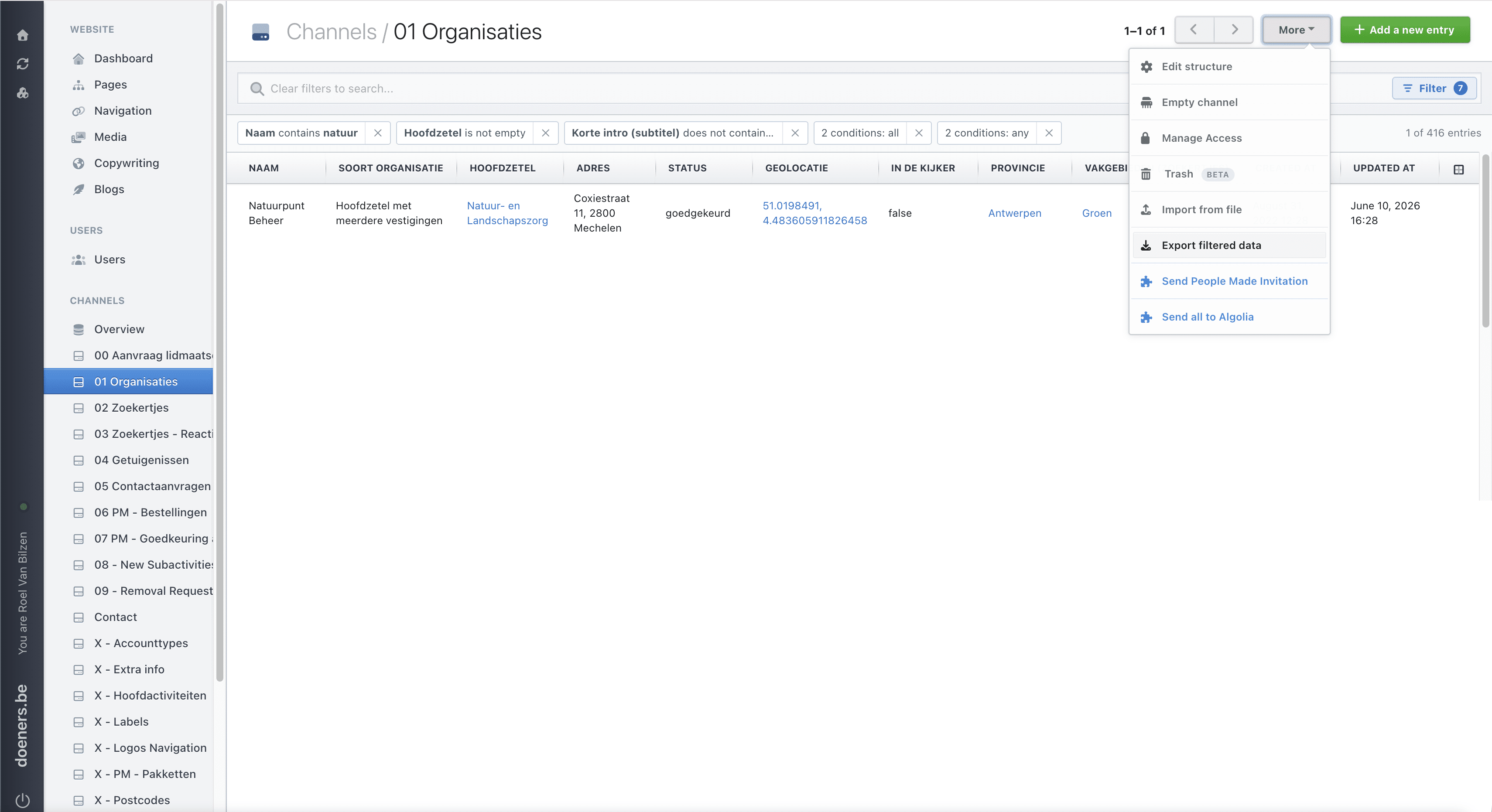
You can export the data at any time. If a filter is applied, only the filtered data is exported.

You can export the data at any time. If a filter is applied, only the filtered data is exported.
14

Click "X" to remove the condition.

Click "X" to remove the condition.
15

A condition can also be removed from the overview.
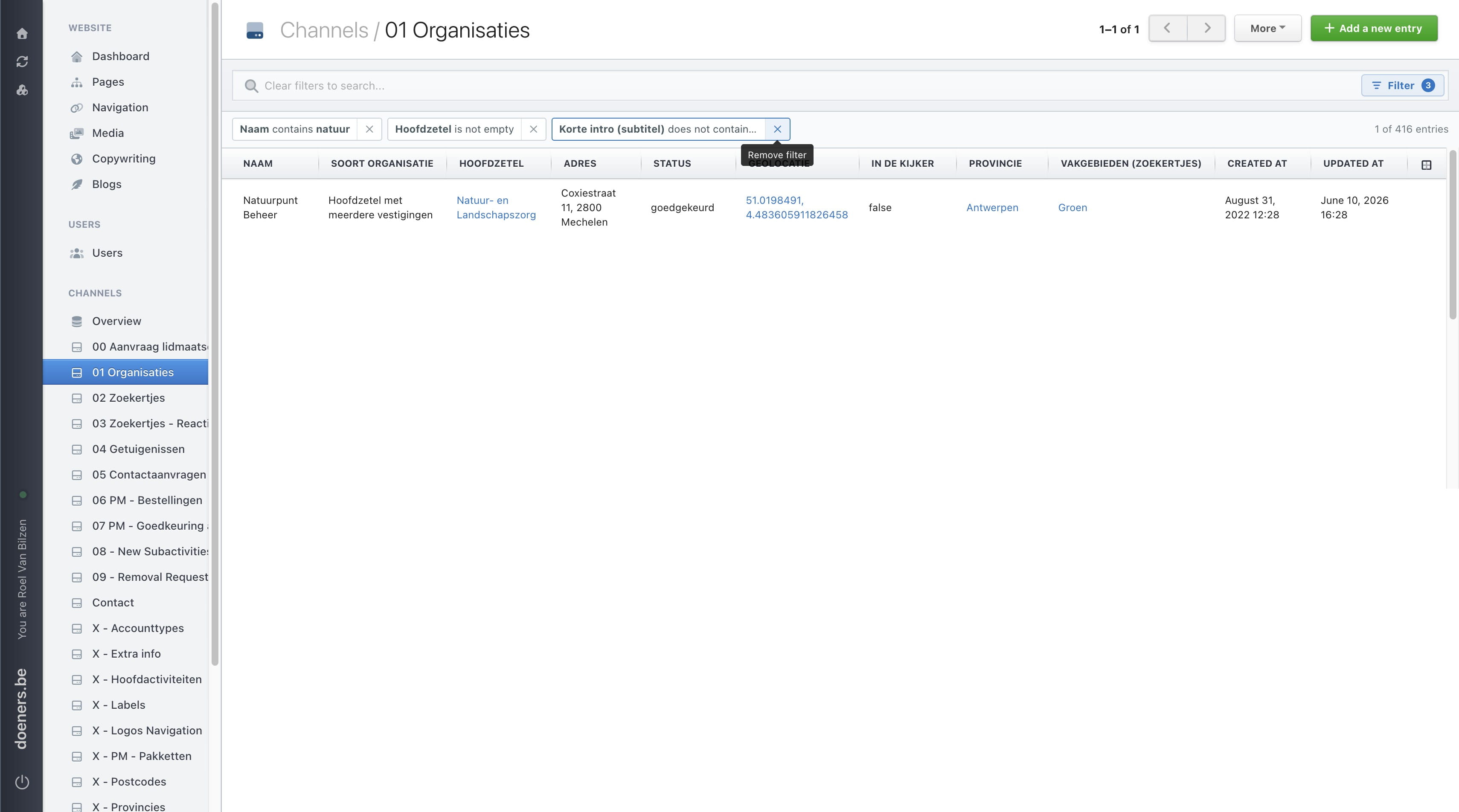
A condition can also be removed from the overview.
16

Click "Clear" to remove all conditions from the filter.
Click "Clear" to remove all conditions from the filter.