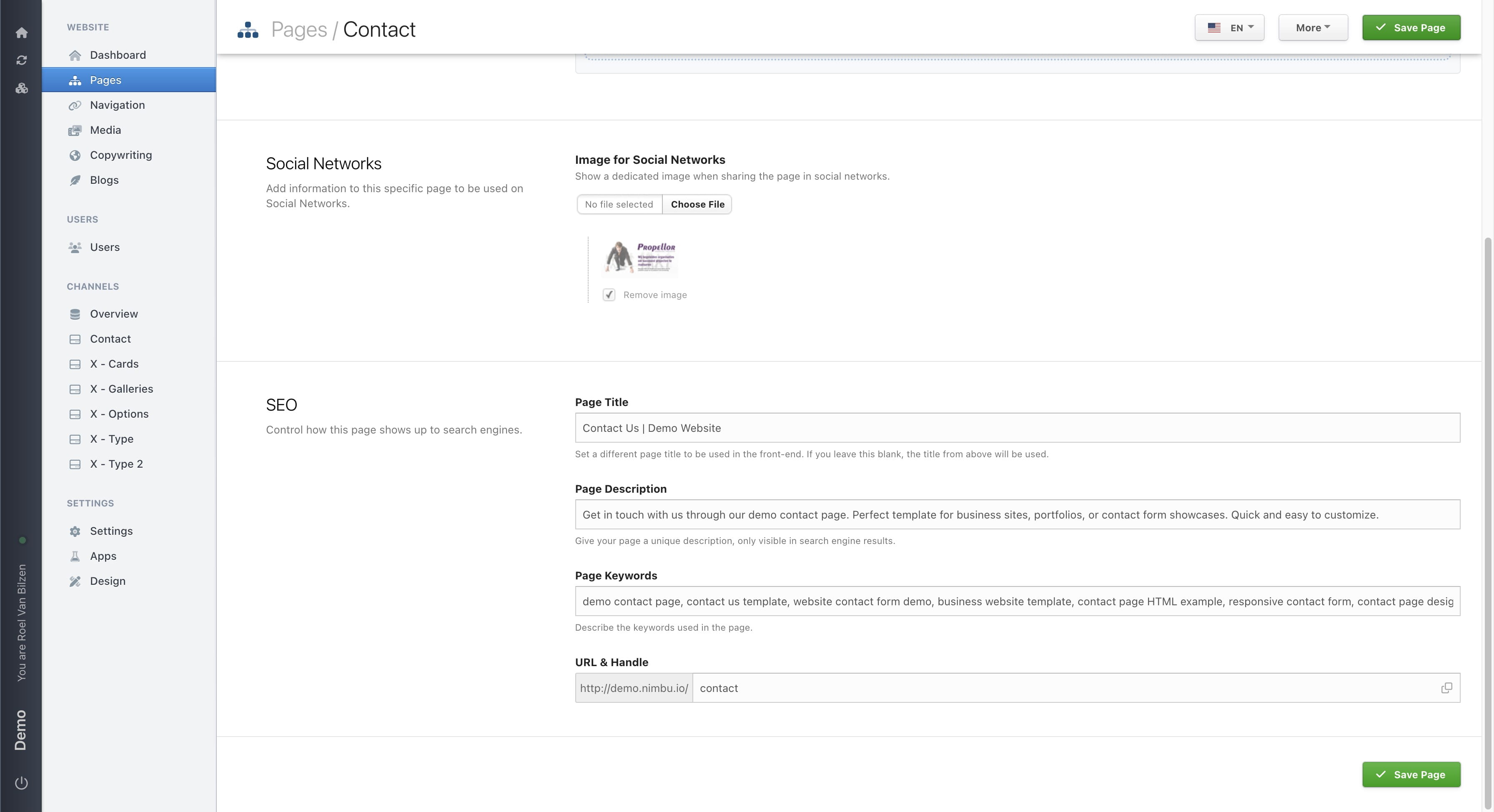
Page SEO & Social Networks
Control how your page shows up to search engines and set an image for social networks.
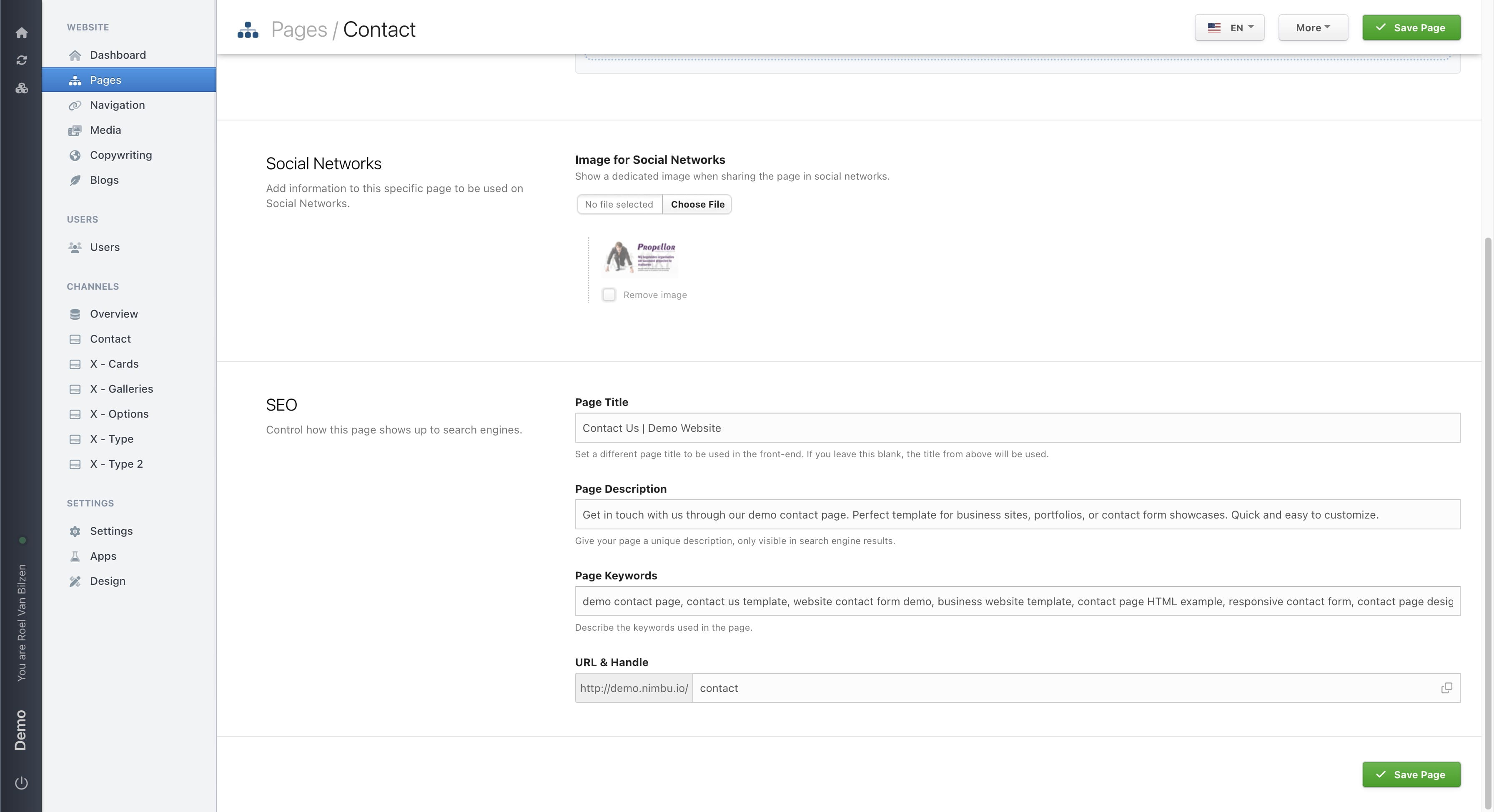
SEO stands for Search Engine Optimization. It helps your page show up on Google and other search engines when people search for something related to your content. By filling in your page title, description, and keywords, you can attract more visitors and improve how your page appears in search results and link previews. Under "Settings" -> "General" you can set the SEO for your site. On a page it is possible to set the SEO for that specific page.
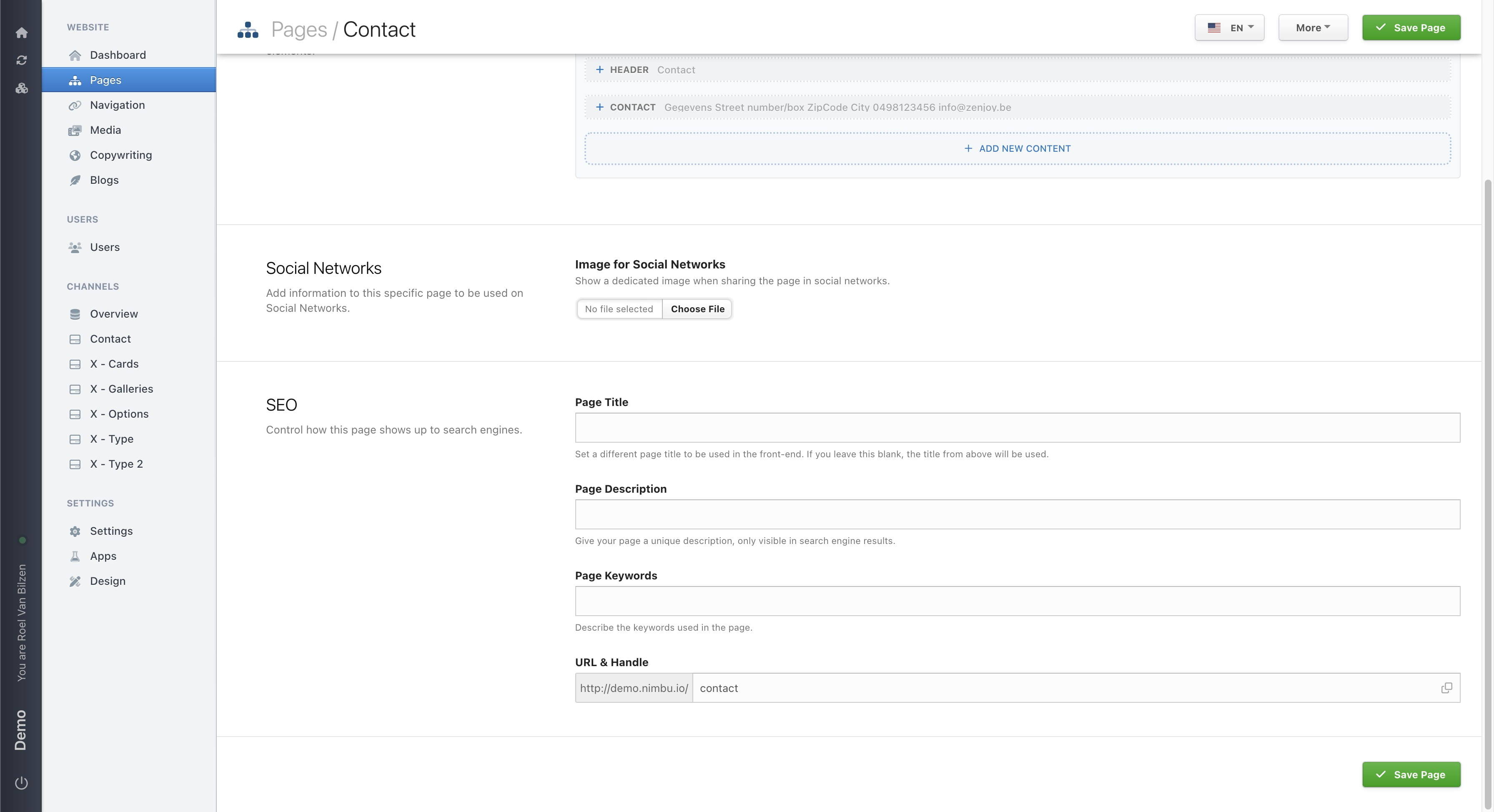
When sharing a link on a social media platform, an link preview will be show. Zenjoy will set a general sharing image in the general settings of the site. If you upload an image here, it will overwrite the default for this page only. Recommened image size is 1200 x 630 pixels in JPEG or PNG format. The size of the file is best under 300KB for fast loading.
Think of SEO as your digital elevator pitch to both users and search engines.
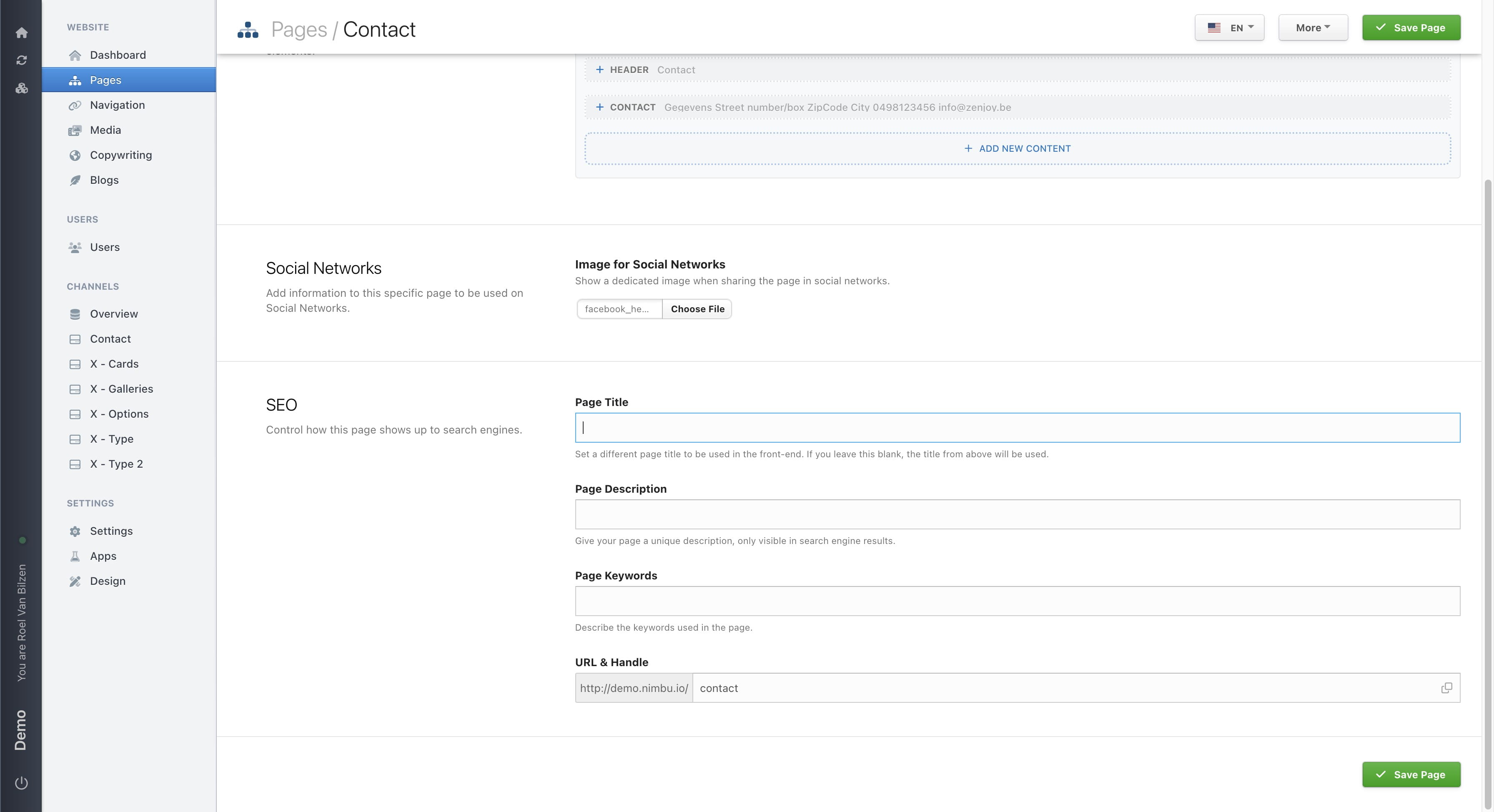
Your page title appears as the blue link in Google search results and browser tabs. Keep it clear, descriptive, and under 60 characters.
The description shows under your title in search results. It should summarize what the page is about in under 160 characters.
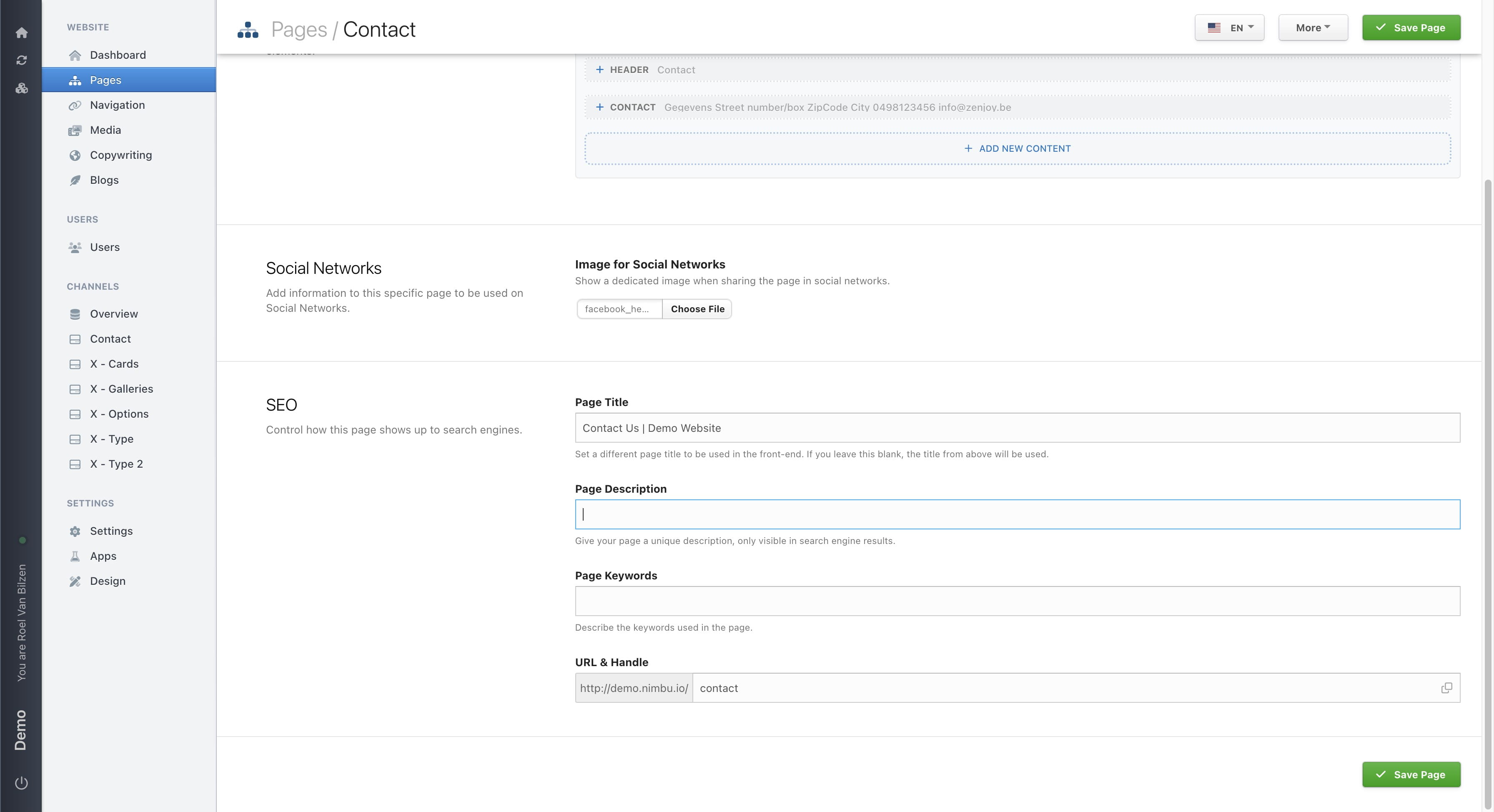
Keywords help search engines understand what your page is about. These are the search terms people might type into Google to find your page.
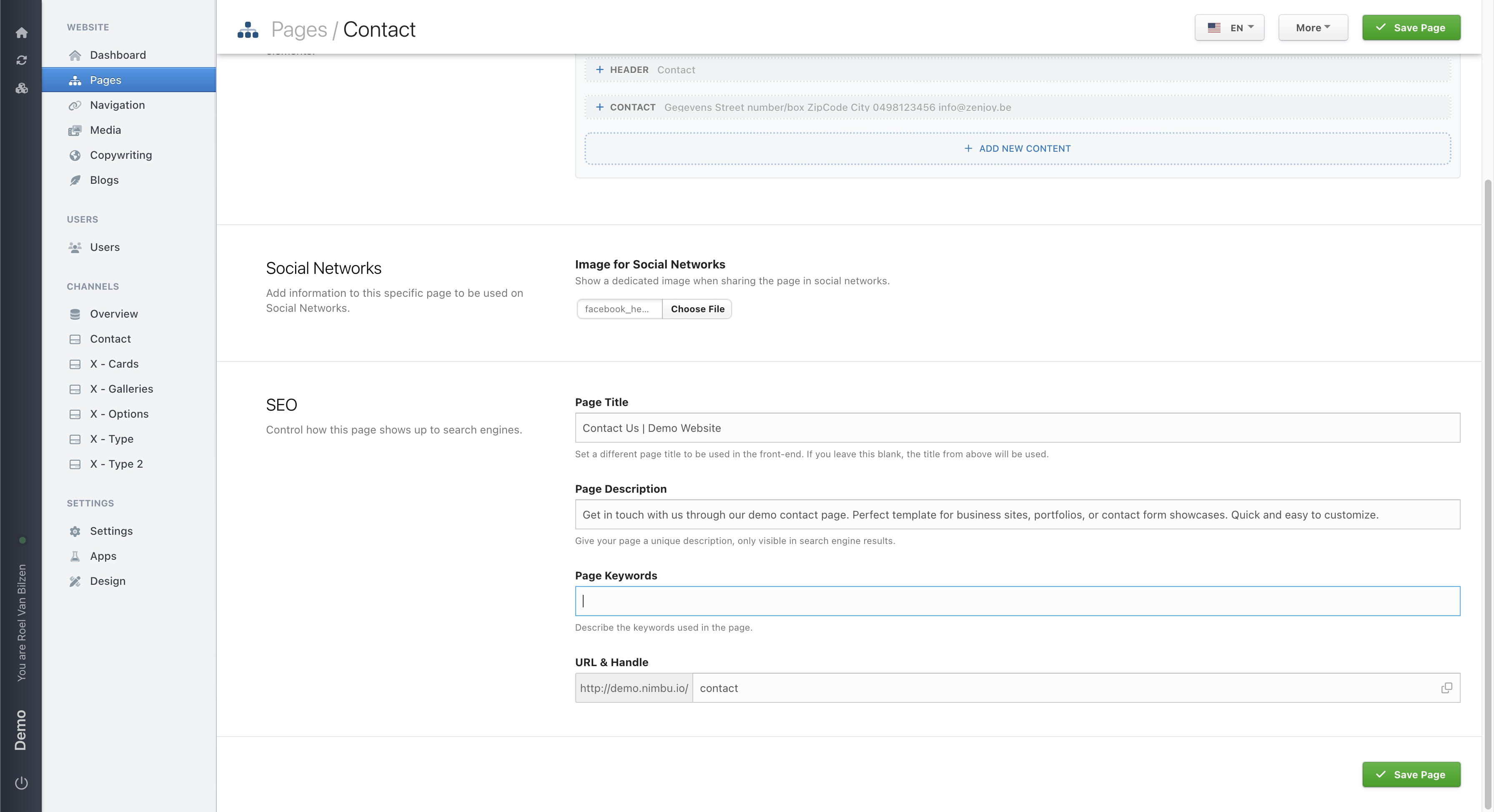
Do not forget to seperate the keywords with a comma.
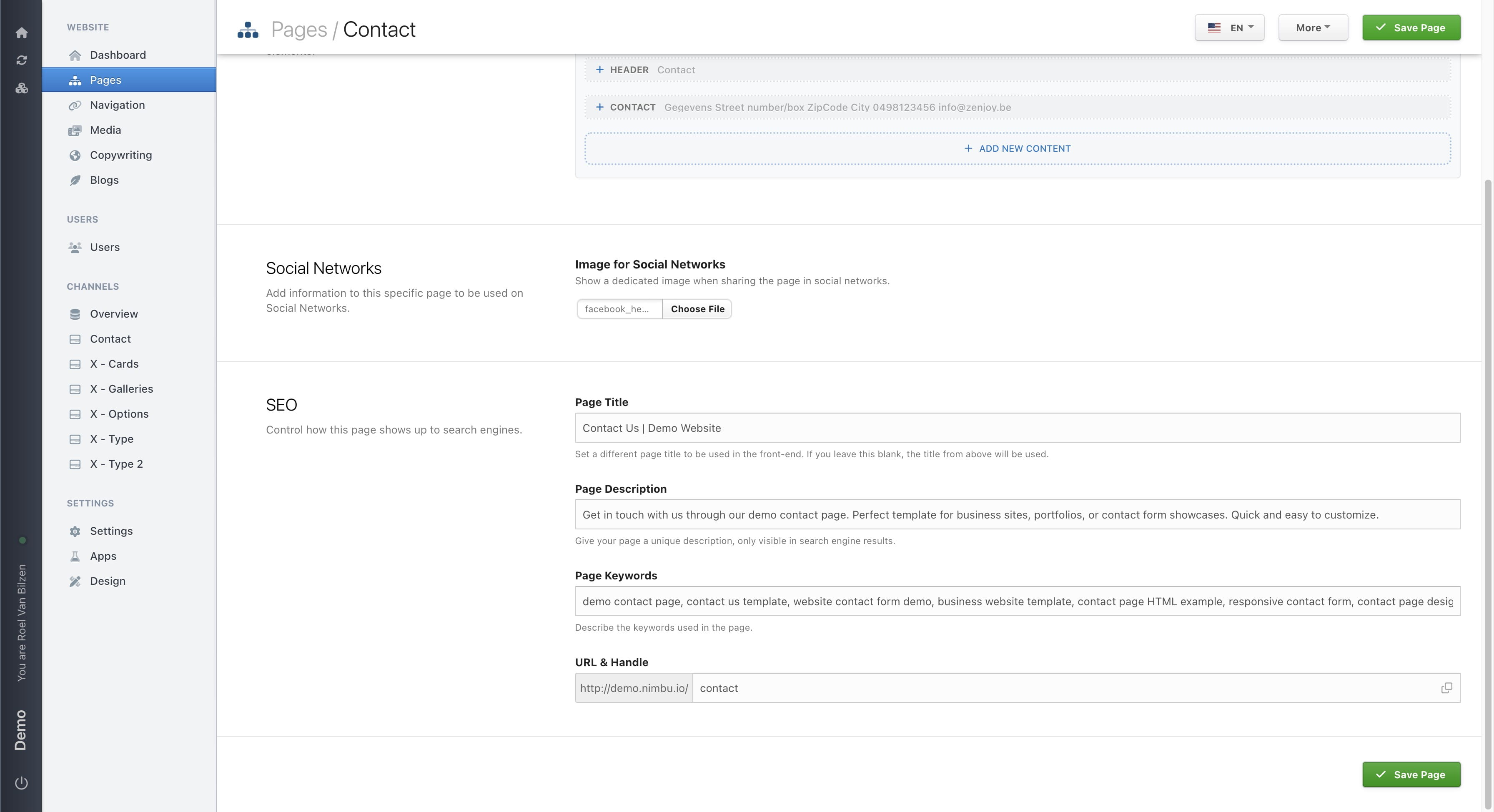
URL & Handle shows the complete URL of your page. When creating your page, the domain and the parent pages will be added in the gray area. The page title will be slugified by removing meaningless words, accents and punctuations. You can always change this. If you change the title of your page after it was created, the handle will not be updated.
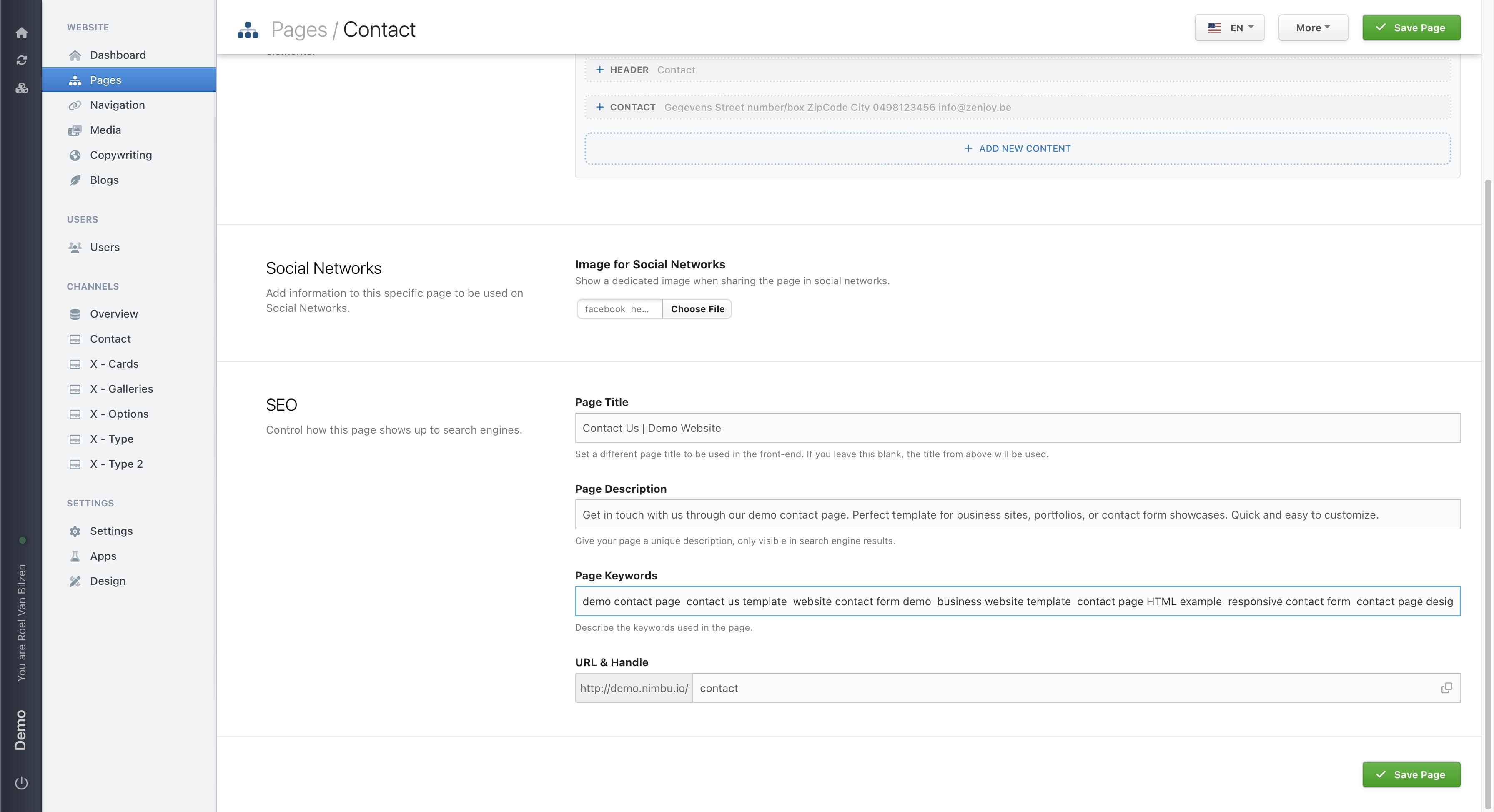
Save the SEO changes by clicking on "Save Page".
If an image is uploaded, it will show a small preview when it is saved. By clicking on it, it will show a large version of the image.
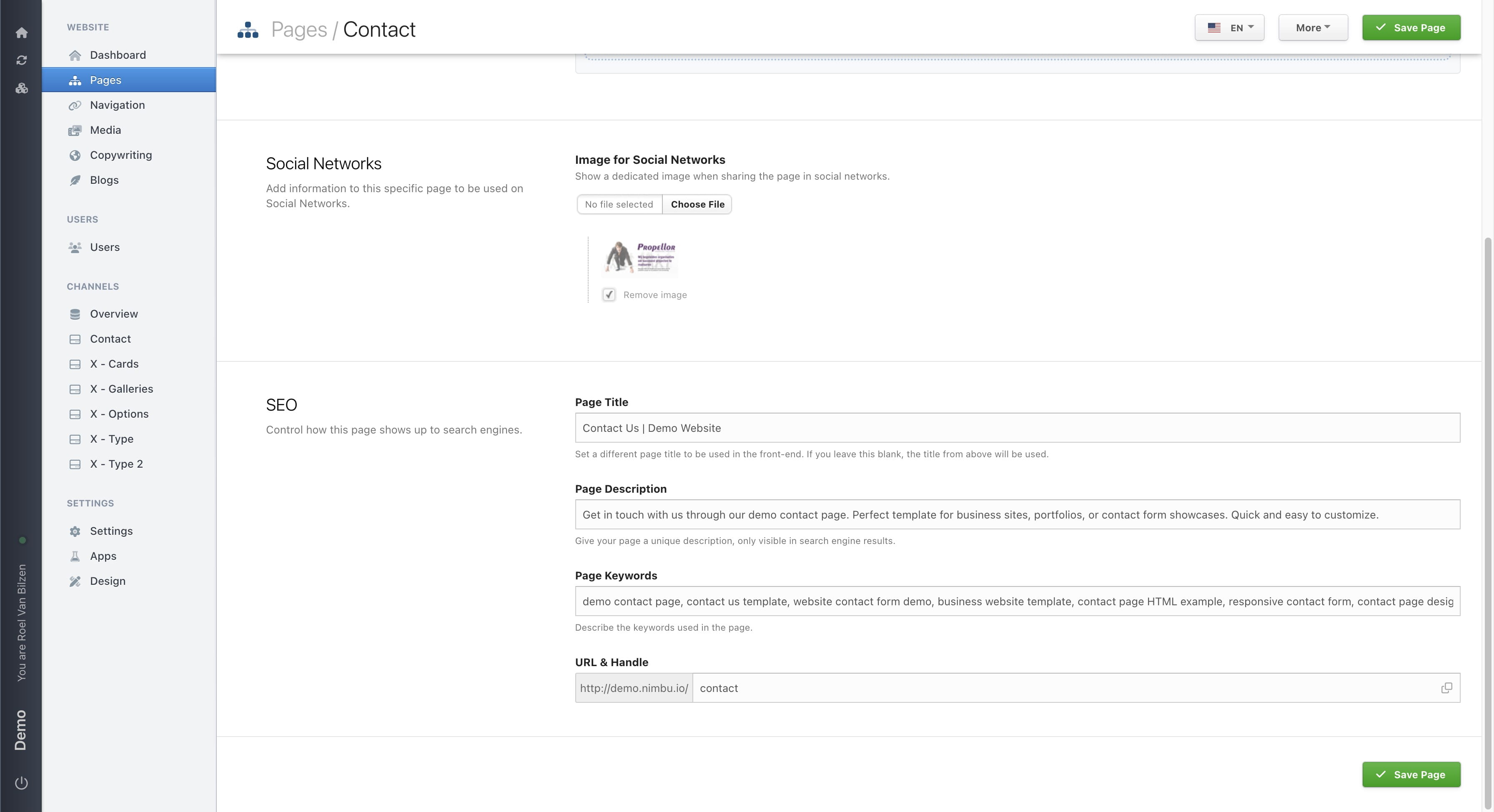
If an image is outdated, you can choose a new file to upload. This will overwrite the previous image. Or check "Remove image" to remove the image.
Click on "Save Page" to save all the changes.