
Navigation
Edit and rearrange your navigation menus
Navigate to https://[YOUR DOMAIN].nimbu.io/admin
Click on "Navigation"
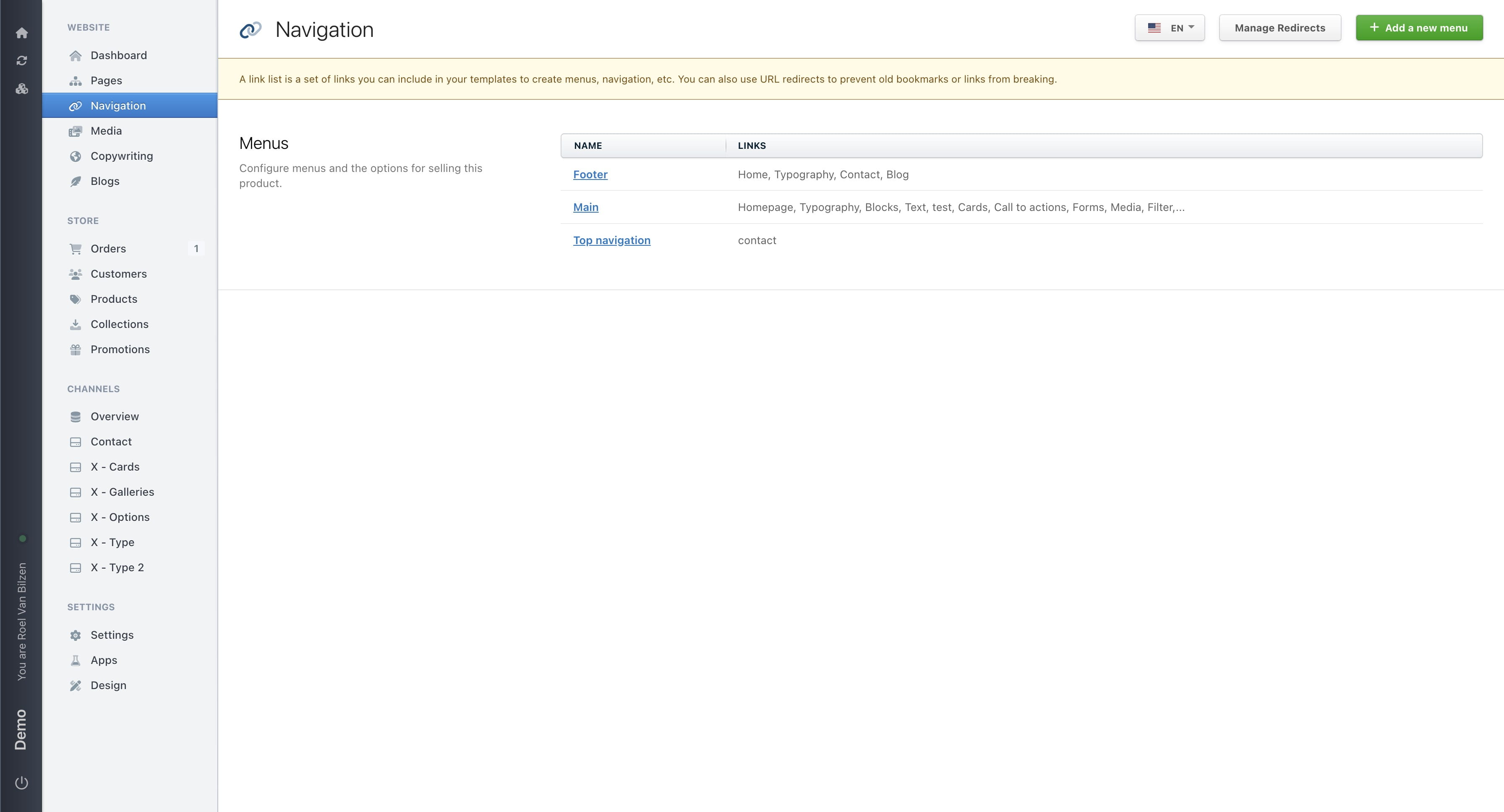
Click on the menu you want to change. All menu's that are needed on the site are already created by us.
Click on "Add a new item" to add a new link in the navigation.
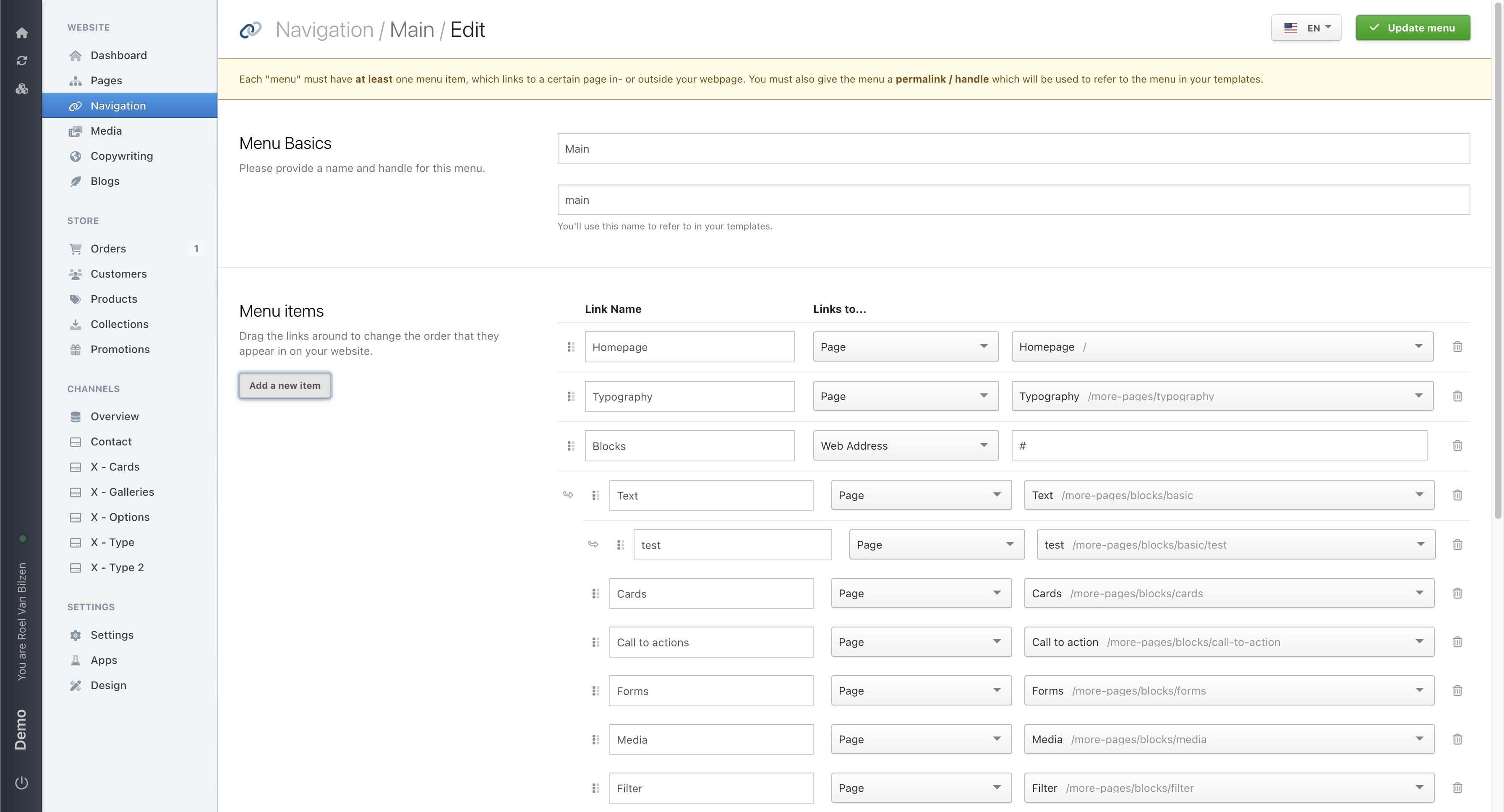
Give the link a name. This will be the visible name on the website.
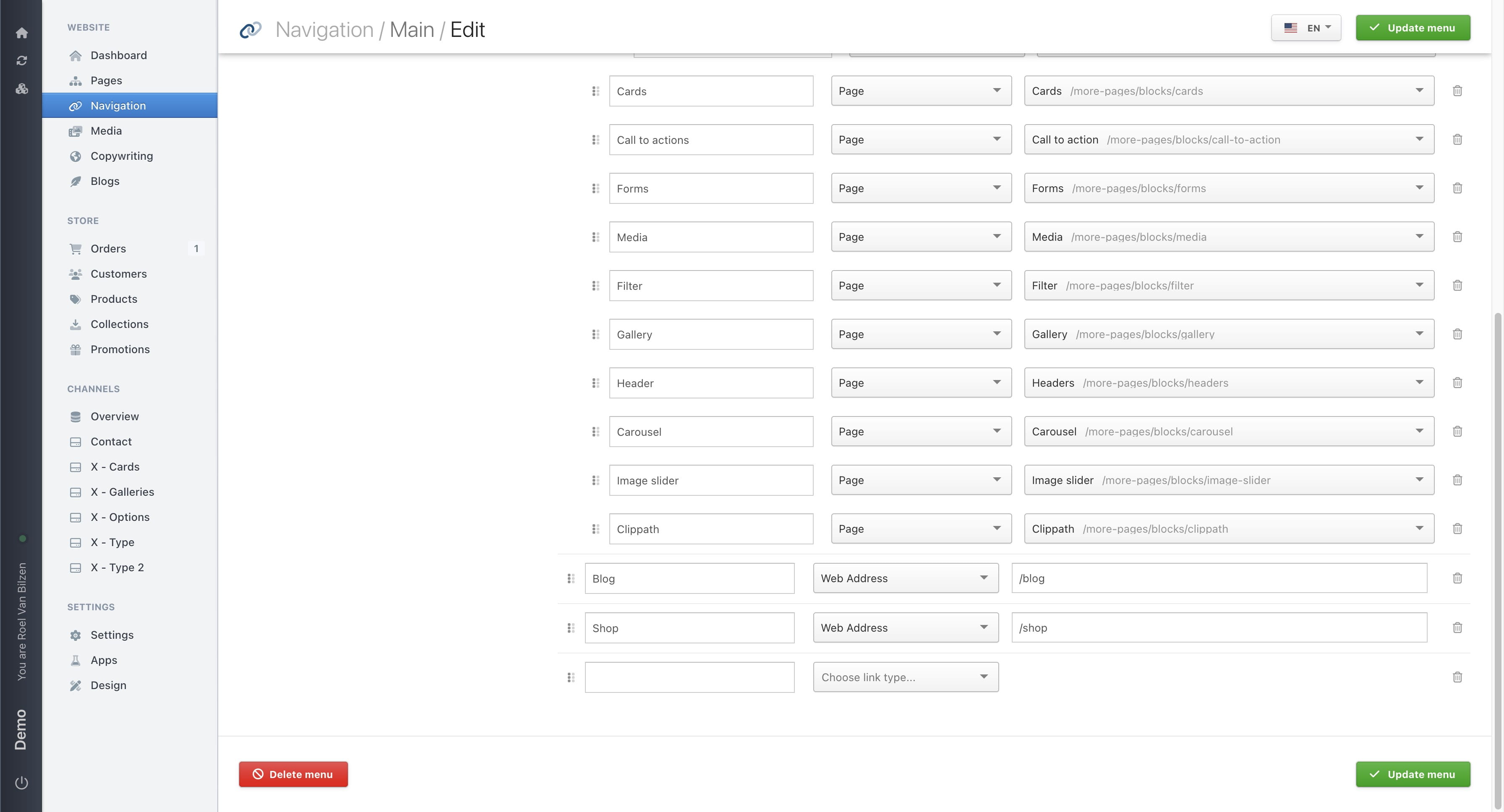
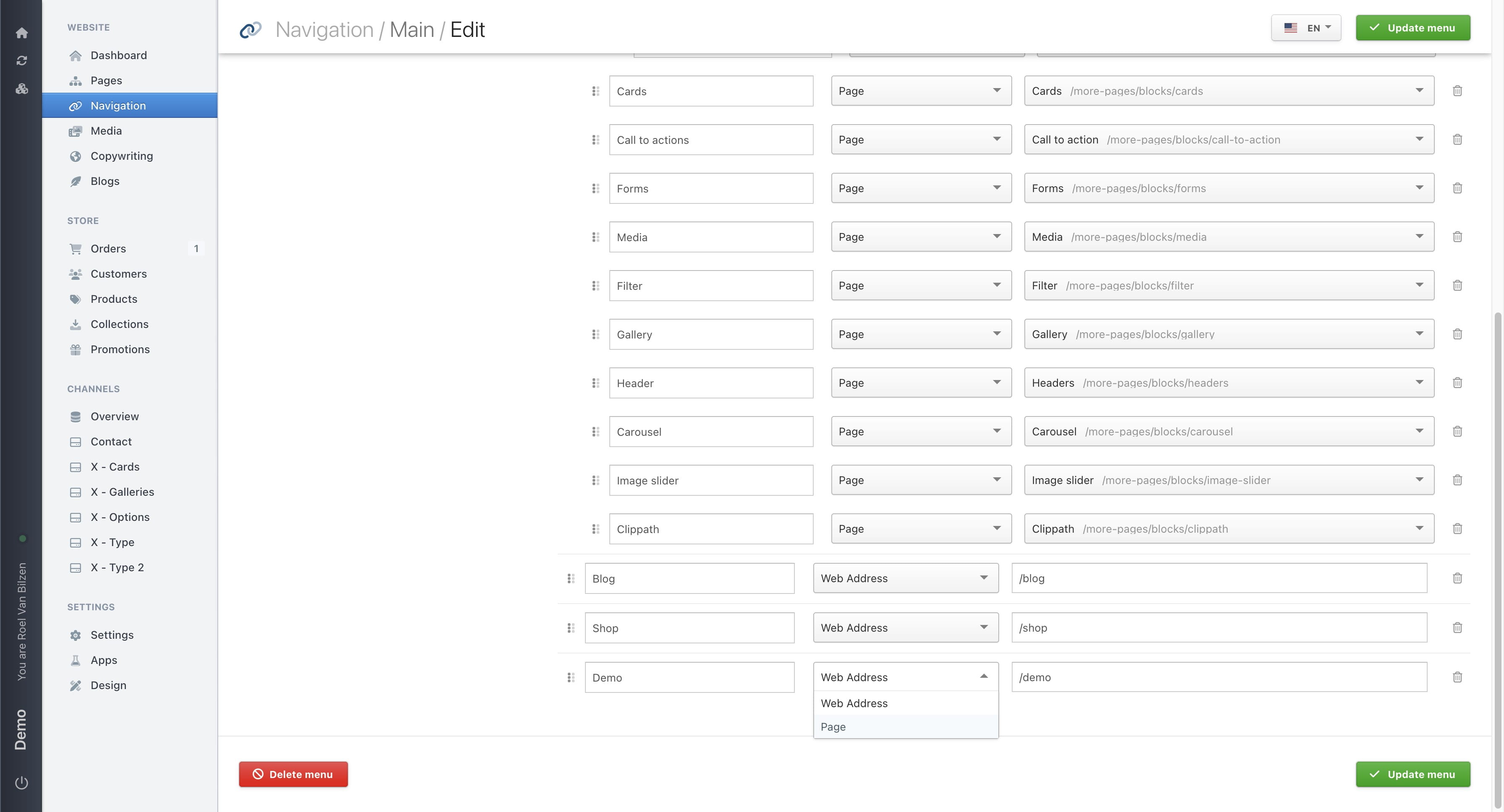
Choose the type of link.
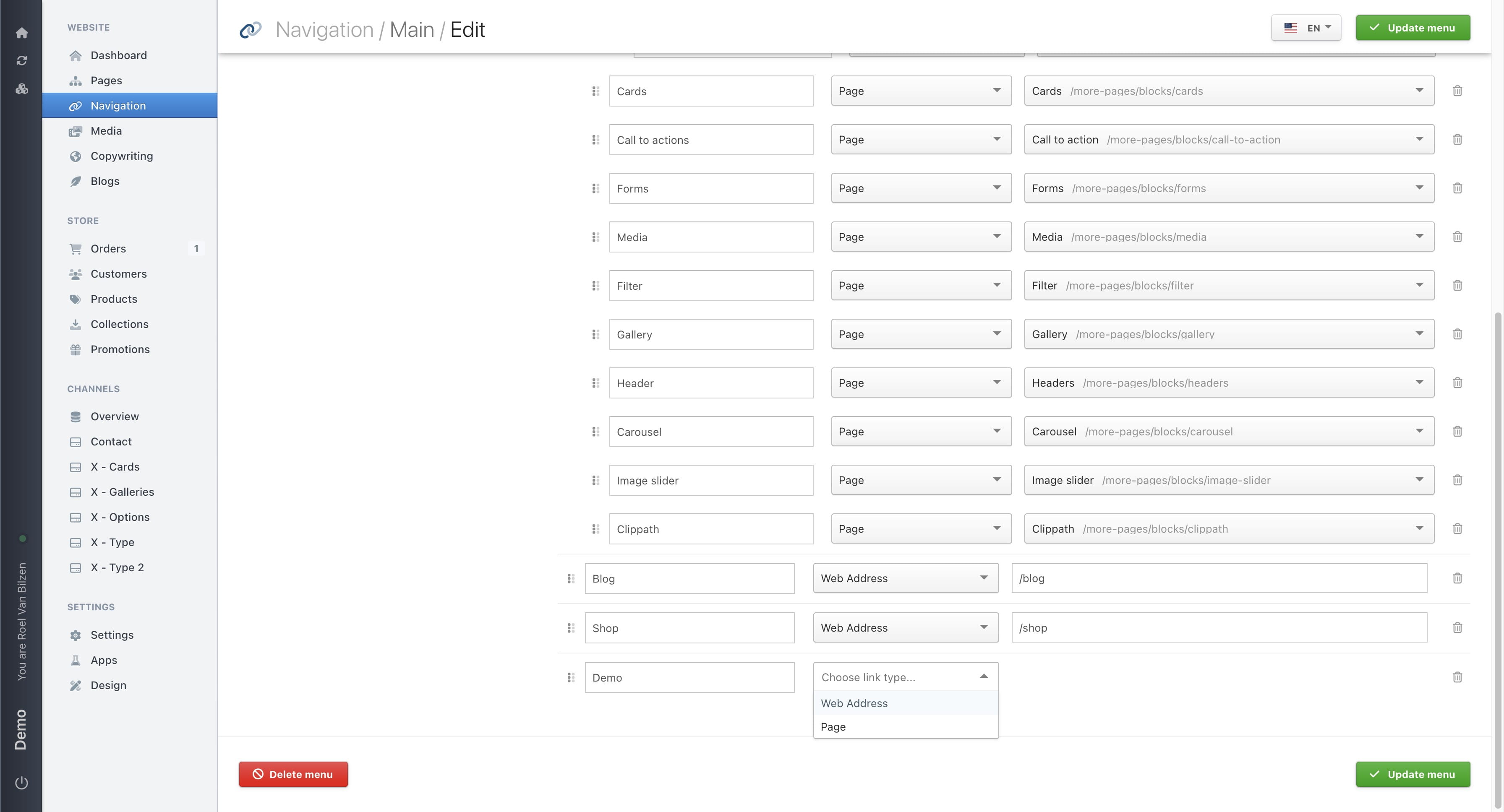
For "Web Address", enter the URL of the page or site. For example, use /demo to link to the demo page, or use a full URL starting with https:// for external sites, such as https://www.zenjoy.be/.
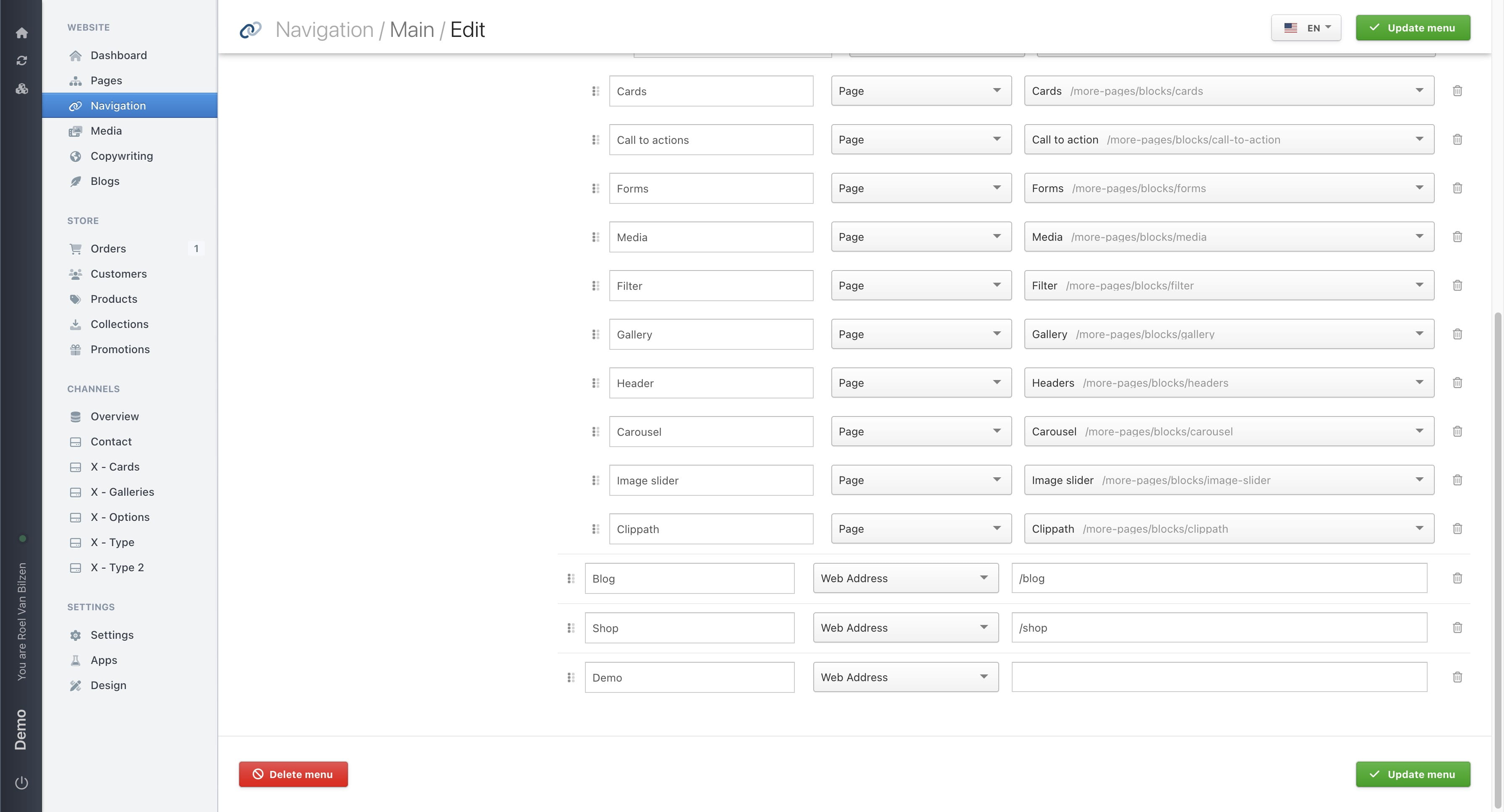
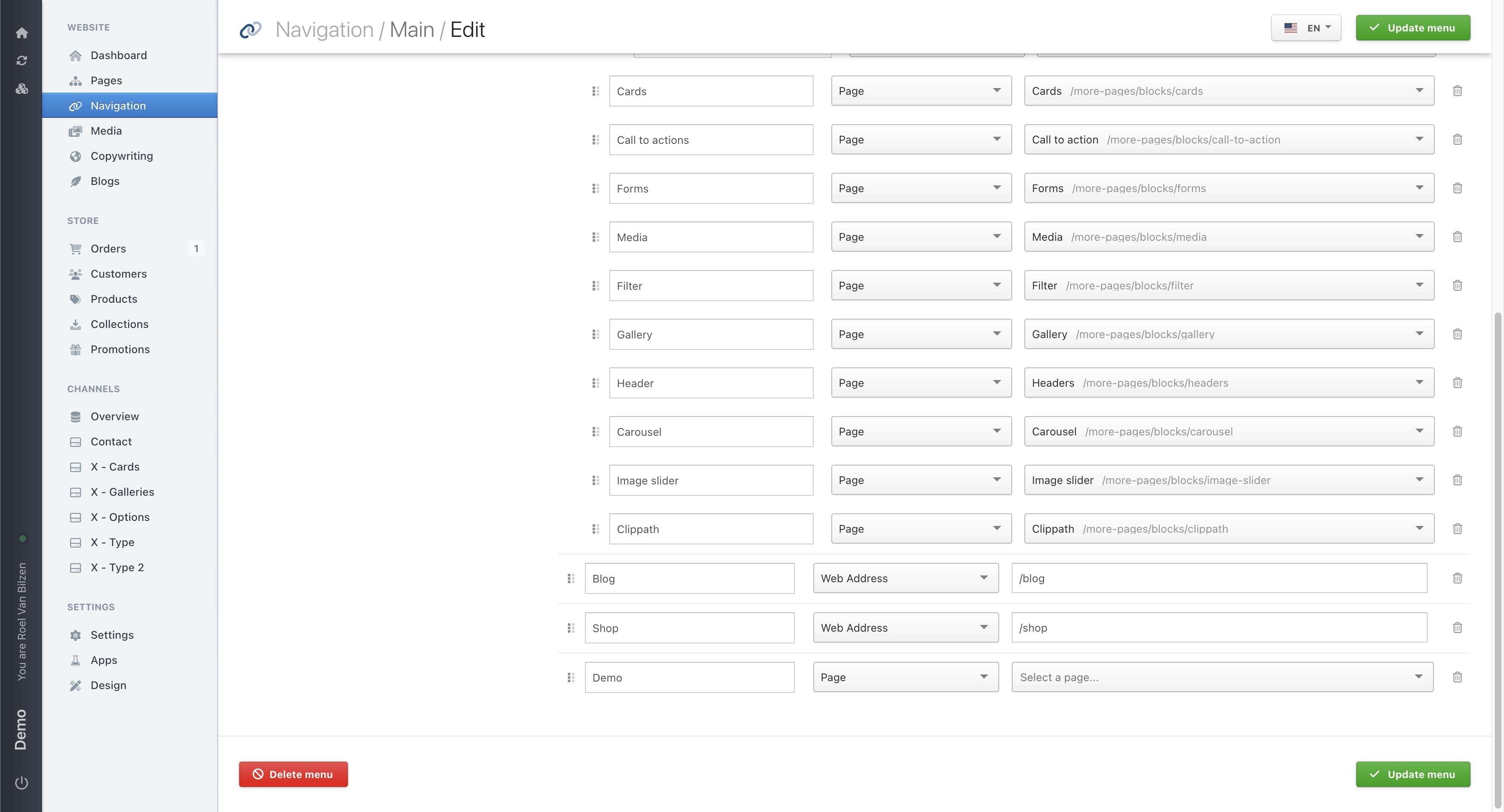
For "Page", you get a dropdown with all the existing pages on the site. Select the page you want to connect to this navigation item.
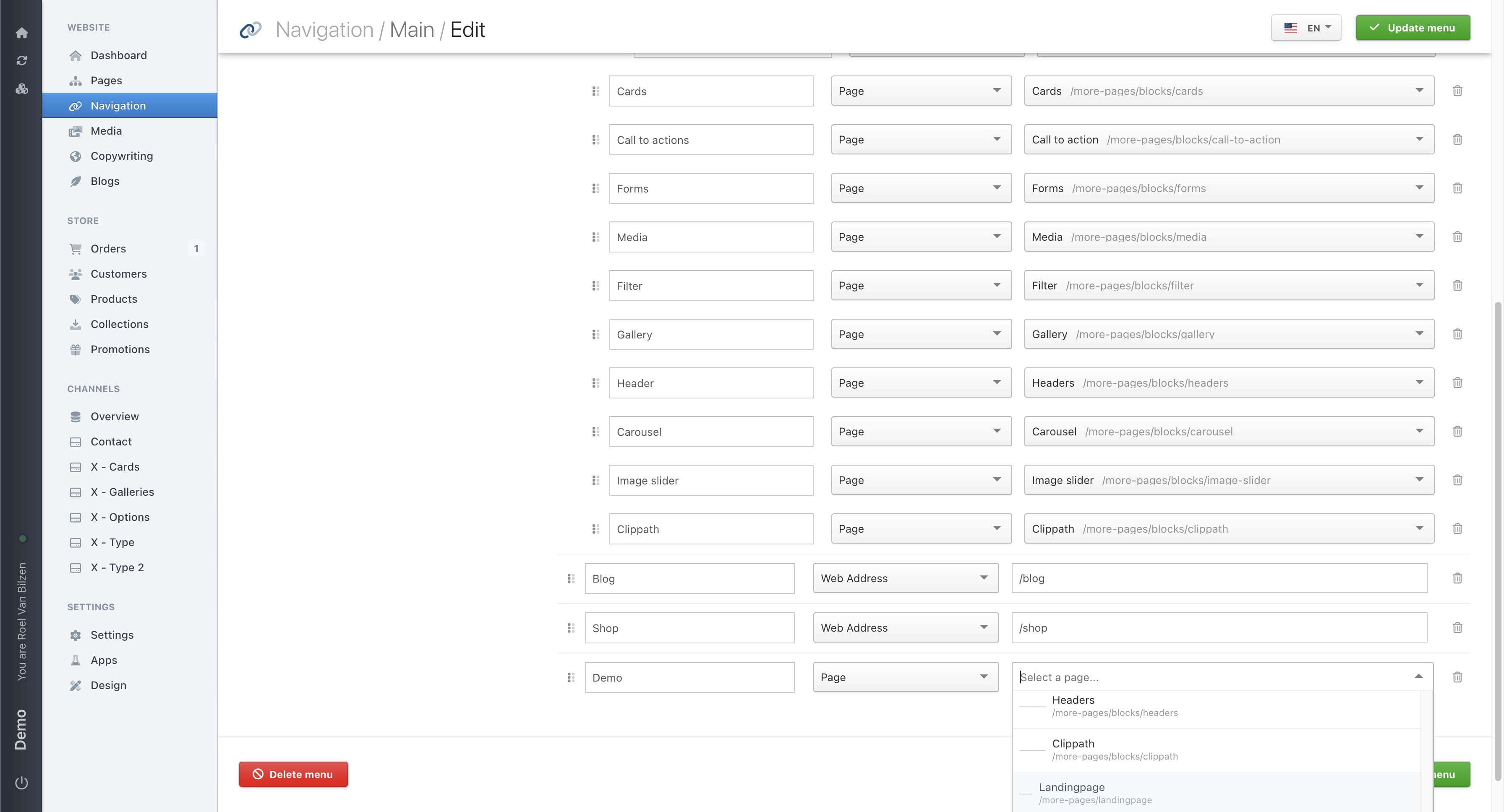
Select a page.
Click on a page to select it.
Click "Update menu" to save the changes.
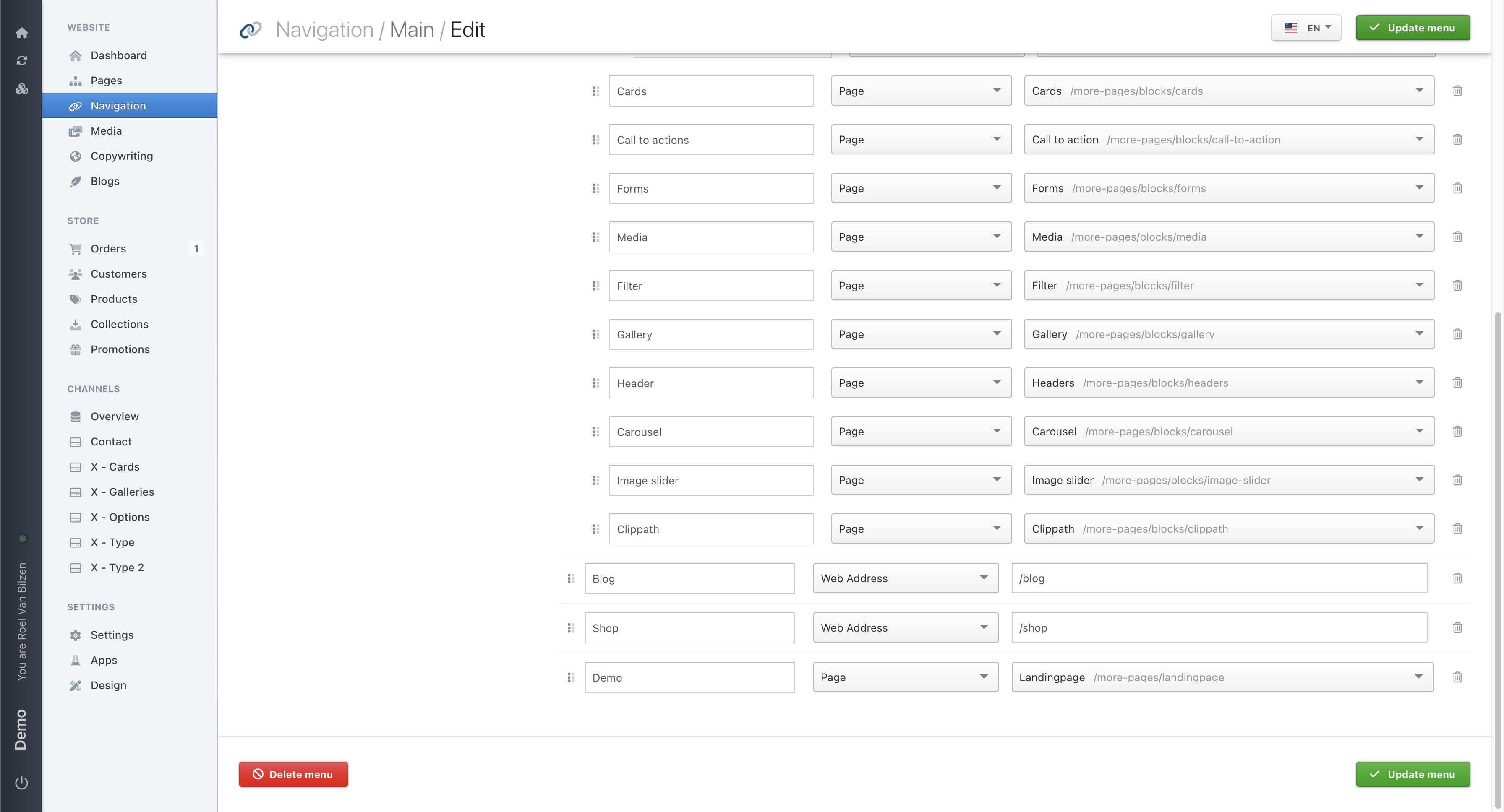
With the six dots on the left of each navigation item, you can change the order and hierargy of the items. Moving up and down changes the order in which the items will be presented. Moving to the right will place an item under another and left to undo this.
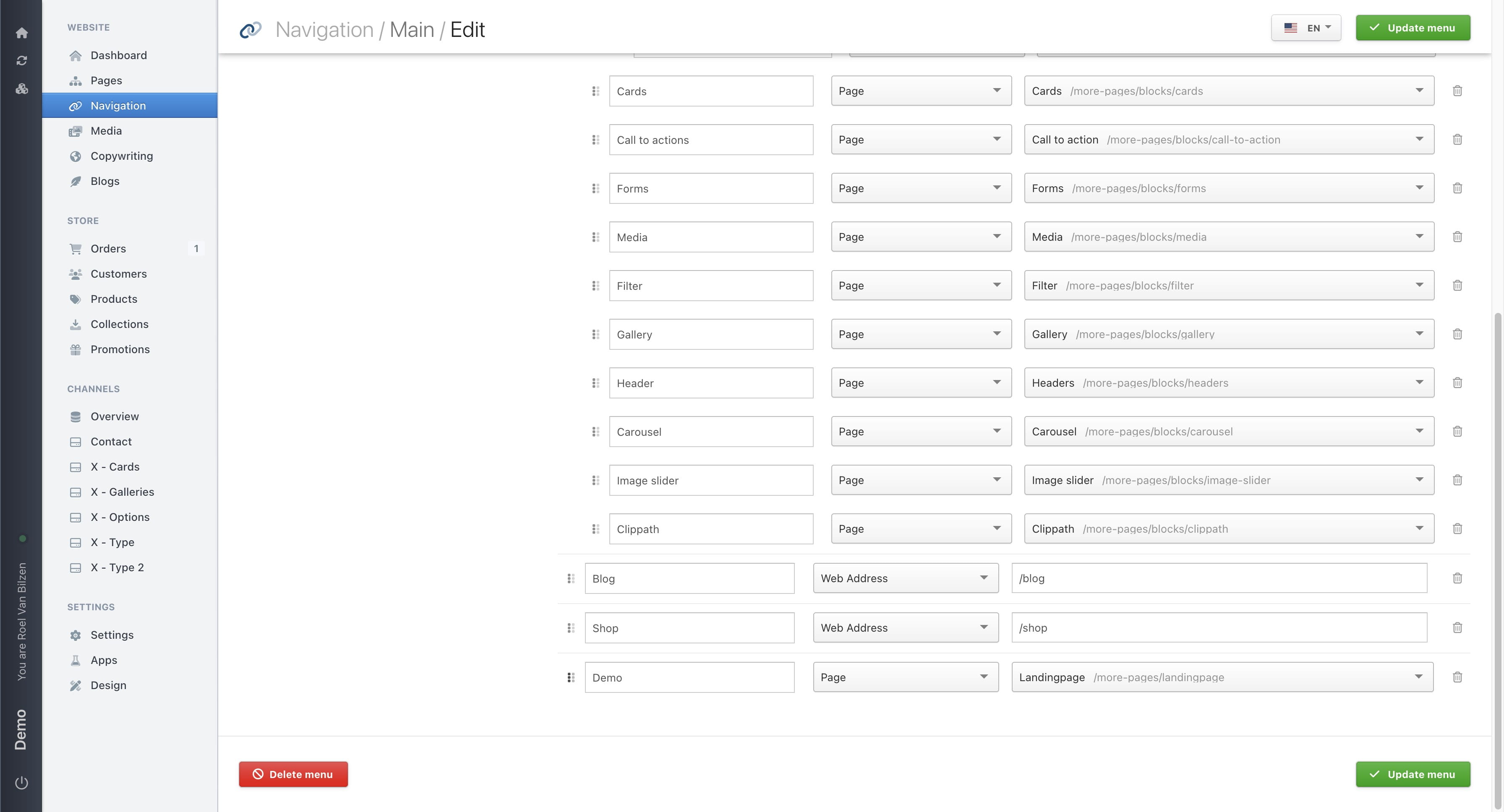
The garbage bin icon will remove the navigation item.
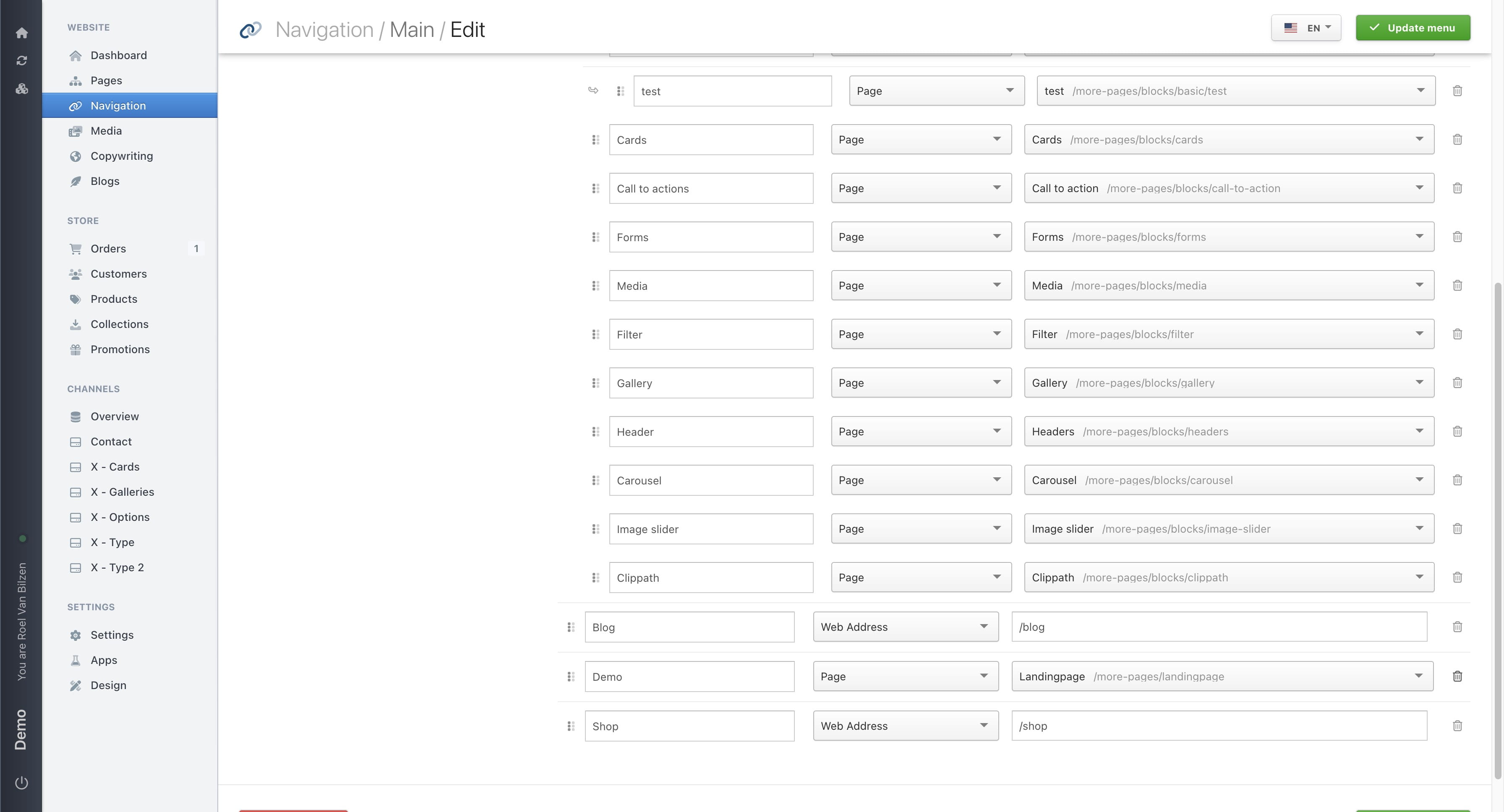
If your site has multiple languages, you can change the corresponding language here.