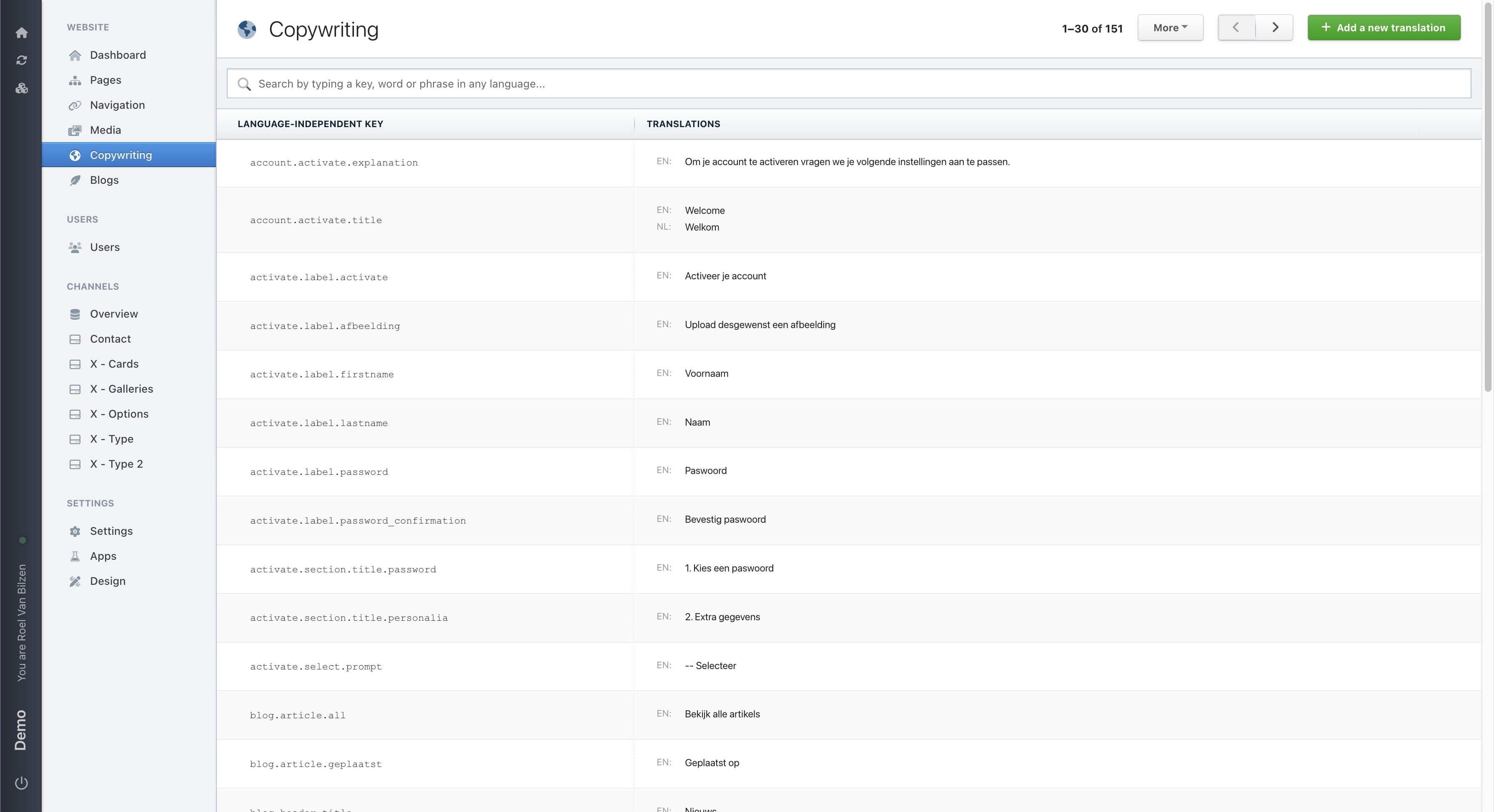
Copywriting
Translate and update embedded text
Navigate to https://[YOUR DOMAIN].nimbu.io/admin
Click on "Copywriting"
Click on the trashbin to delete an entry. Keep in mind that the reference in the code is lost after deleting it. In almost all cases it is not needed to delete an entry.
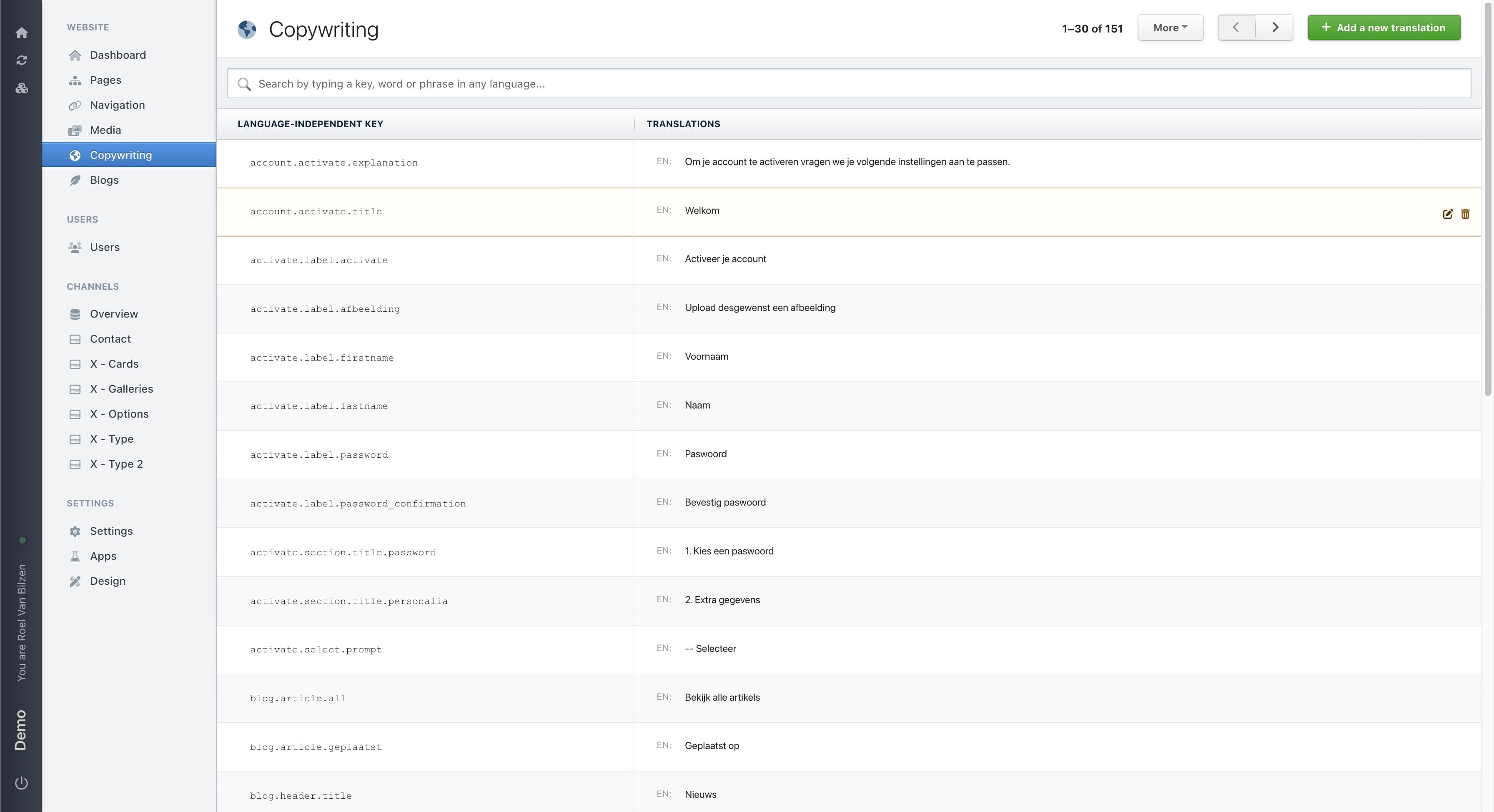
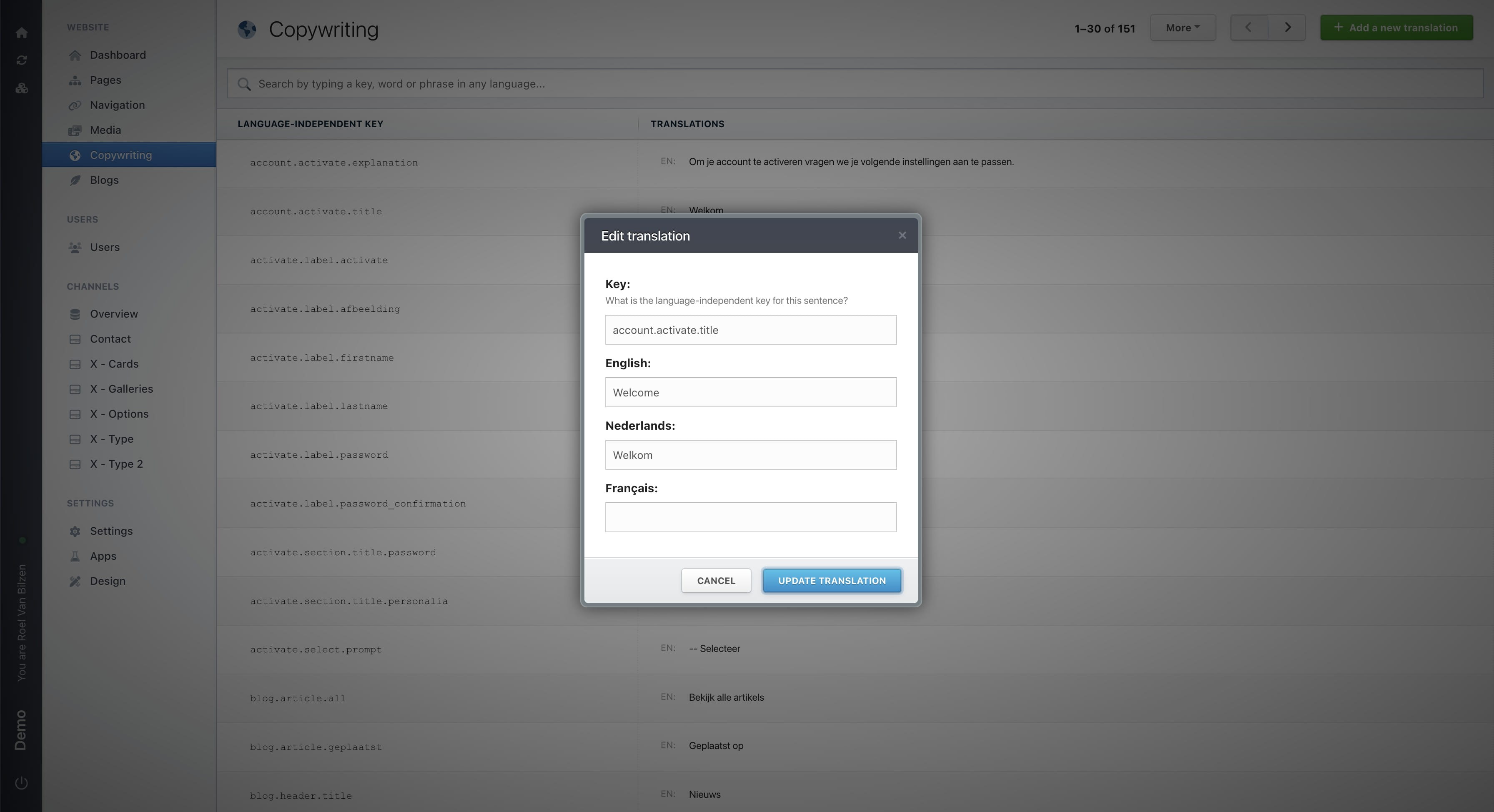
Click on the pen to edit a copywriting entry.
It is not needed to update "Key". This is a refference to the website and code.
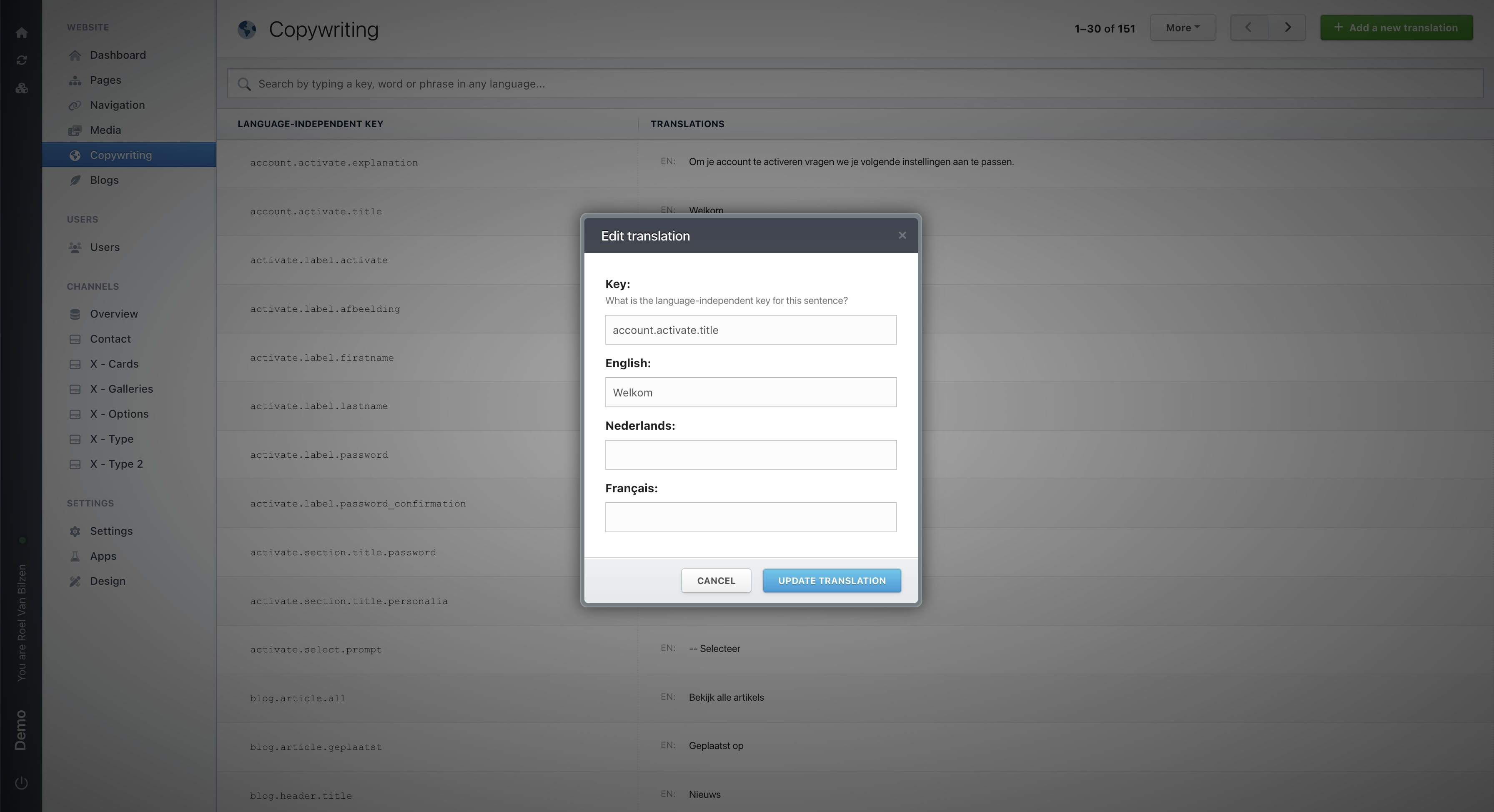
Translate and update the text for each language. If a language is empty, the value of the default language of the site is chosen. Most cases this is Nederlands or English.
Click "Update translation" to save all changes made.
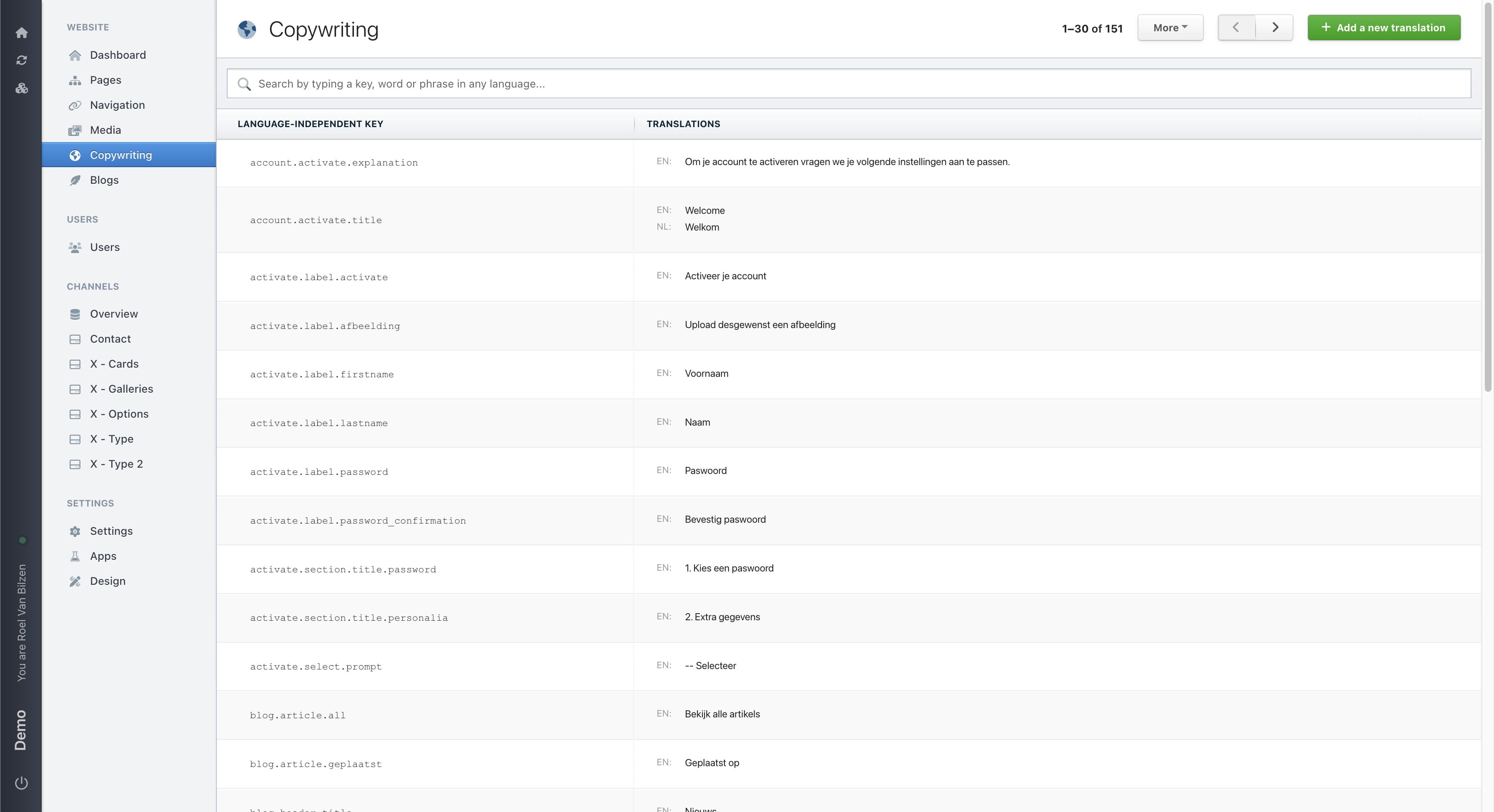
You can search the different entries to find a certain phrase of word. You can also lookup on key value.
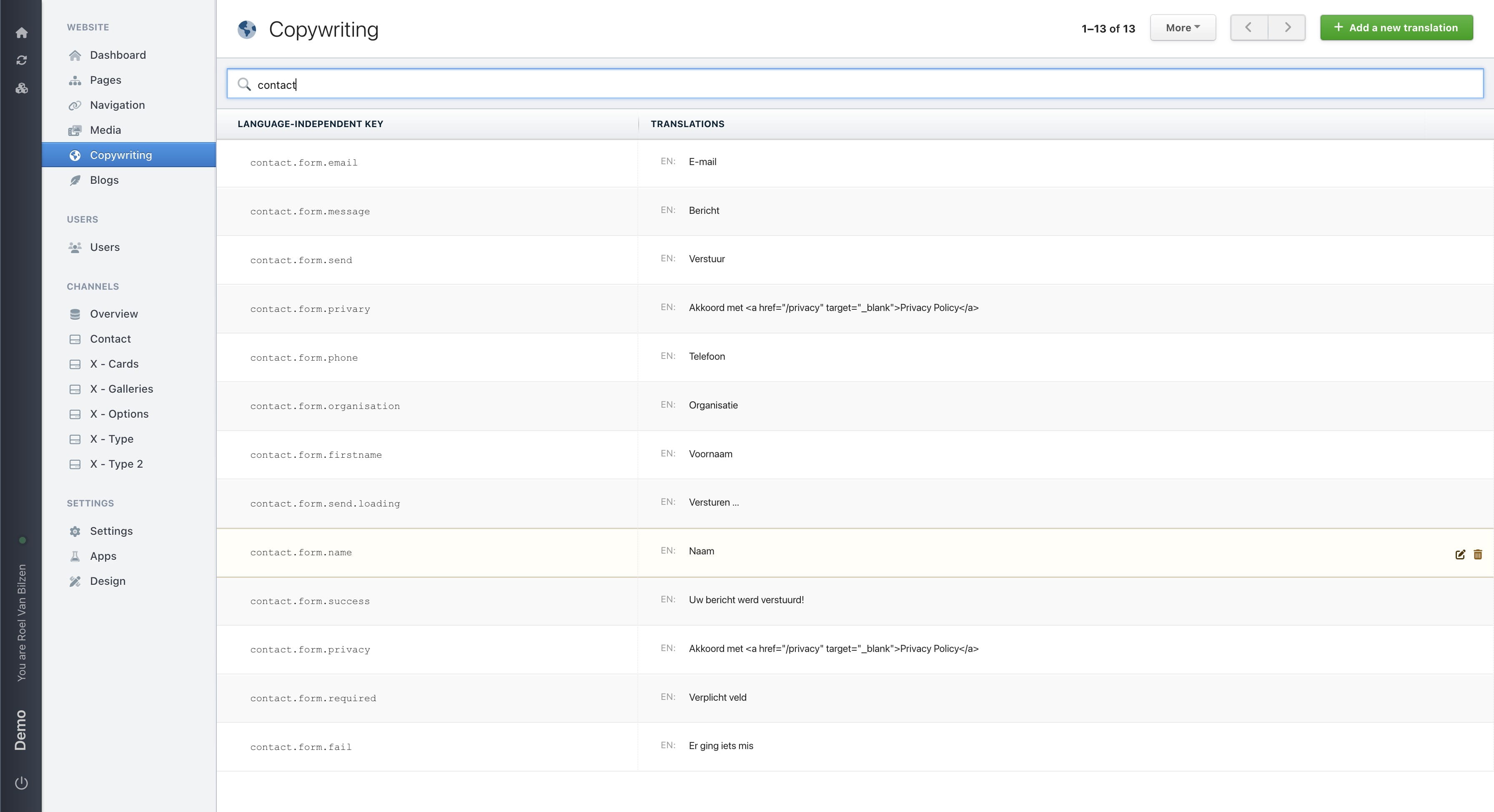
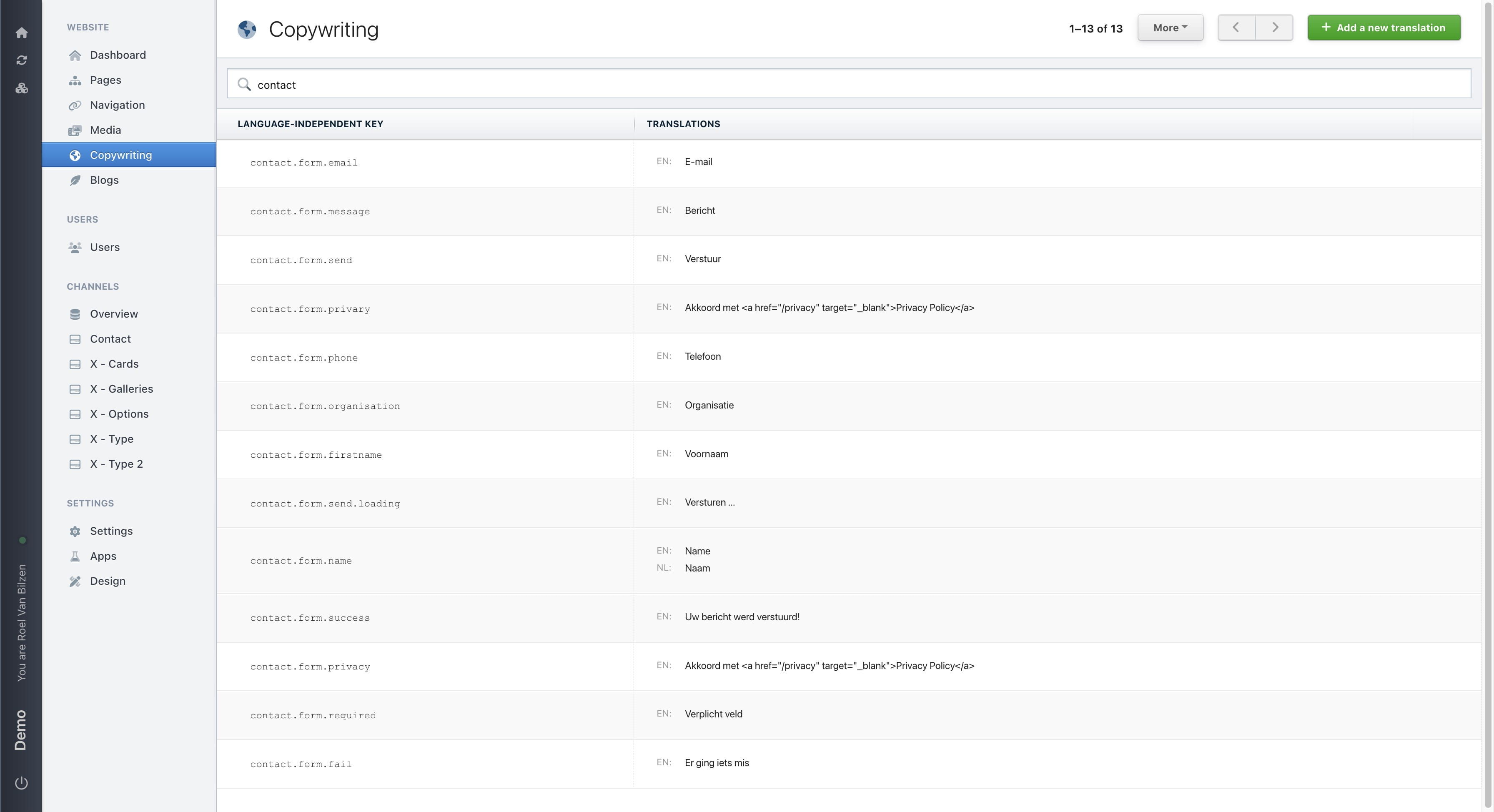
For example "contact" will return each entry containing "contact". This includes all keys with "contact". Keys are logicaly structured to indicate where a tranlation is used in the site. Searching for contact, will return all translations for the contact page.
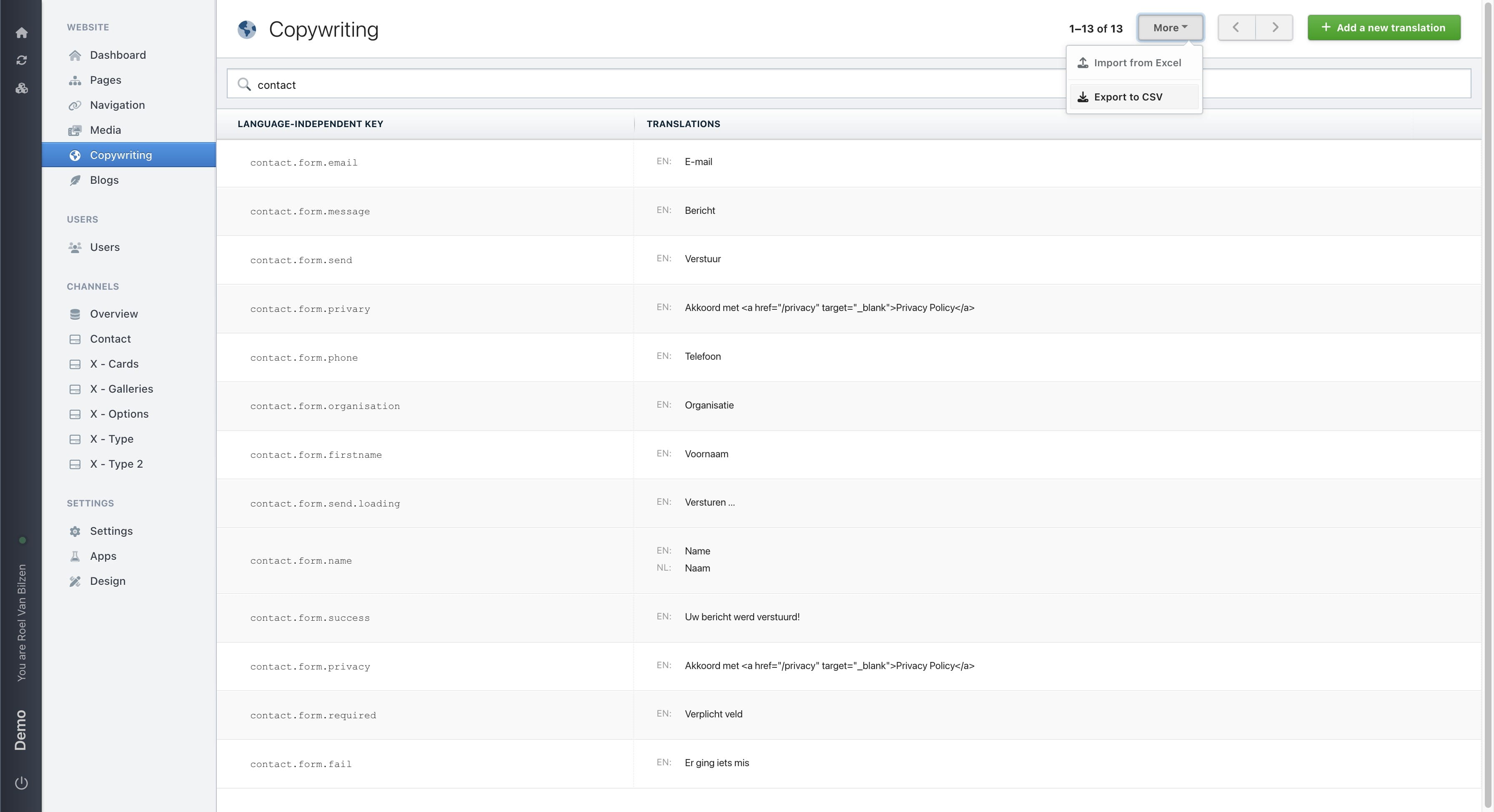
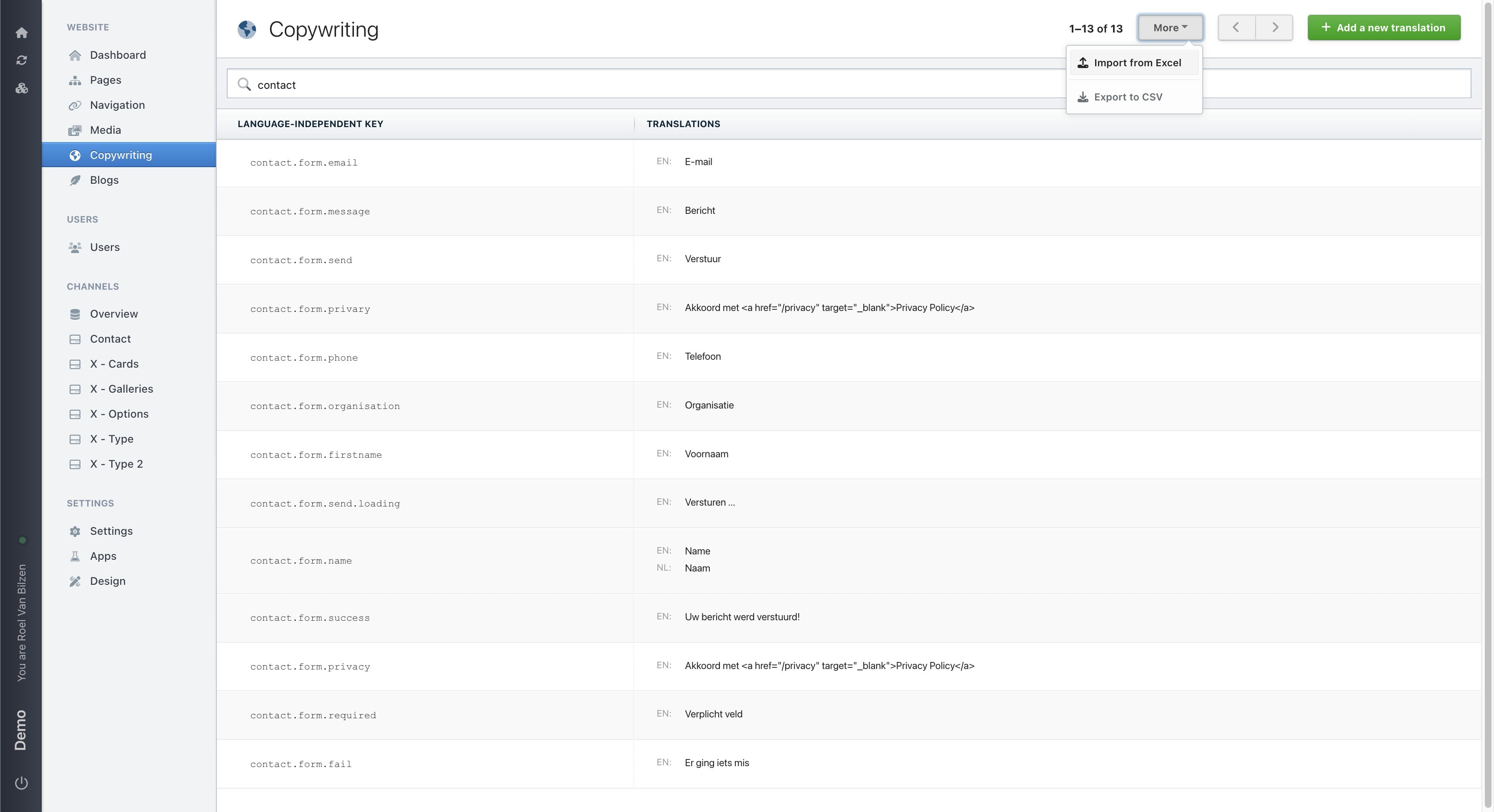
Click on "More" for more actions.
"Export to CSV" will send a mail to you with the csv of all translations.
"Import from Excel" makes it possible to add new and update excisting translations that are in the excel.
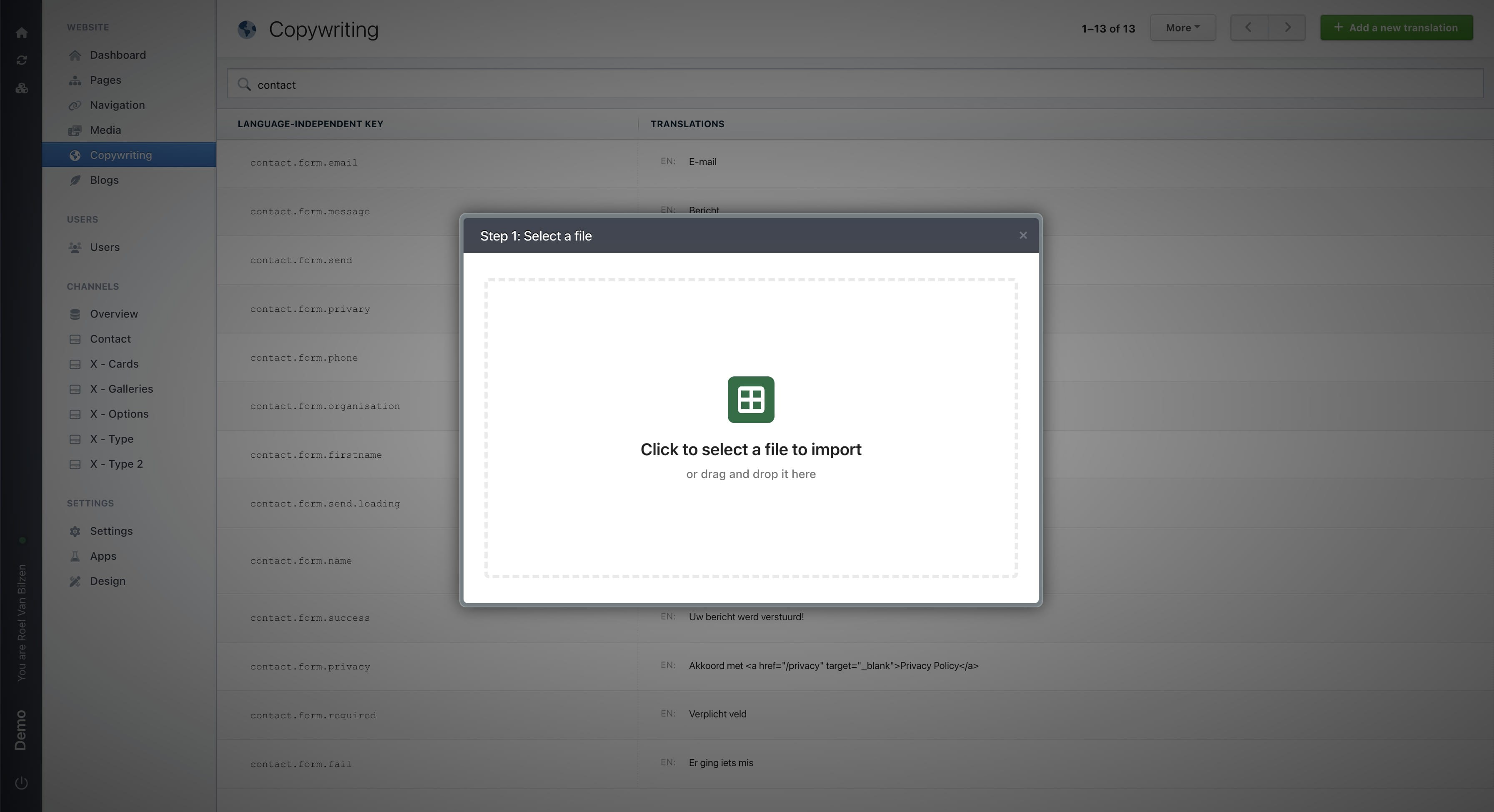
Drag and drop an excel file you wish to upload. Or click to select an excel file.
Connect the column name of "Copywriting" to the correct column in the excel file. "Choose a field" gives a dropdown of all the possible fields.
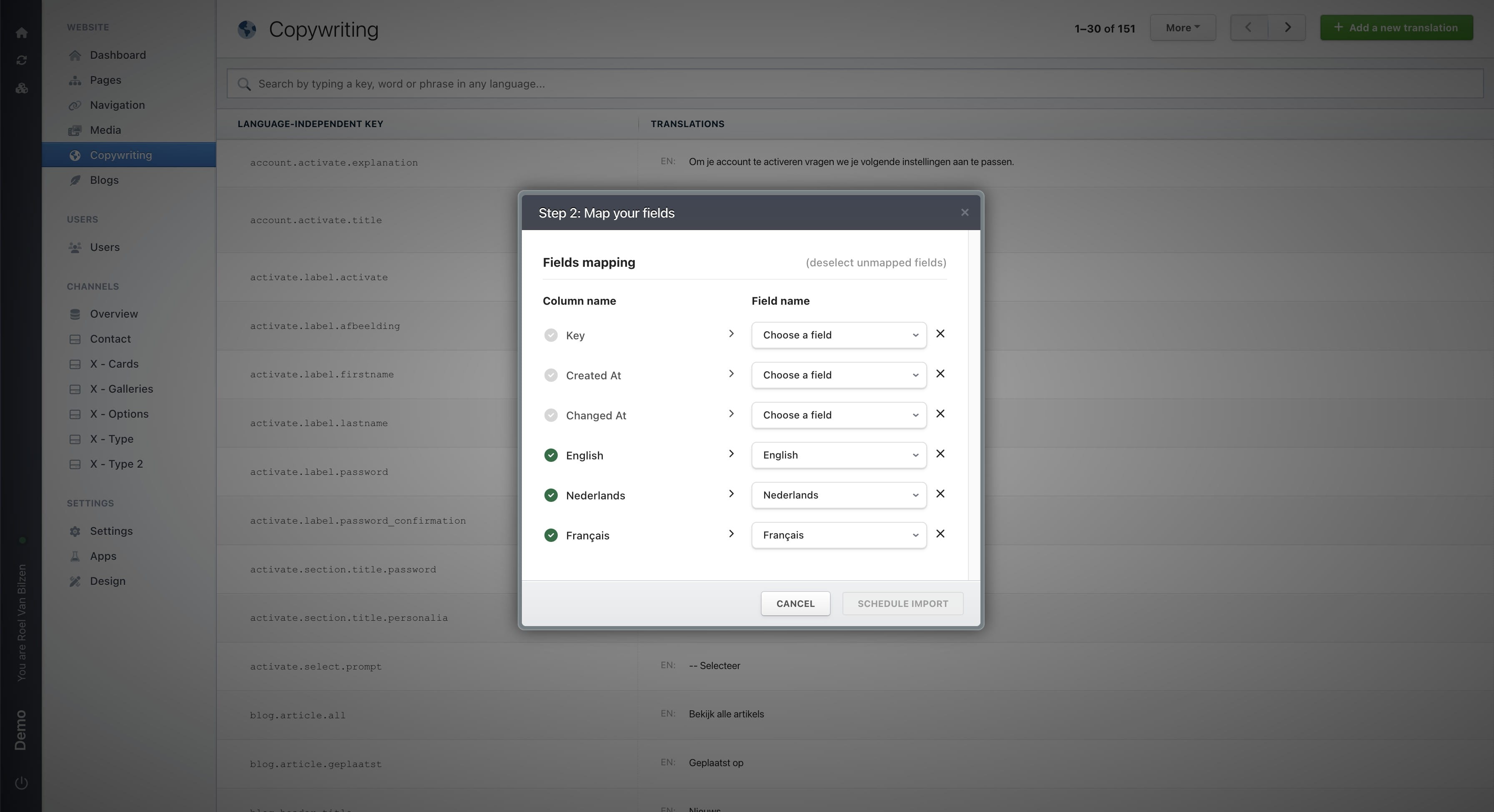
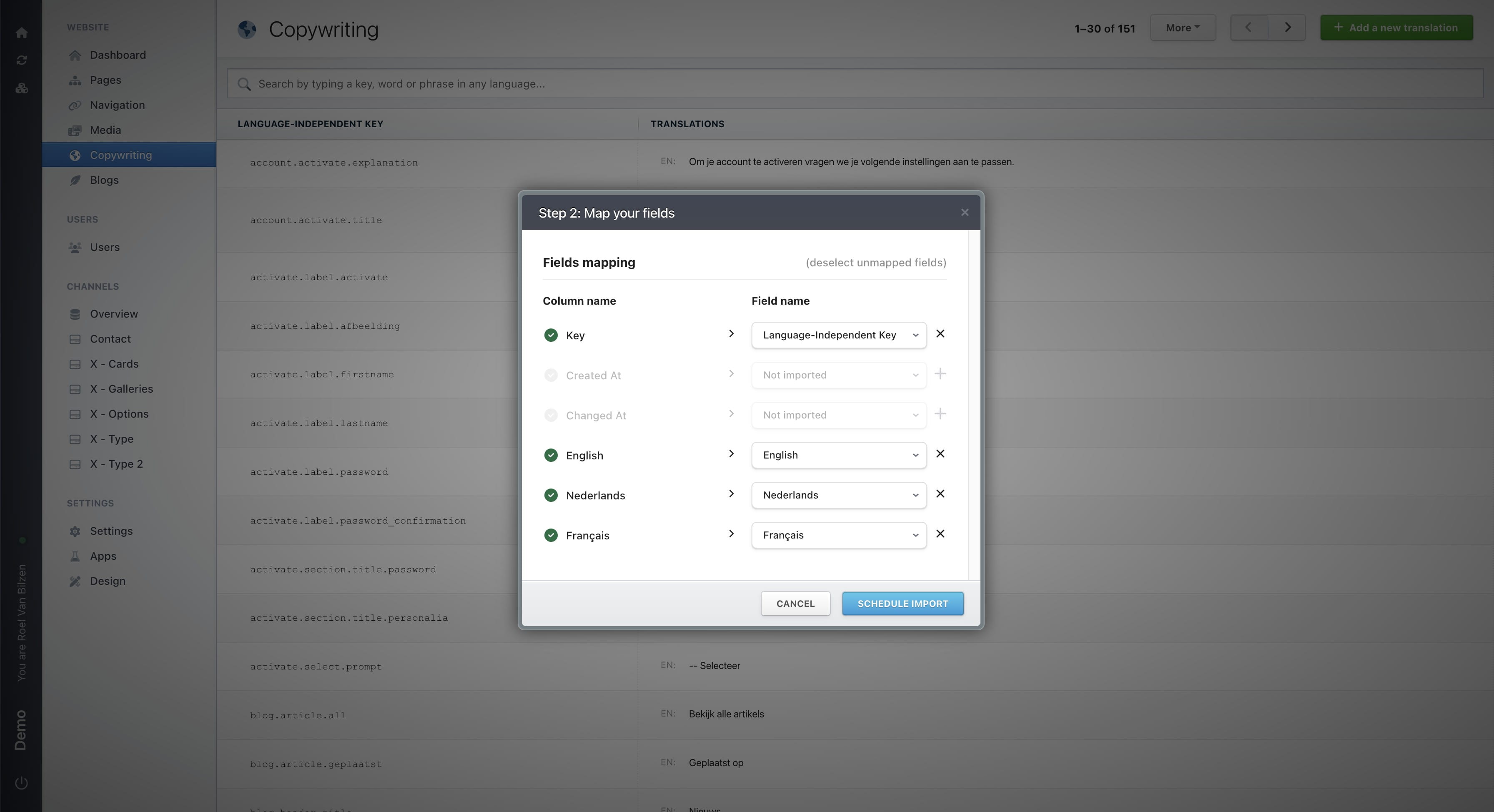
Click on "(deselect unmapped fields)" if all field that are necessary are connected. It is not needed to connect all different columns.
If you only want to update the English text, you only need to connect the English and Key column. The rest will remain unchanged.
The Key column is needed to find the correct entry to update.
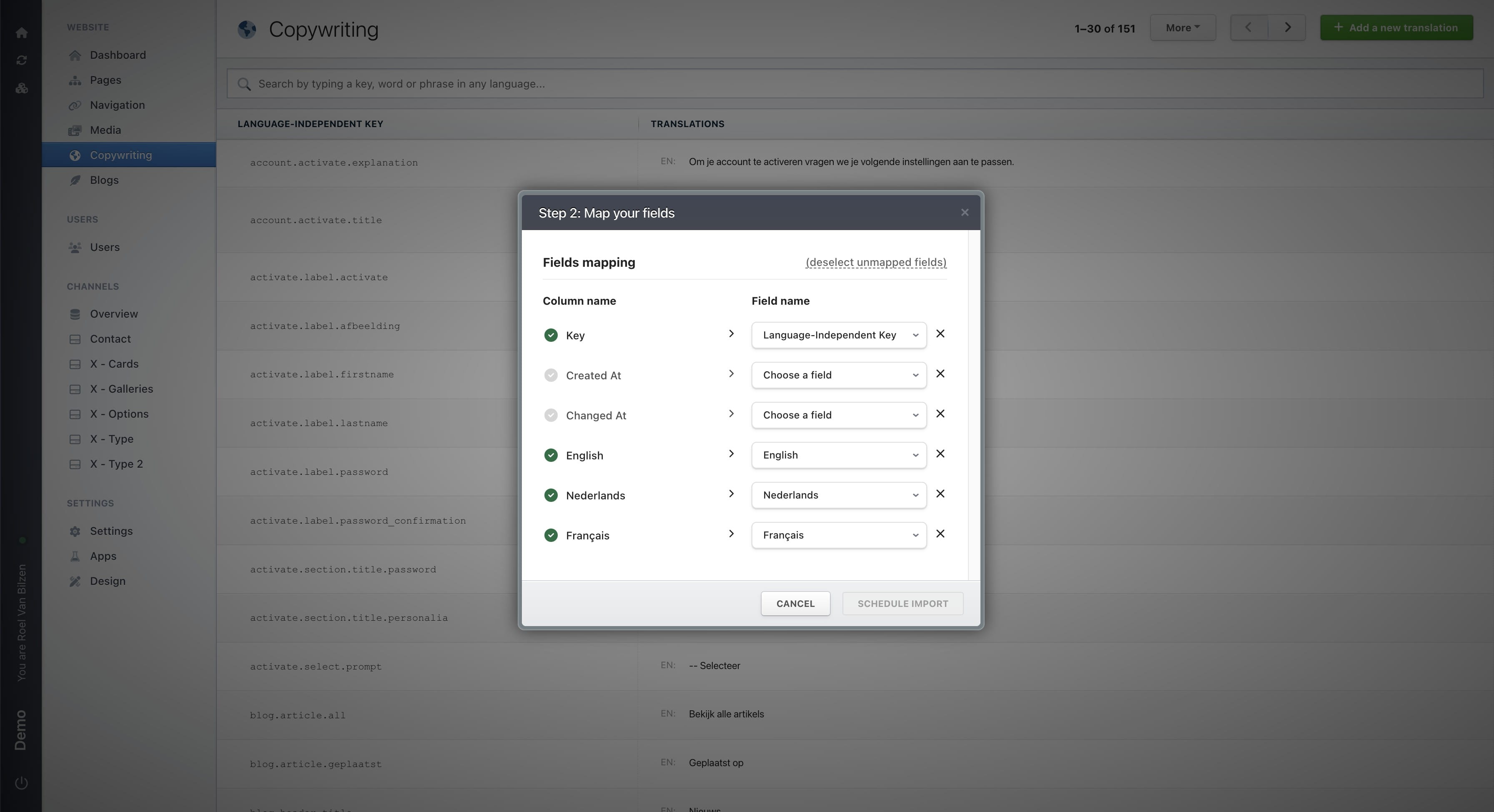
Click "Schedule import" to update all translations based on the excel and the connected columns.
Keep in mind. If you can't find a way to change a word or sentence on the website, it is probably set in Copywriting.