Page Settings
Edit the settings of a page. Choose the parent page, template, link a channel, set visibility of the page and set language settings.
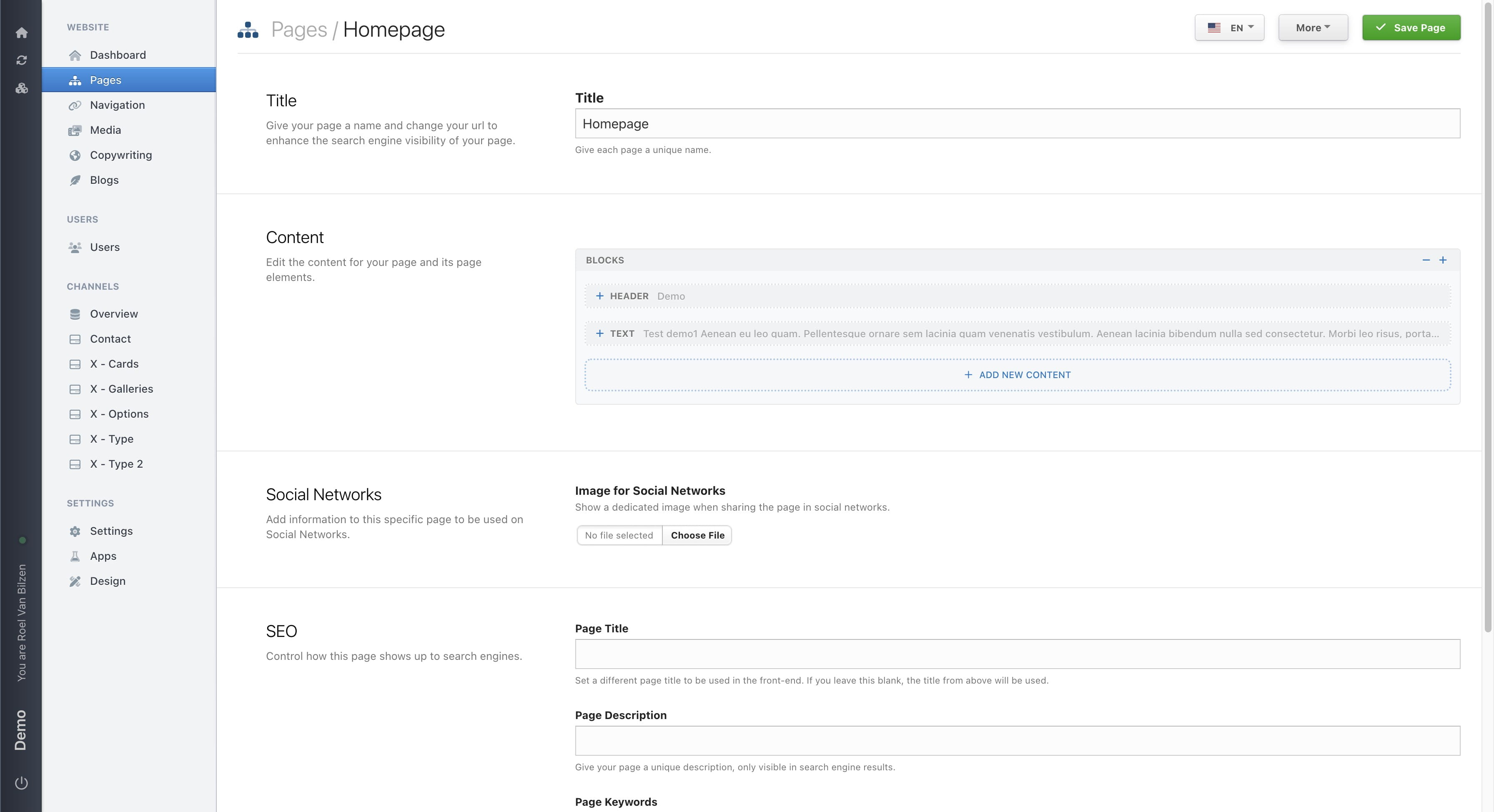
On a page click "More" to navigate to the page settings.
Click on "Change settings" will open a popup with the page settings.
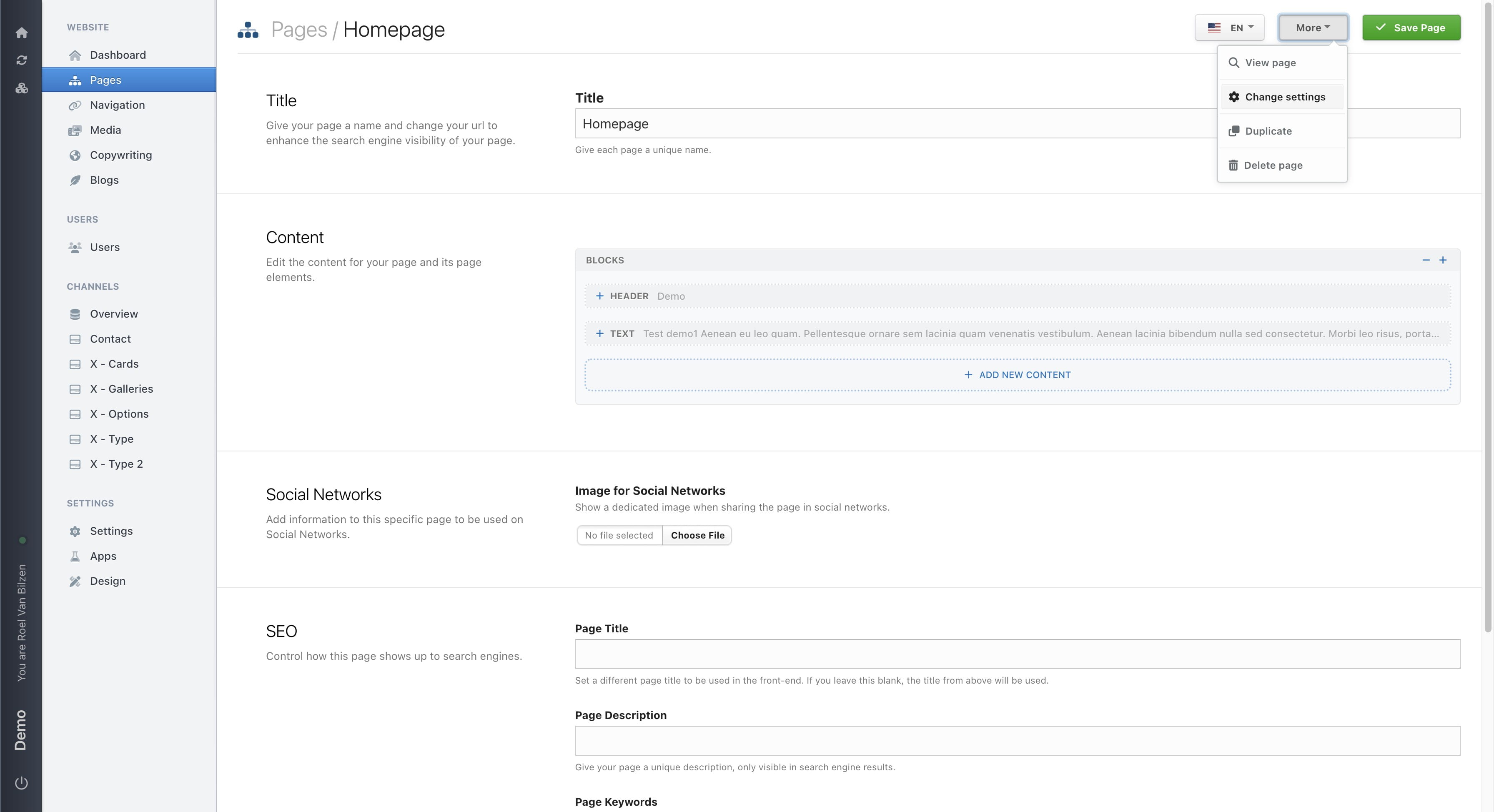
The different page settings are grouped by page, channel, visibility and langauage. On the homepage you have fever settings as on another page.
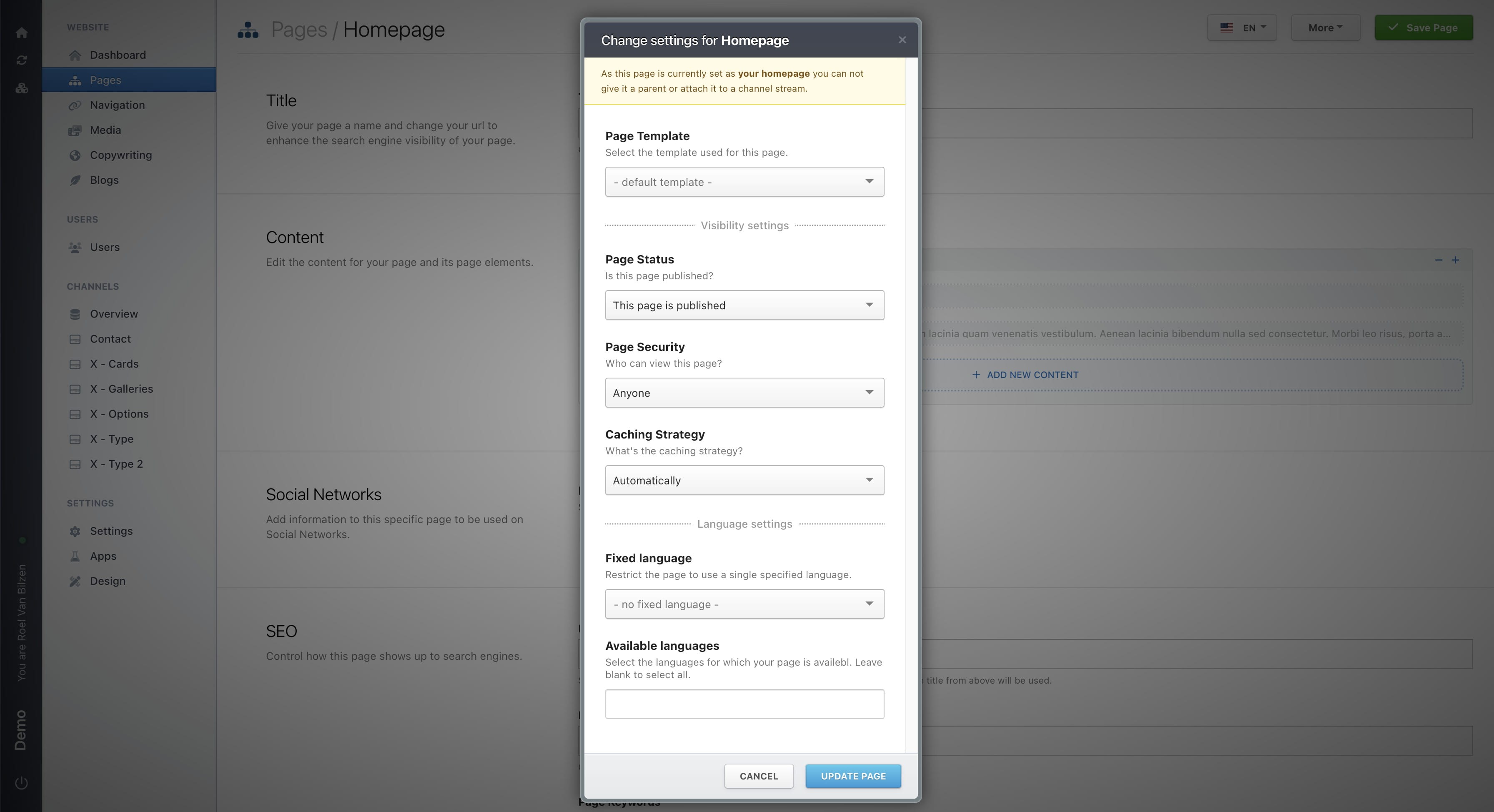
Select a page template. This is in most cases "page.liquid".
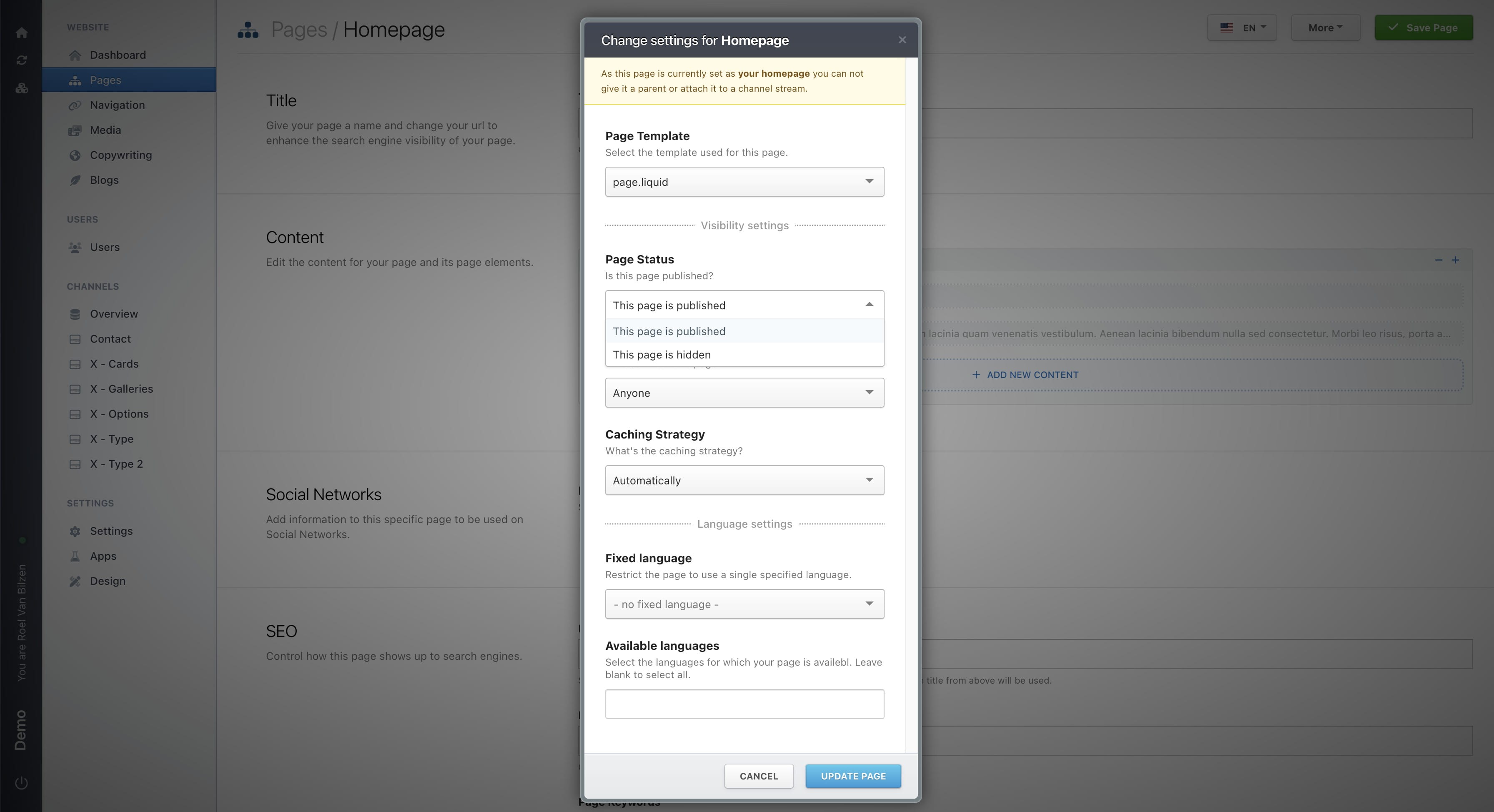
Besides the button to publish a page, it is also possible to publish or hide a page in the settings.
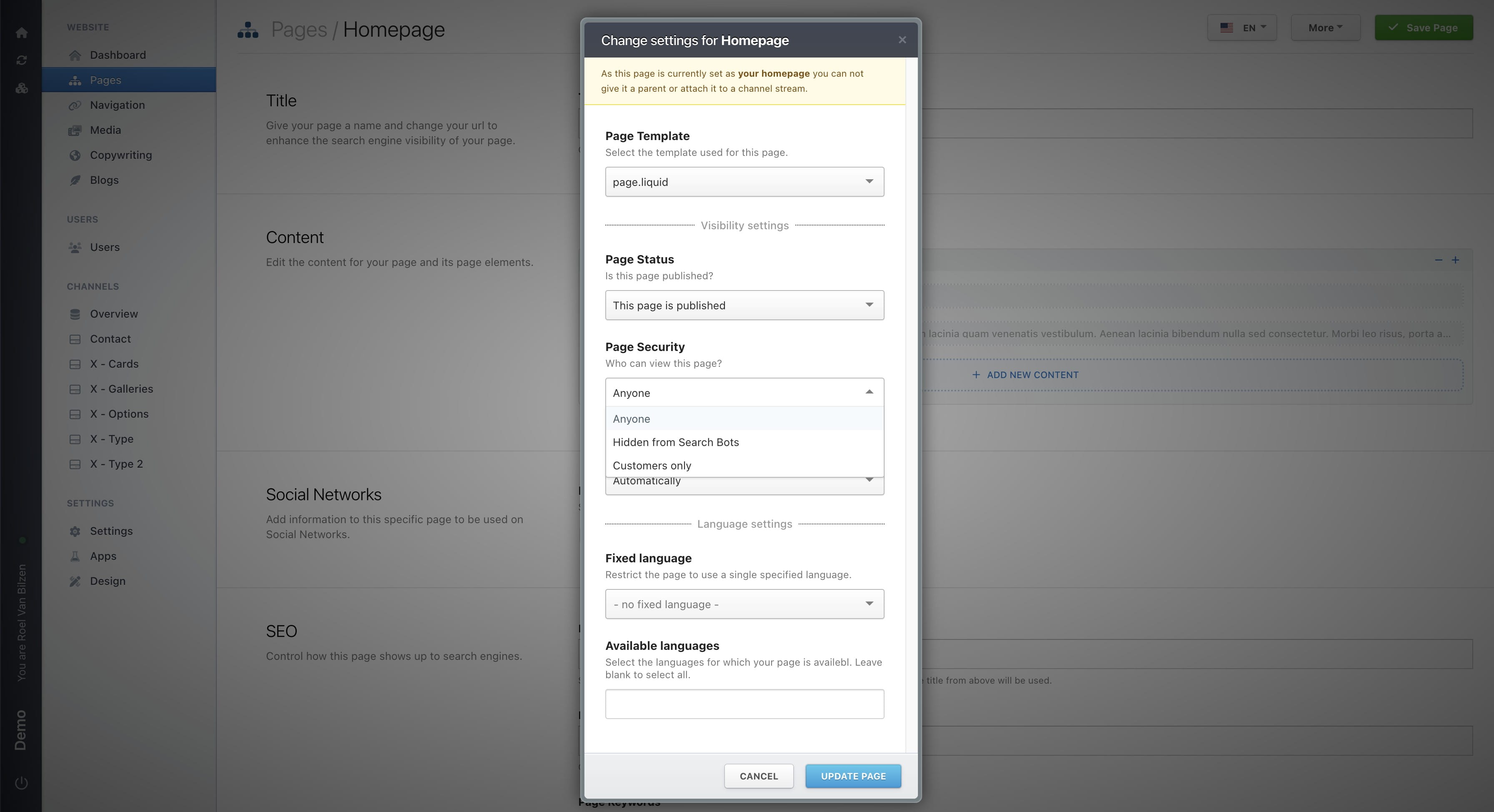
Who can view this page? Anyone, anyone except search bots or customers only. Pages will be hidden behind a login if customers only is selected.
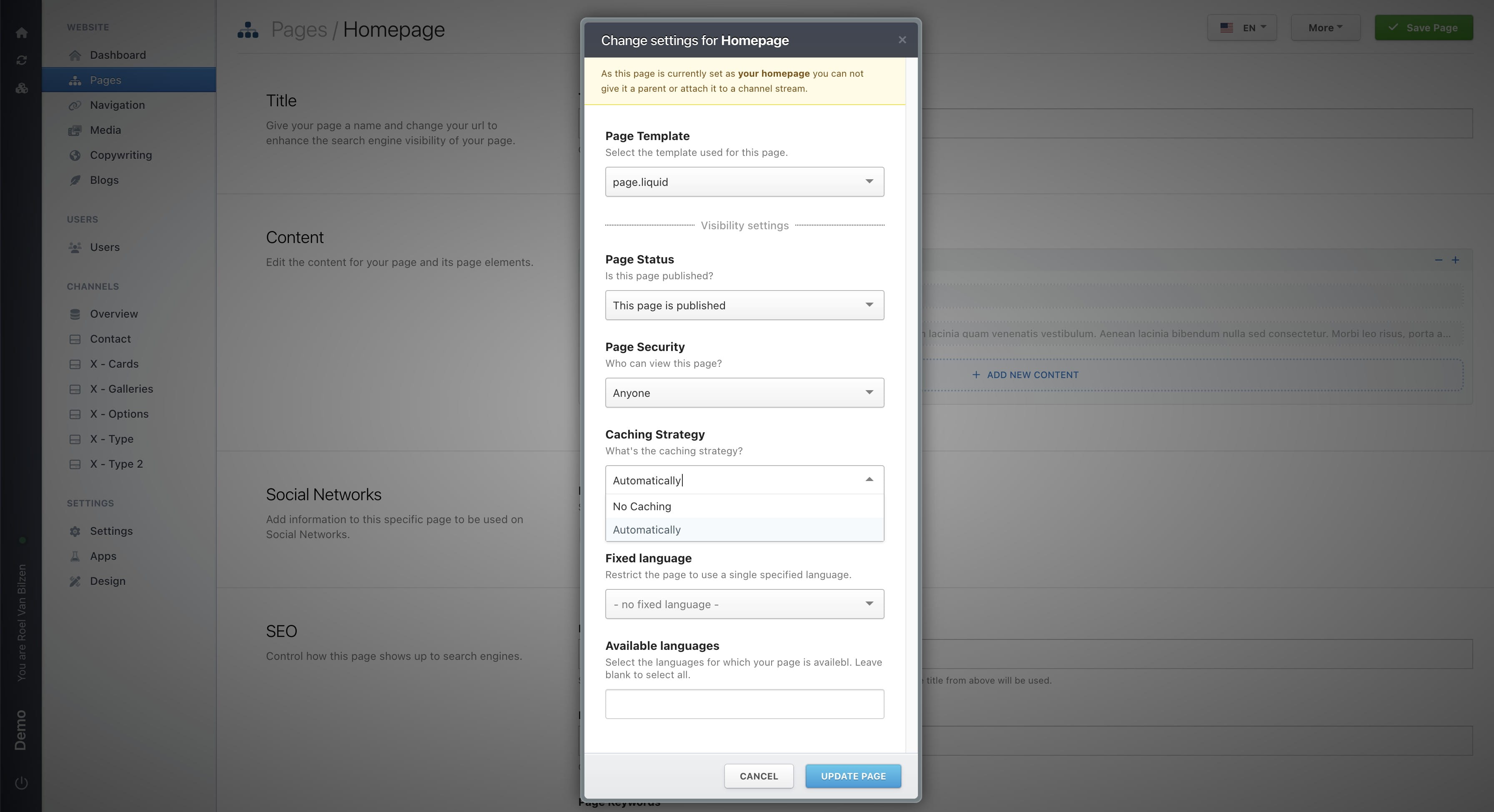
Is the page automatically cached (default) or should caching be prevented. Cached pages will load faster than pages without caching.
Pages can be translated into multiple languages when the site has multiple languages. This option restricts the page language to only one.
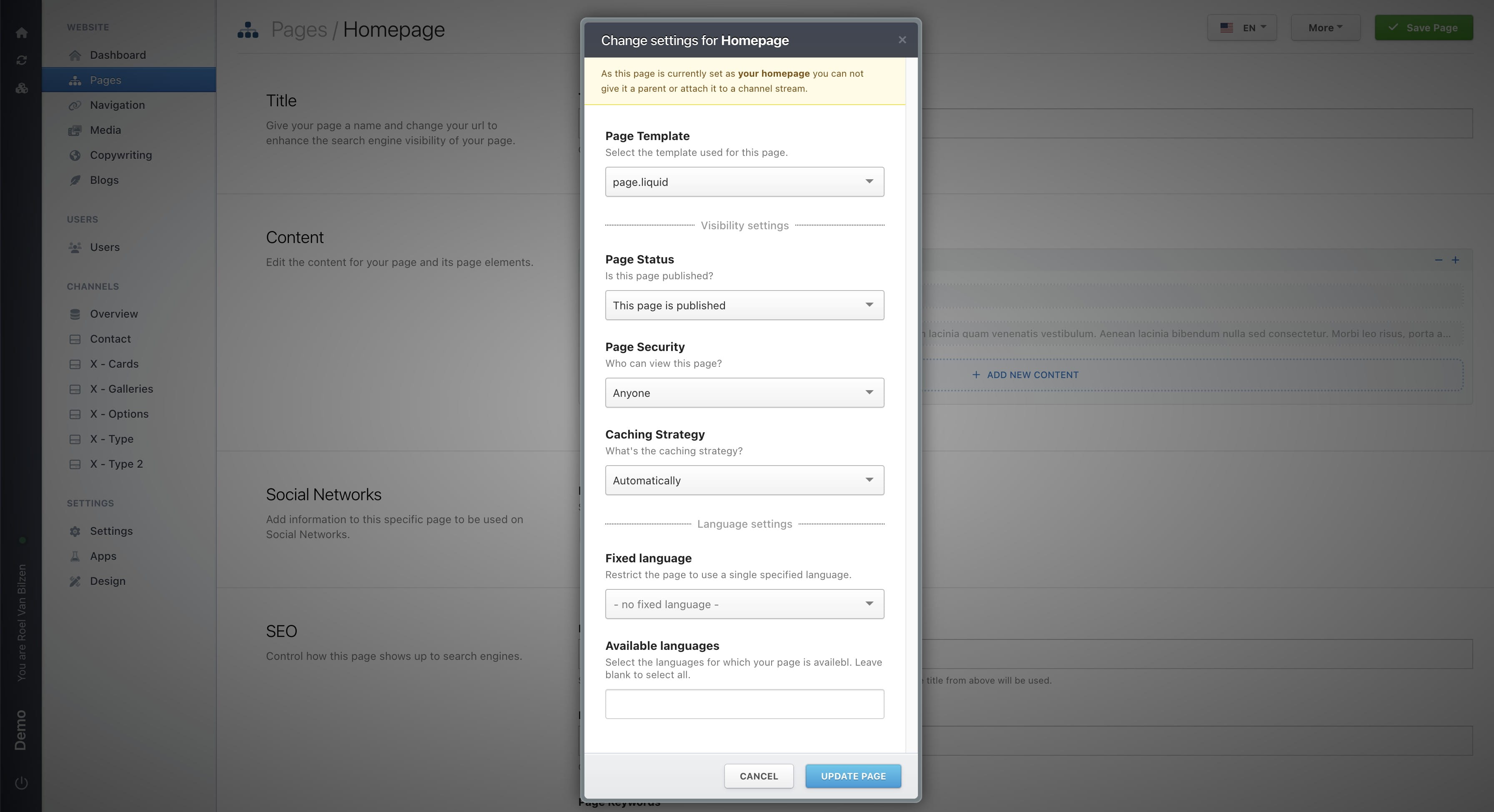
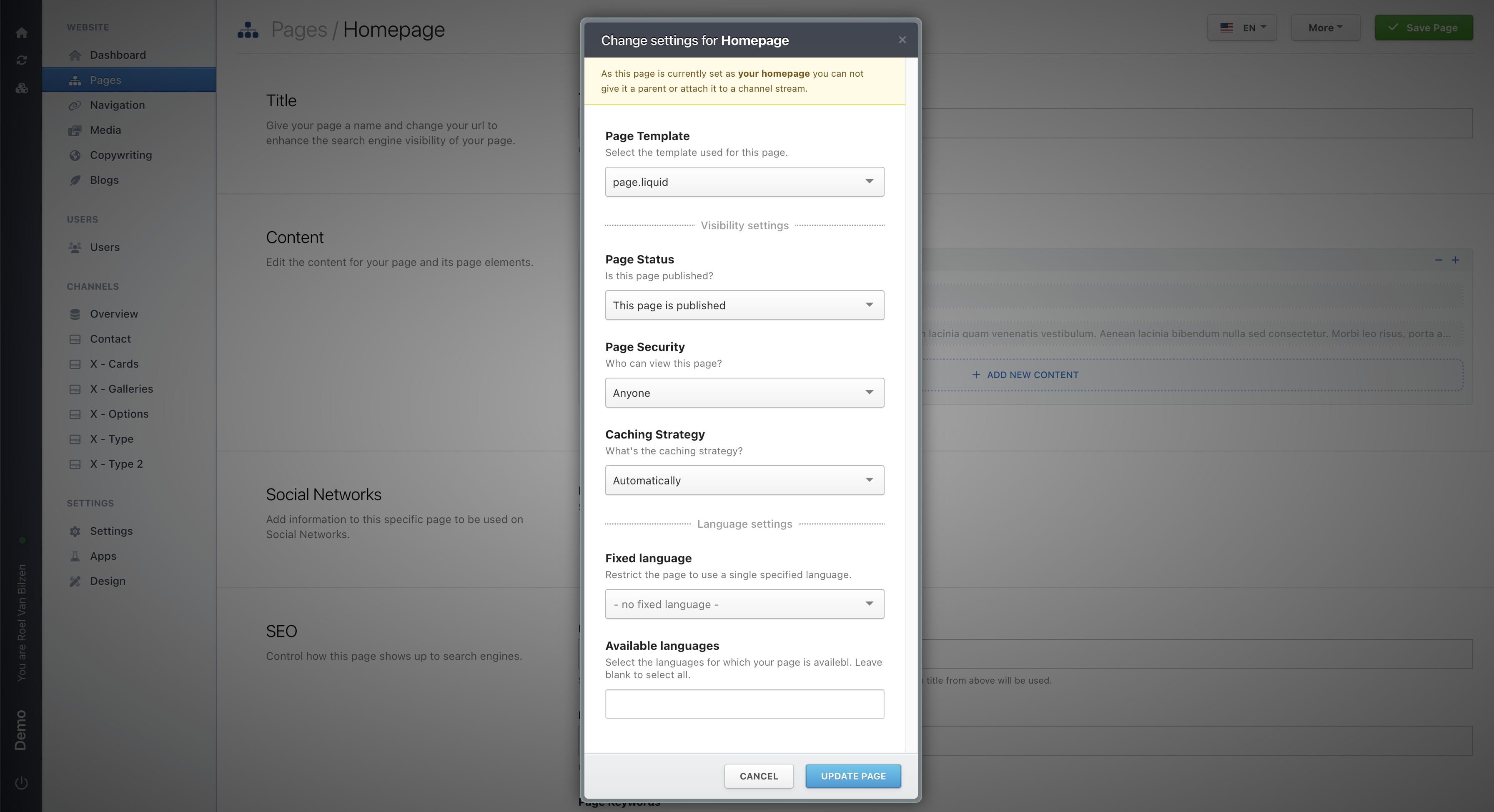
Instead of only having one fixed language, it is possible to select multiple languages in which the page will be available. When left empty, the page will be available in all languages.
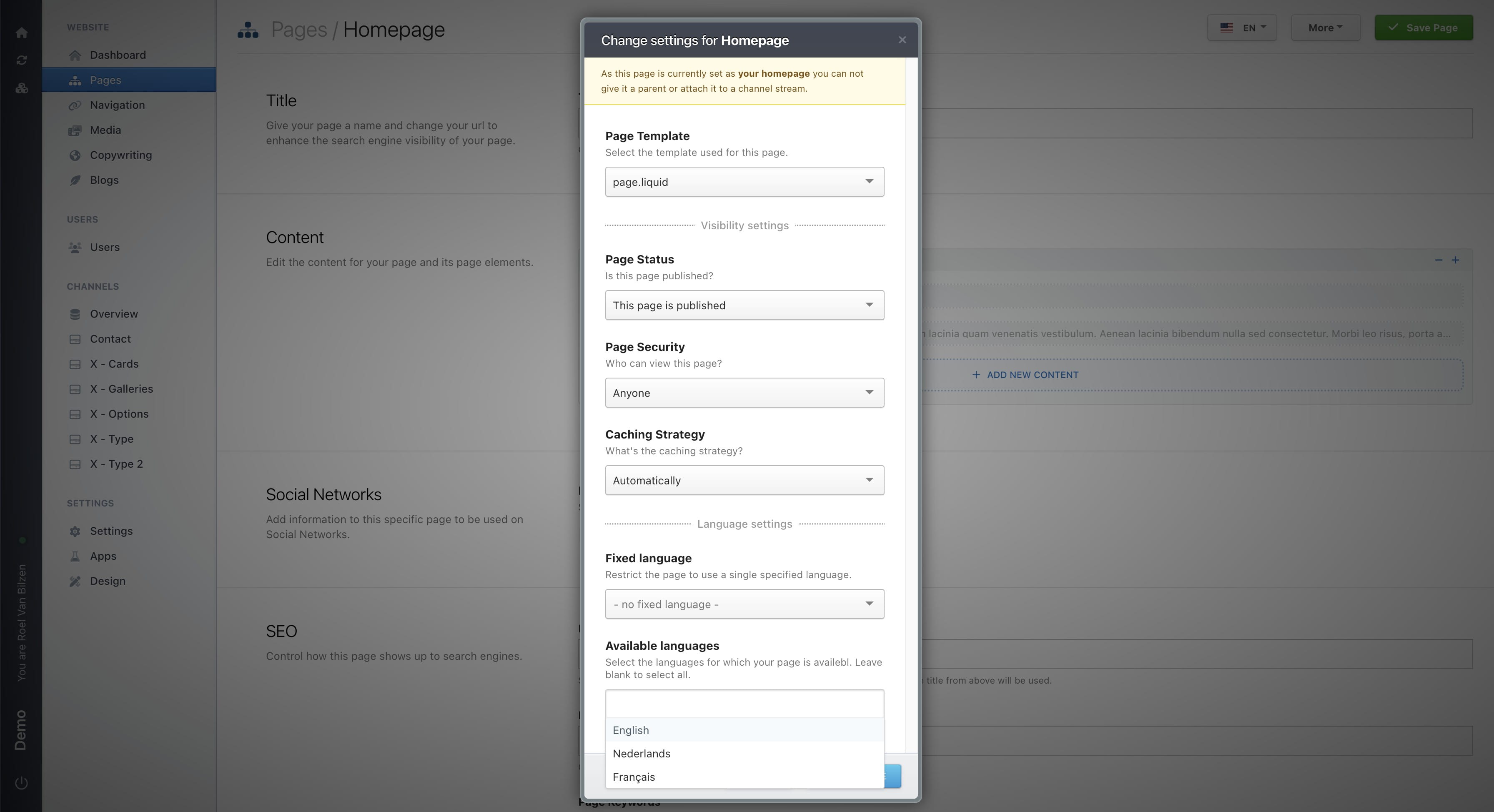
Click "Update page" to save the page settings.
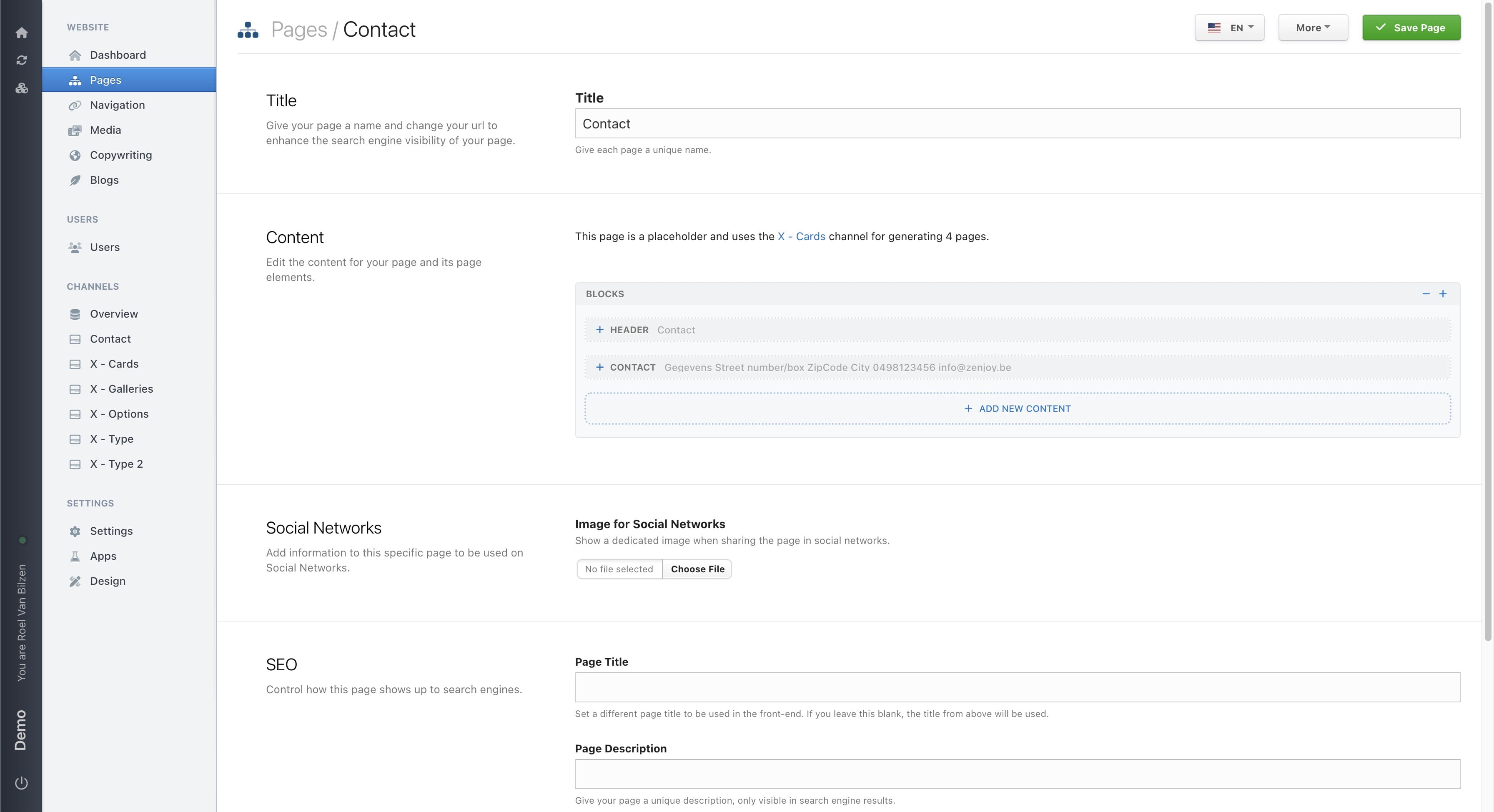
On non-homepage pages you have three more settings: parent page, linked channel and channel filter.
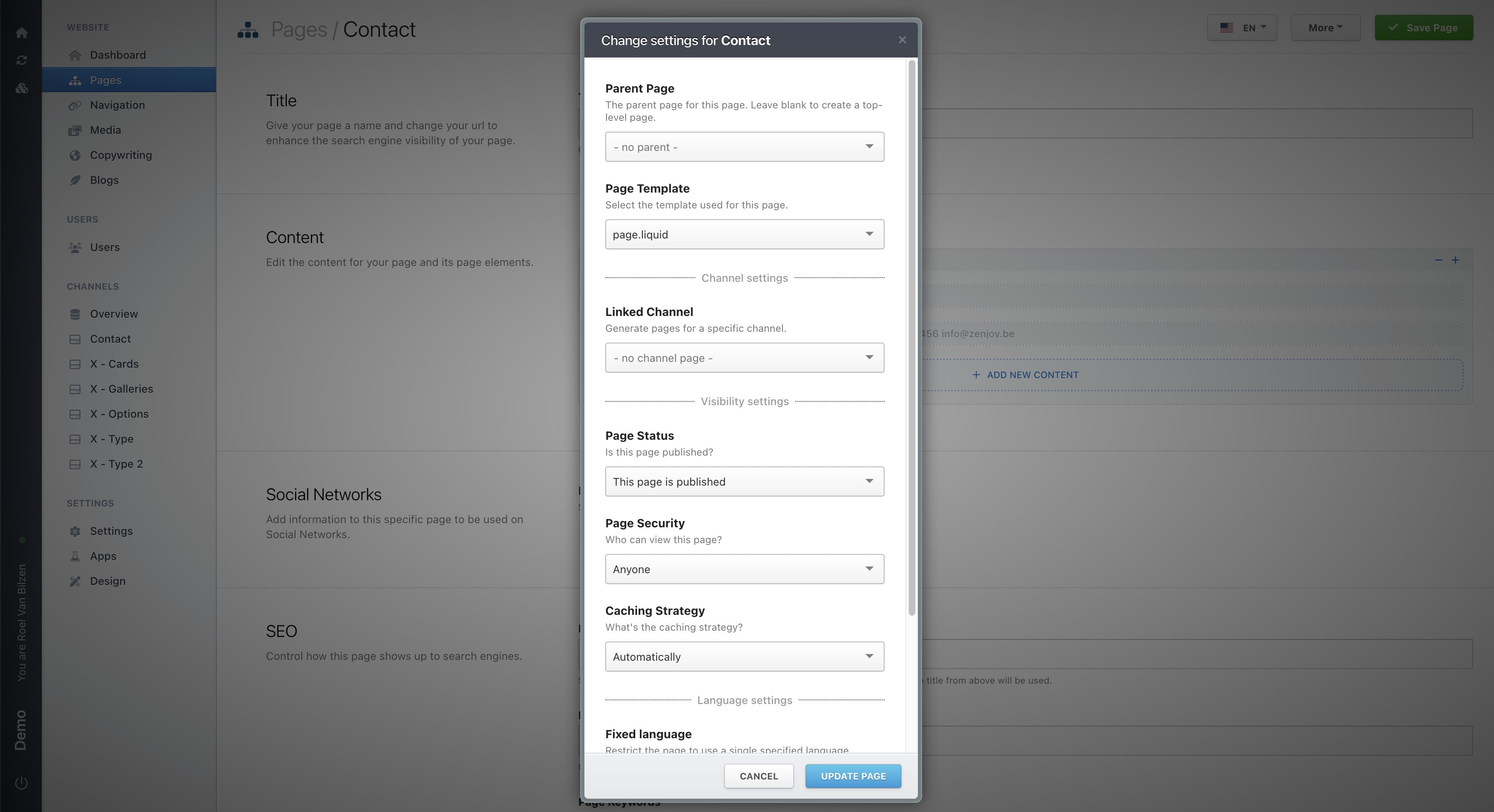
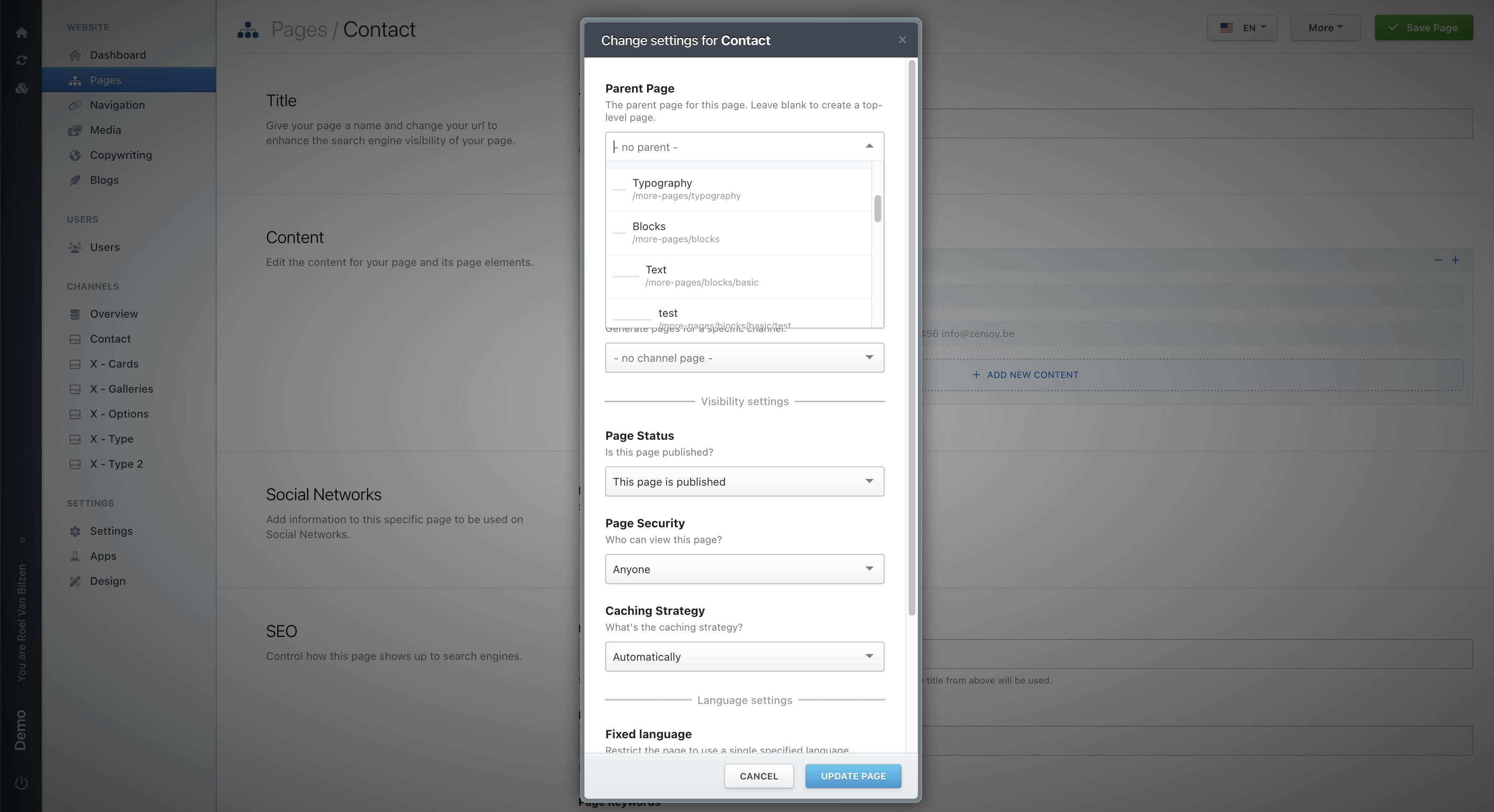
Select the parent page for this page. This will make the structure of your website. If page "/contact" is choosen as a parent for the new page "/form", the URL will be "/contact/form". If no parent is choosen the URL will be just "/form".
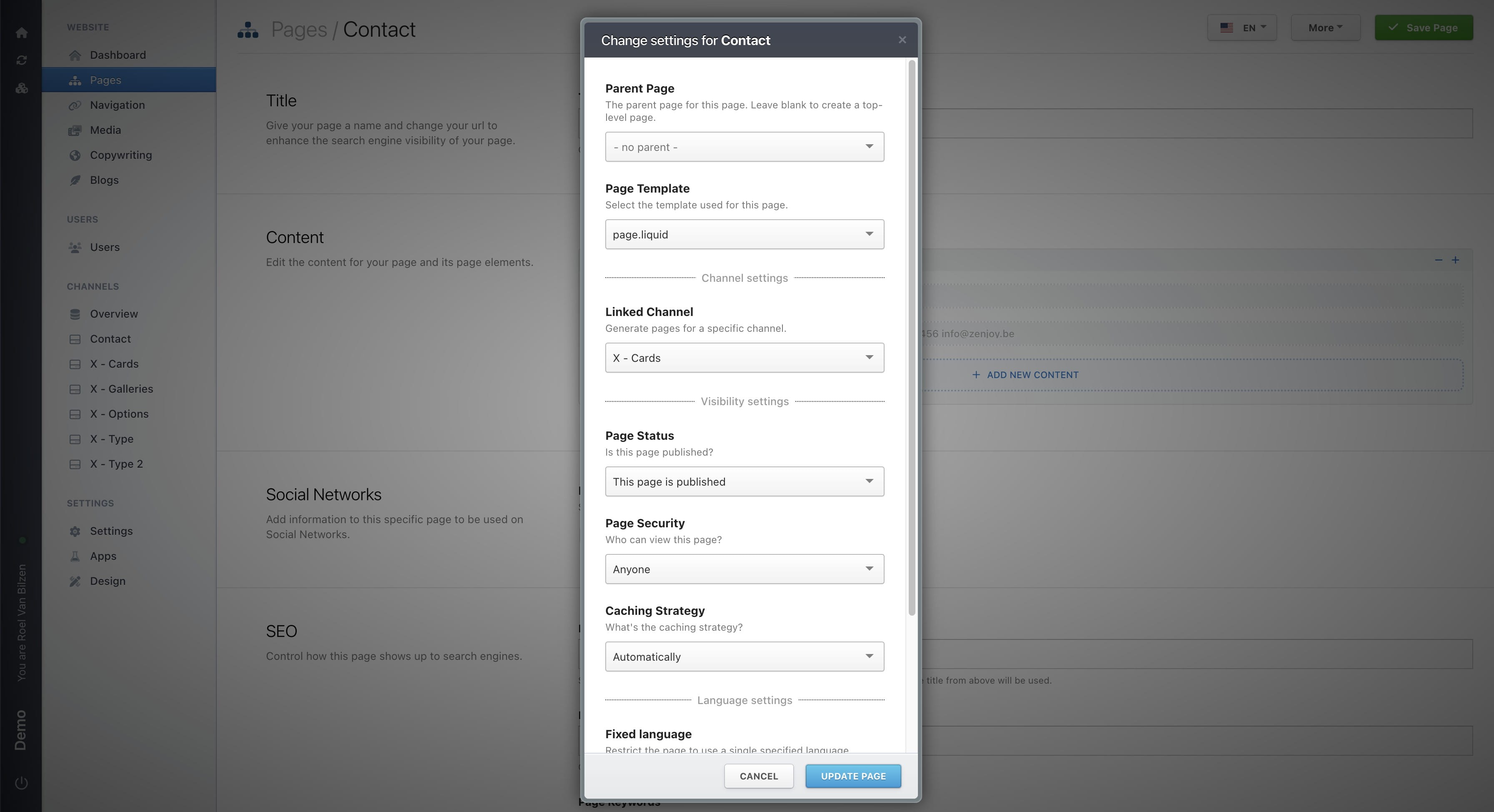
It is possible to link a channel to a page to make a channel page. This will turn each entry in that channel into a page. This is combined by a specific template to visiually show all the entries on it's page. This is a setting that will be set by Zenjoy, since this needs specific coding to visually show the entries.
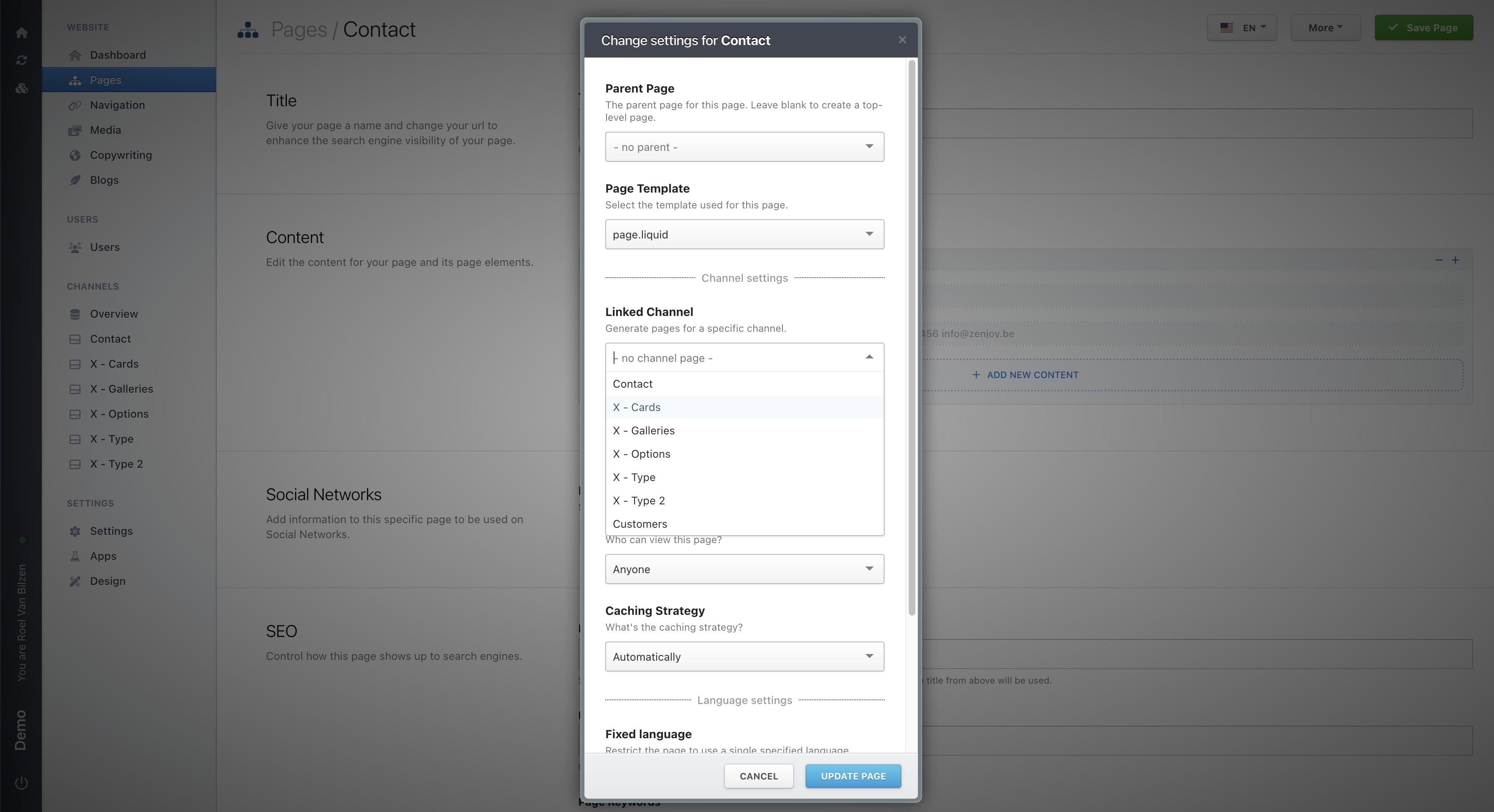
Right now the setting "Channel Filter" is not yet visible. This is only visible when a "Linked Channel" is selected.
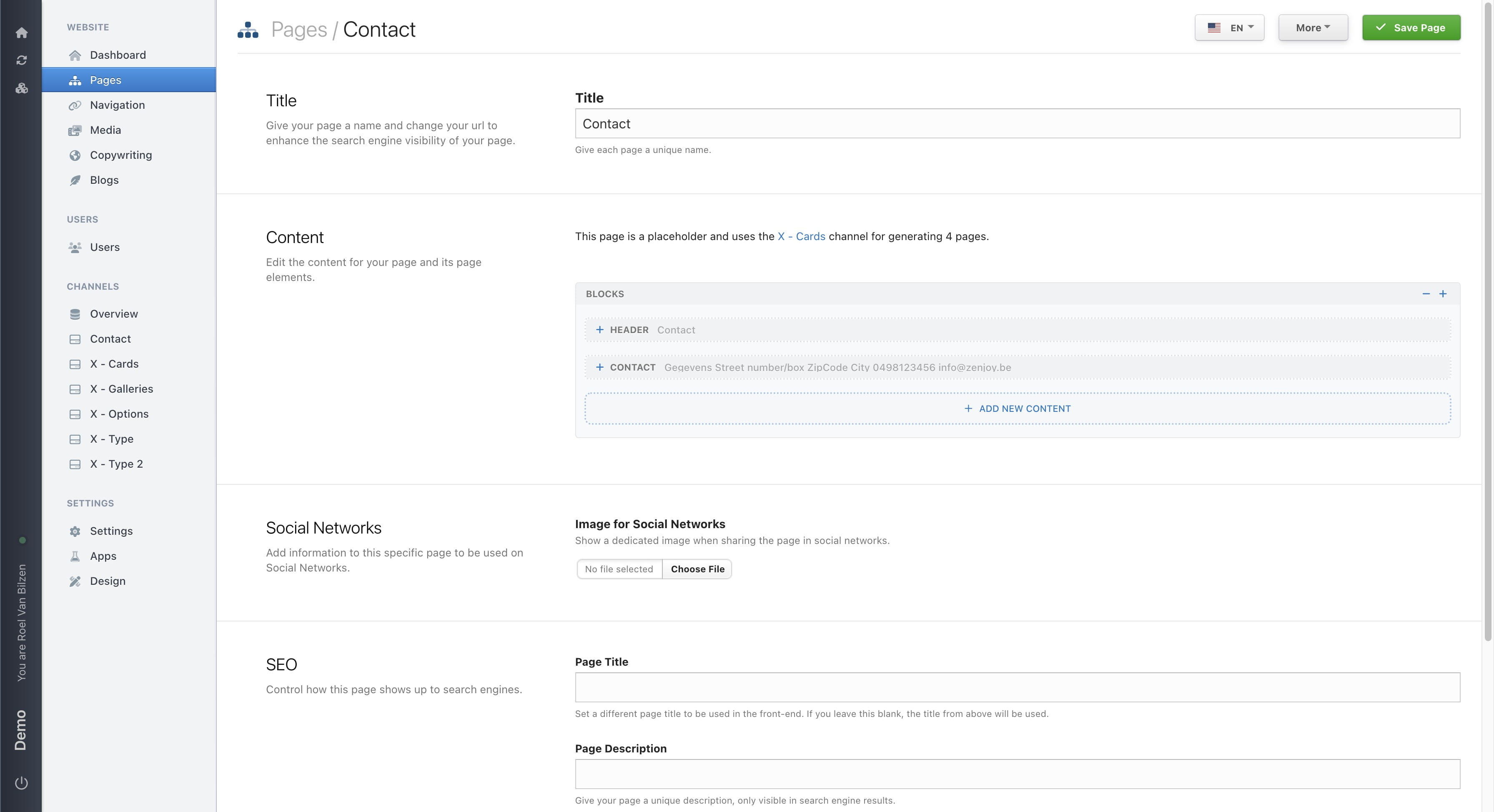
A new text is visible on the page. This will give extra info about the channel page and how many pages are generated. Each entry in the channel now has a link to their page. If the template has custom fields that are the same for all channel pages, they can be filled in or added below the text.
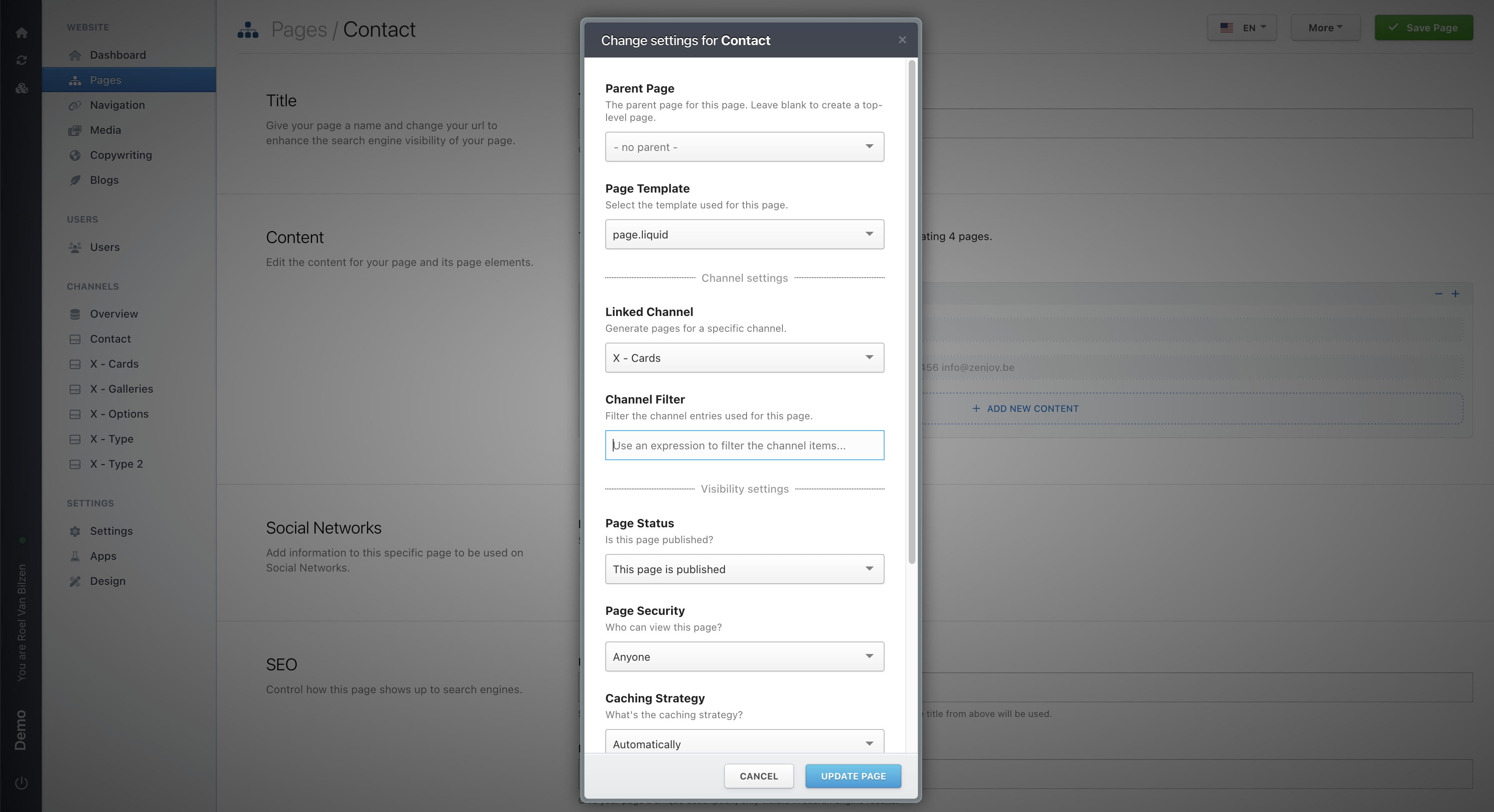
When opening the page settings again, you can now see the "Channel Filter". You can give an expression to filter the channel pages. For example to only show newsarticles that have been published or events that will take place. Only the pages that fulfill the expression will have a page, the others will redirect you to the homepage, if used. This is also a field that will be filled in by Zenjoy when it is need.
In most cases Zenjoy will have made the complex pages. If you need to make changes to complex pages, like channel page, contact Zenjoy for help.